

1. SCENARIO
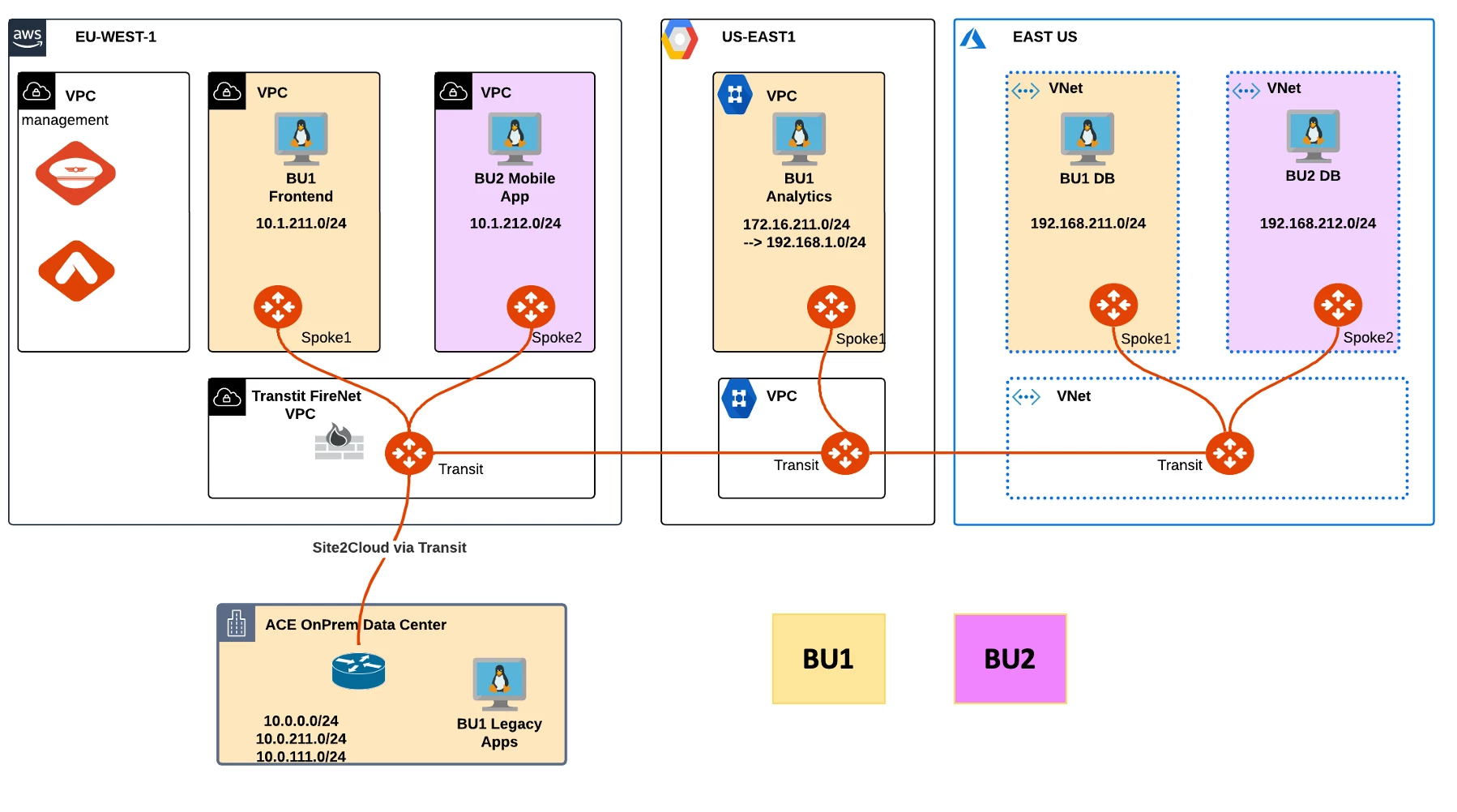
Infrastructure was segmented recently into 2 network domains: BU1 & BU2.
You are requested to ascertain the segregation between the two network domains.
2. VALIDATION REQUEST
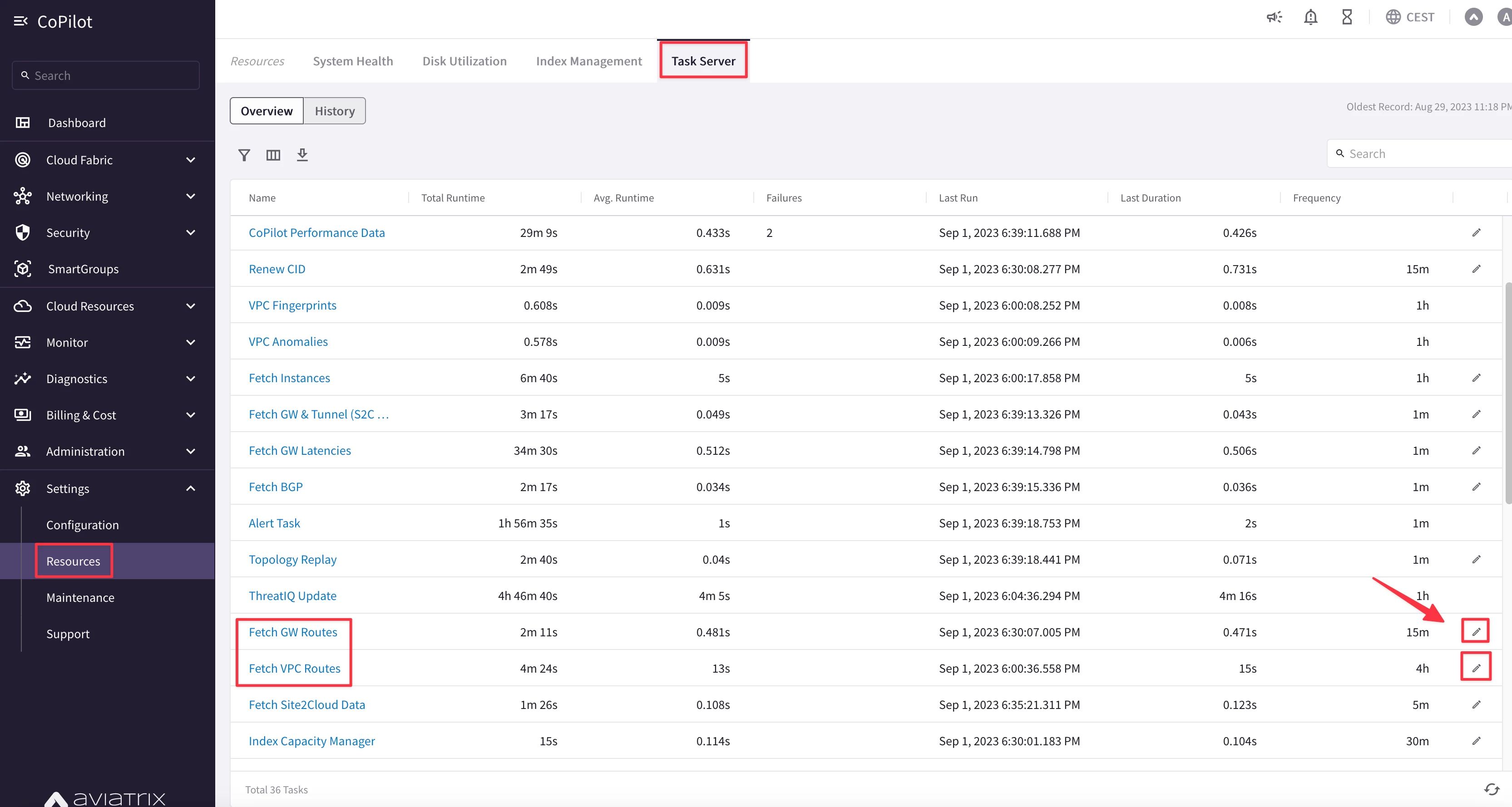
- Go to CoPilot > Settings > Resources > Task Server
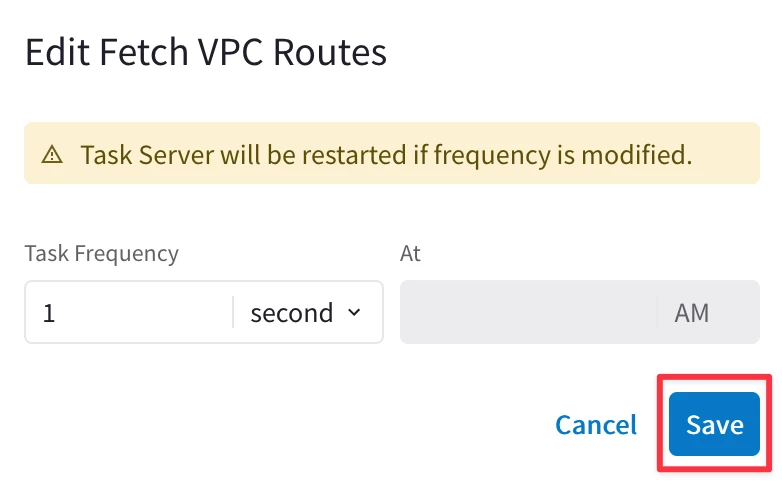
- Ensure that both Fetch GW Routes and Fetch VPC Routes intervals are set to “1 second” each and then click on SAVE.
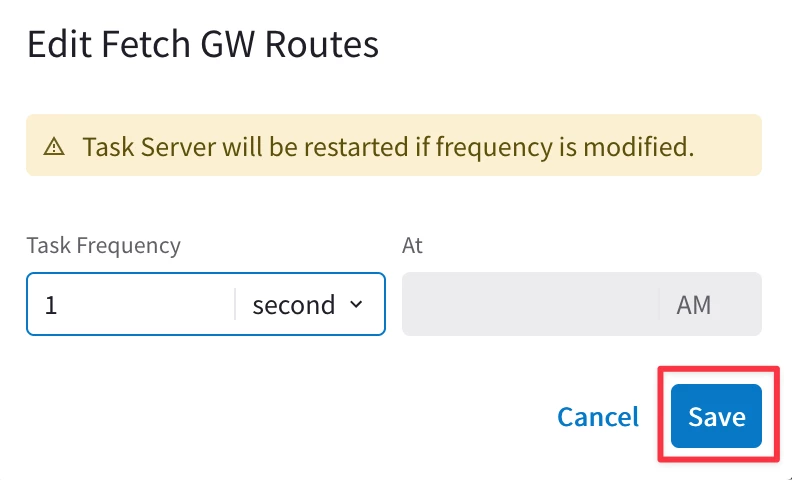
Afterwards, click on Commit.
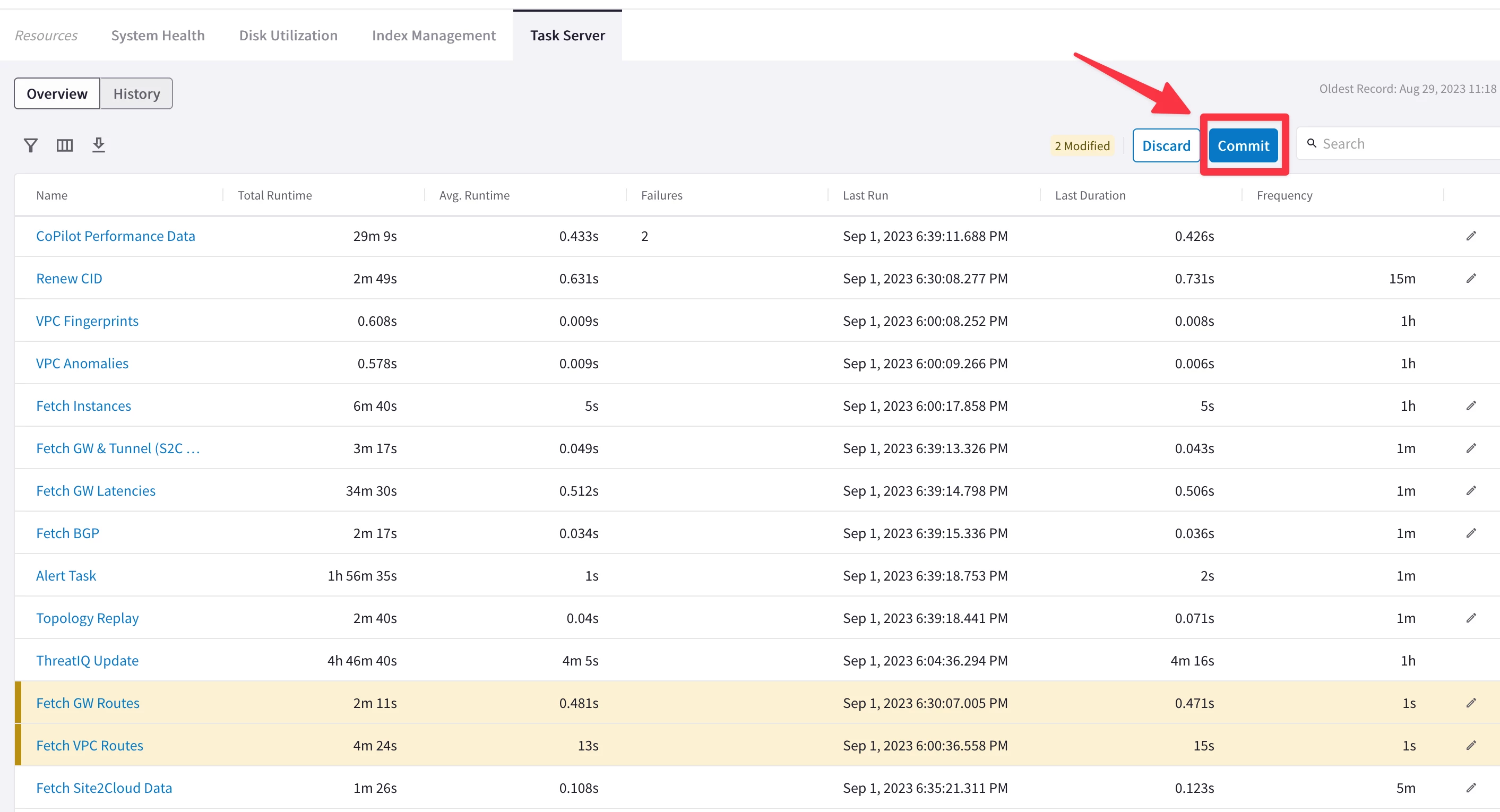
Note: These are very aggressive settings. In a Production environment, you should not set these intervals that frequently!
- Verify connectivity between clients within the same BU:
- SSH to the BU1 Frontend in AWS.
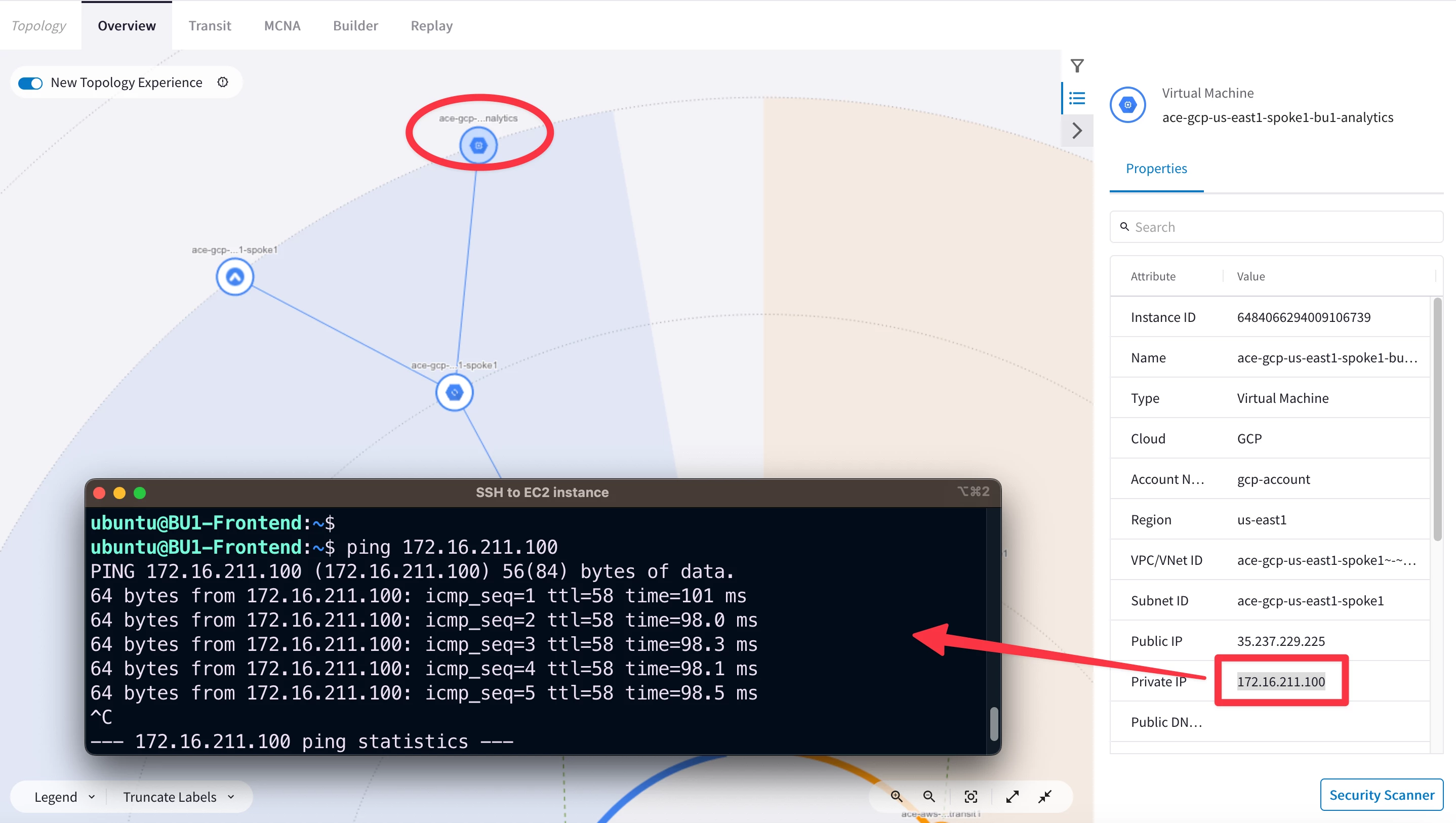
- From BU1 Frontend ping BU1 Analytics in GCP.
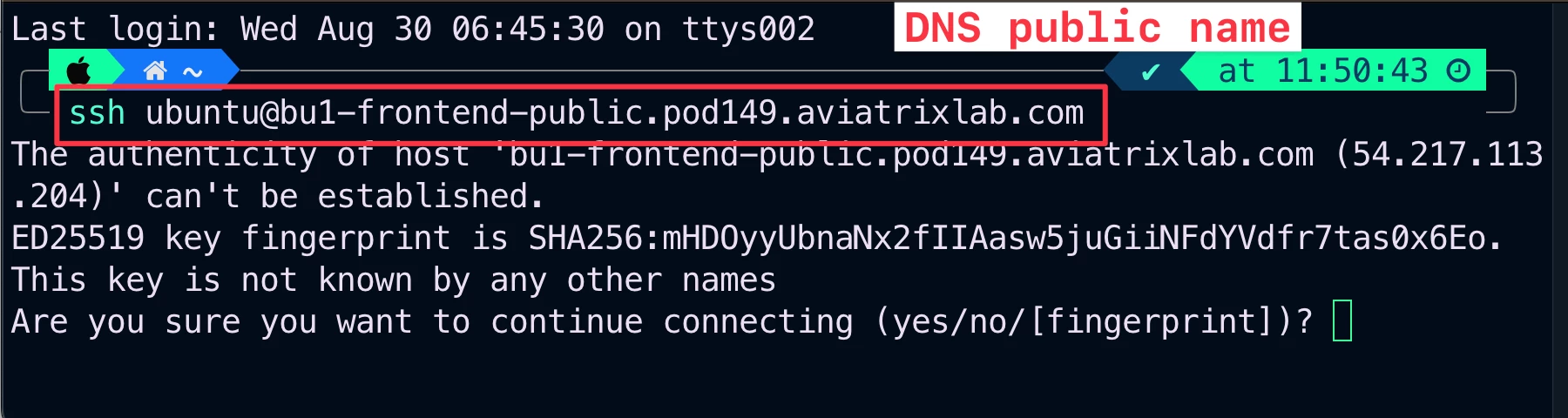
There are two methods for SSH to any instances inside the multicloud infrastructure of this lab:
- Using an SSH client from your laptop (recommended method!).
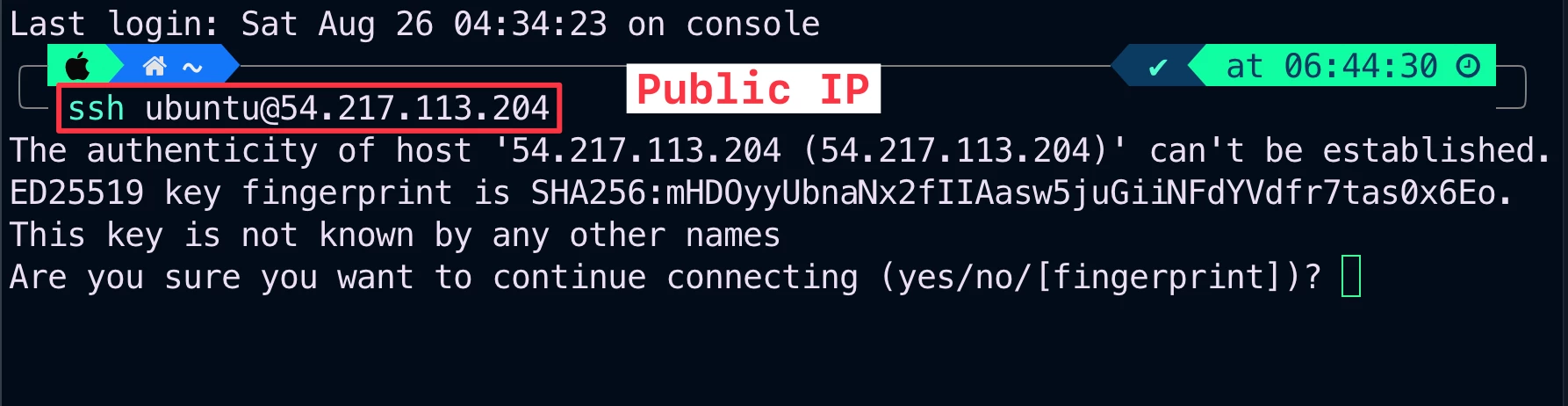
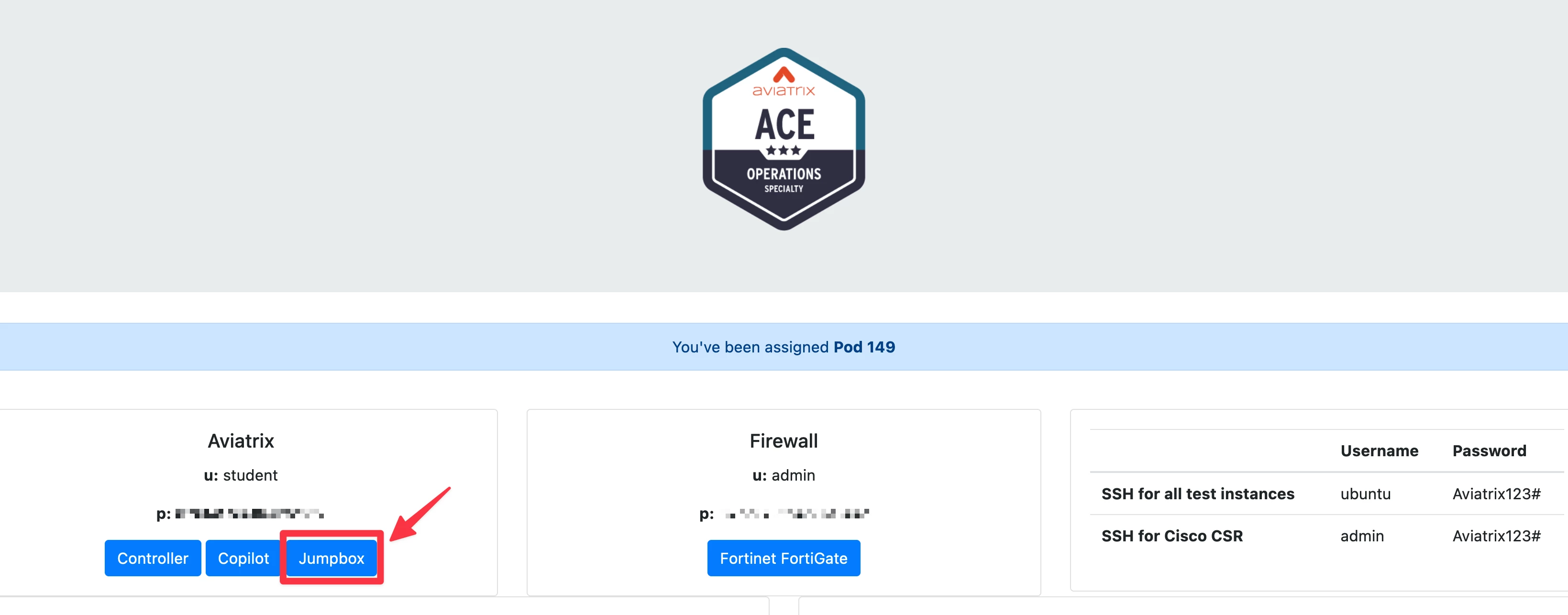
- Using the Apache Jumpbox from the POD Portal, if you are within your corporate network and an inbound restriction is applied on port 22.
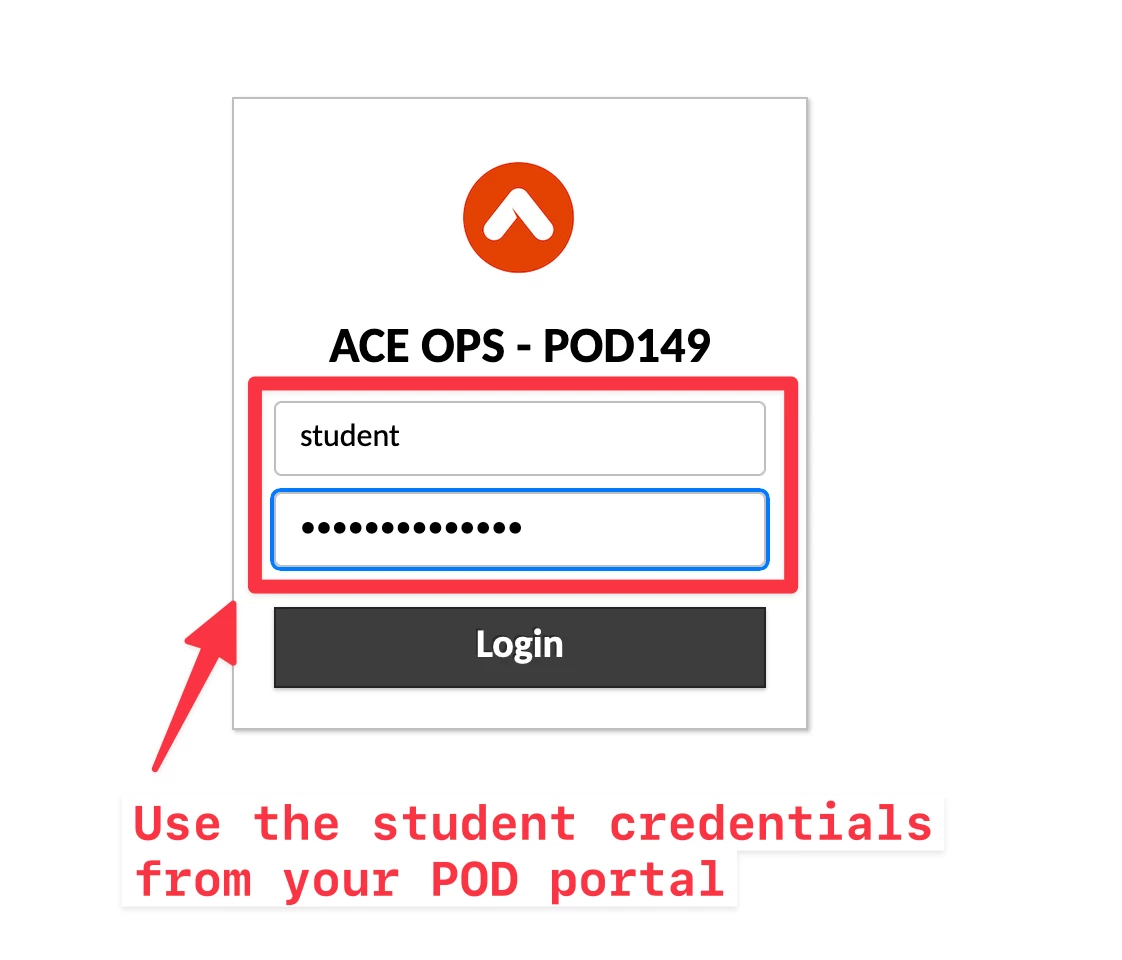
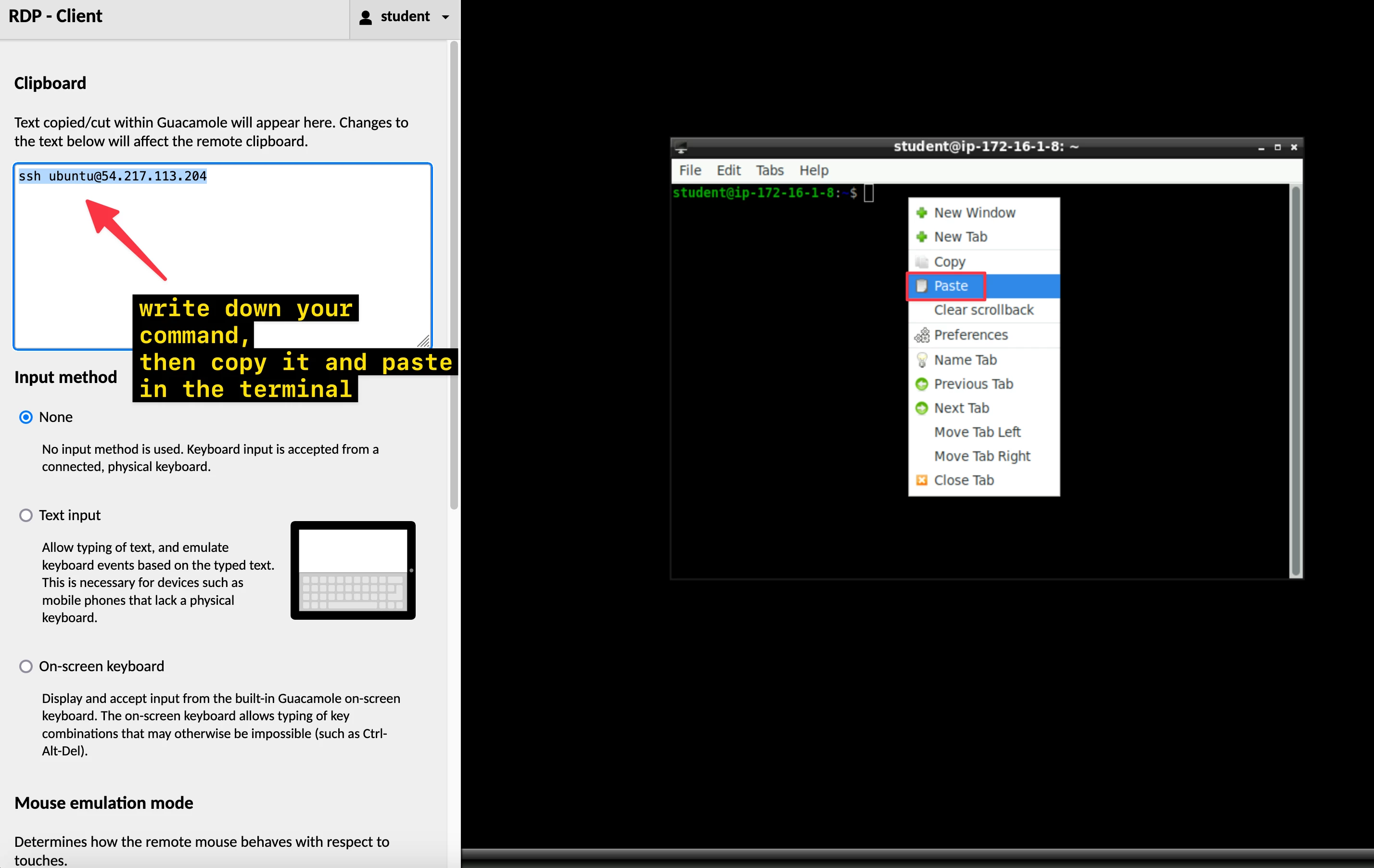
HINT: Please bear in mind that if you decide to use the Jumpbox, Copy and Paste does not work directly from the host machine, therefore activate the Guacamole menu, that is a sidebar which is hidden until explicitly shown. On a desktop or other device which has a hardware keyboard, you can show this menu by pressing Ctrl+Alt+Shift on Windows machine (Control+Shift+Command on Mac).
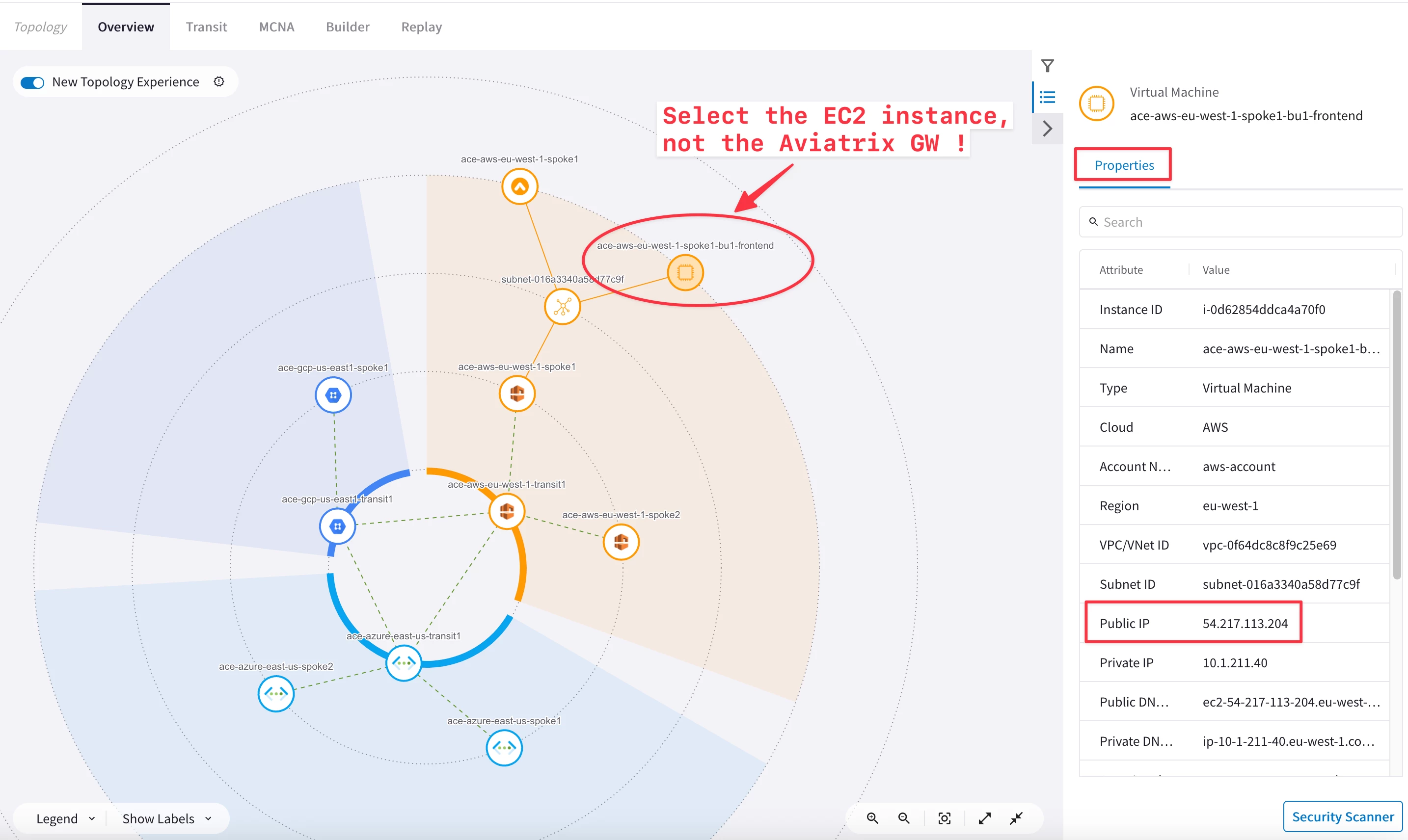
HINT: the IP addresses can be easily retrieved either from the Properties section of each Virtual Machine on the Topology, or alternatively, you can retrieve the DNS symbolic name from your personal POD portal.
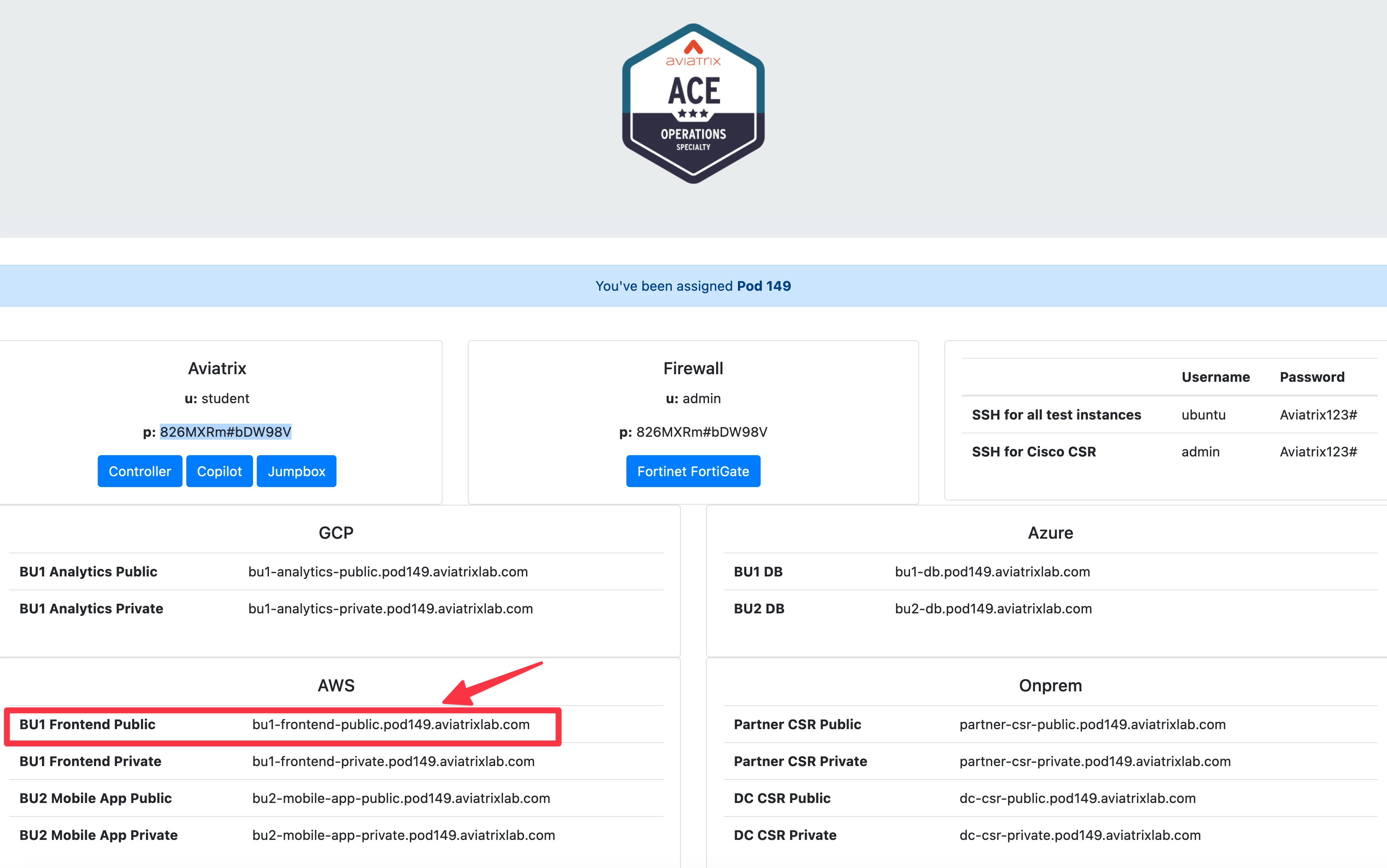
Ping and SSH will be successful within the same network domain!
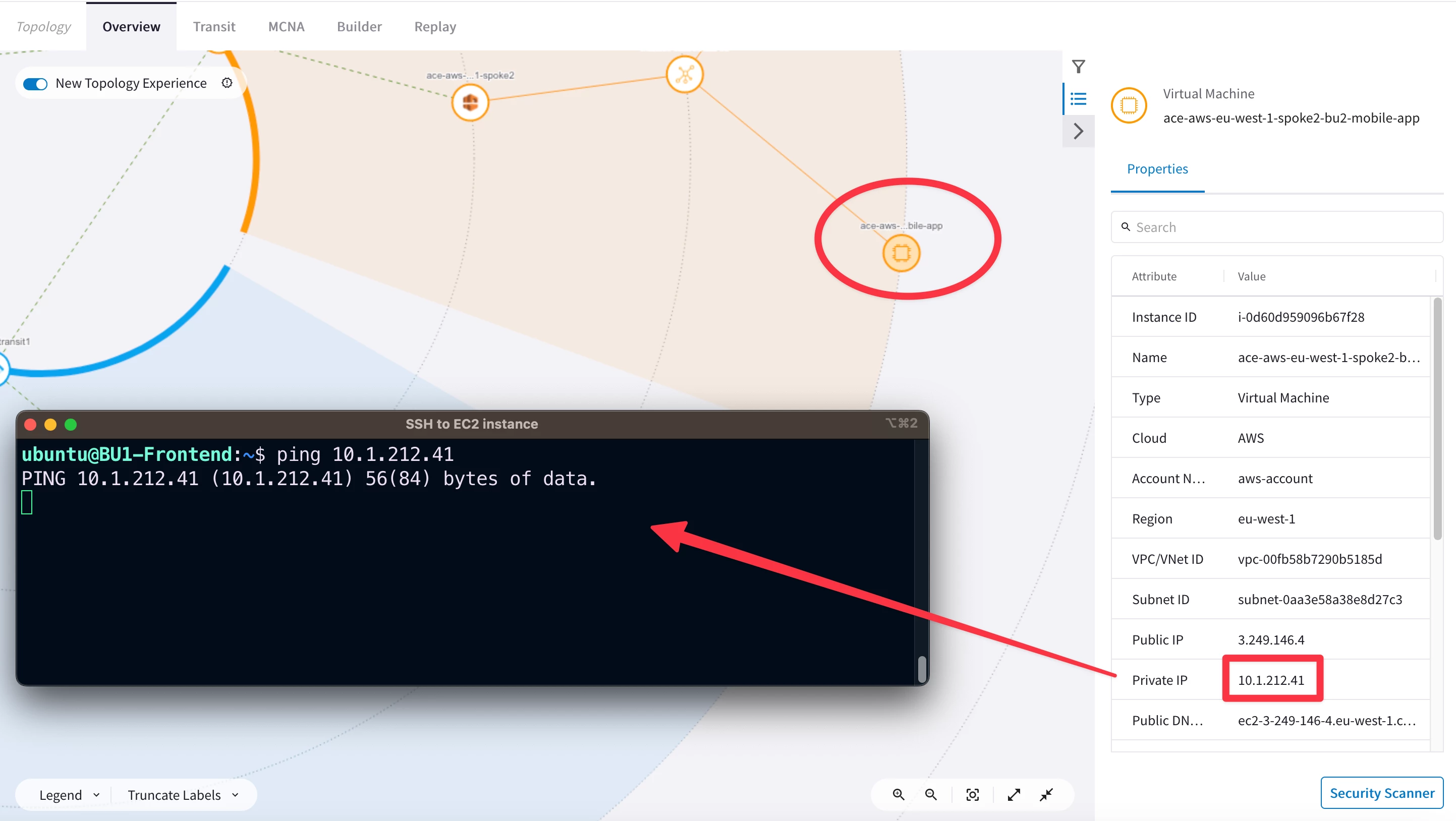
- Verify the network segregation between the two BUs:
- From BU1 Frontend try to ping BU2 Mobile App.
Ping and SSH commands should not work this time, due to the separation between the two segments (i.e. these are two different Routing Dimains).
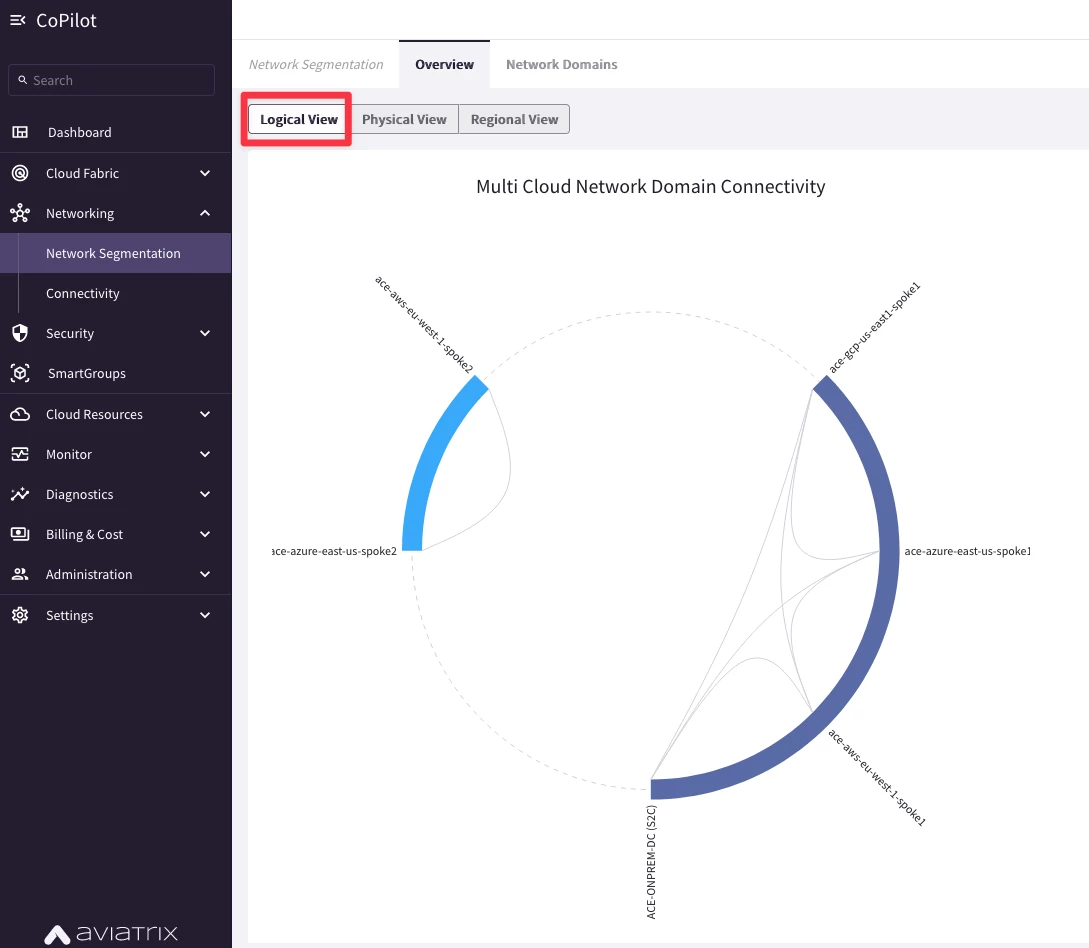
- Check Network Segmentation on the CoPilot by searching segmentation and look at the logical view.
HINT: Go to CoPilot > Networking > Network Segmentation > Overview
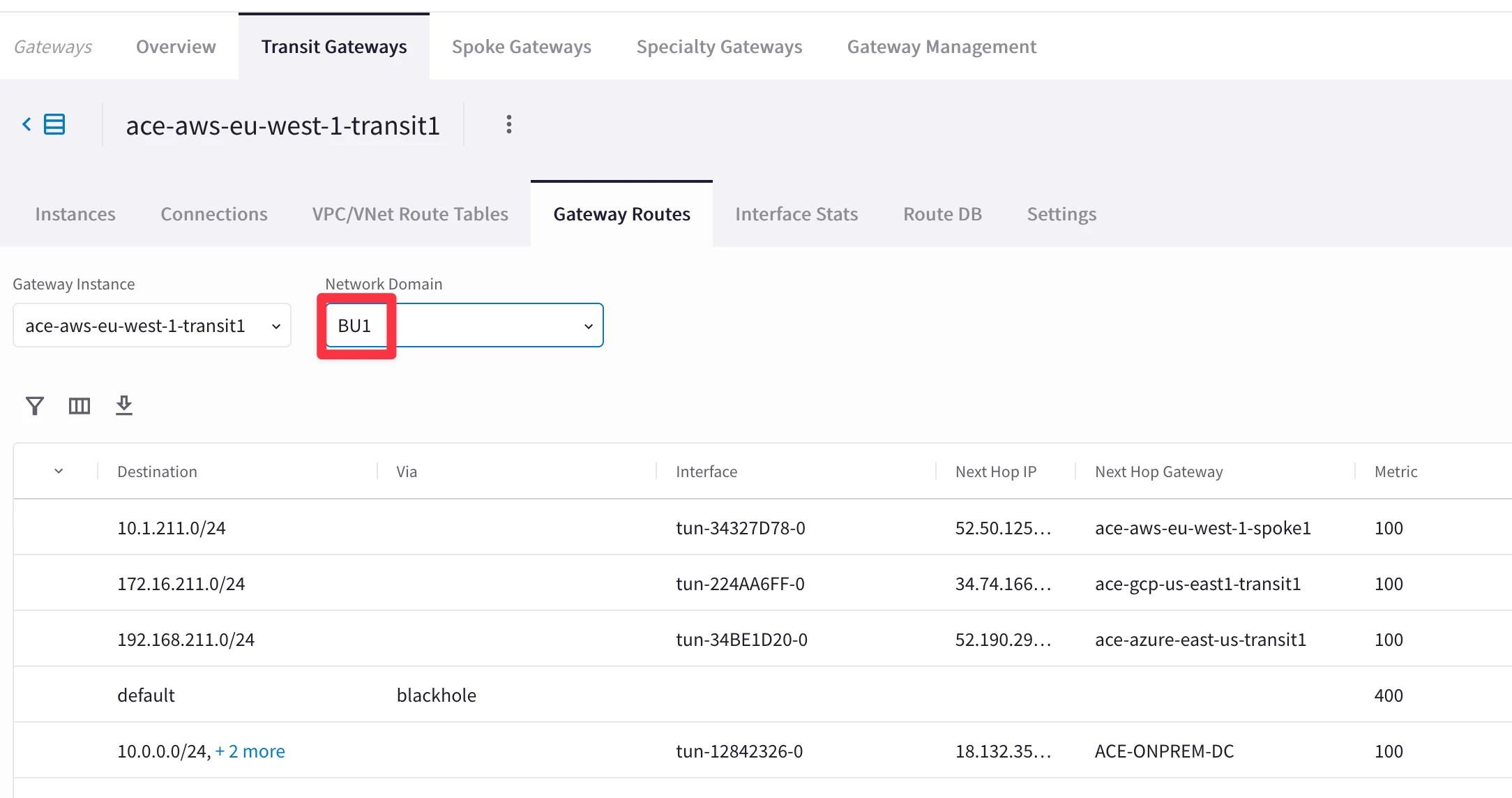
- Check the different routing tables (VRFs) maintained by any of the Transit Gateways.
HINT: Go to CoPilot > Cloud Fabric > Gateways > Transit Gateways > select the relevant gateway > Gateway Routes and filter out based on the Network Domain.
- Use FlowIQ for inspecting the NetFlow Data.
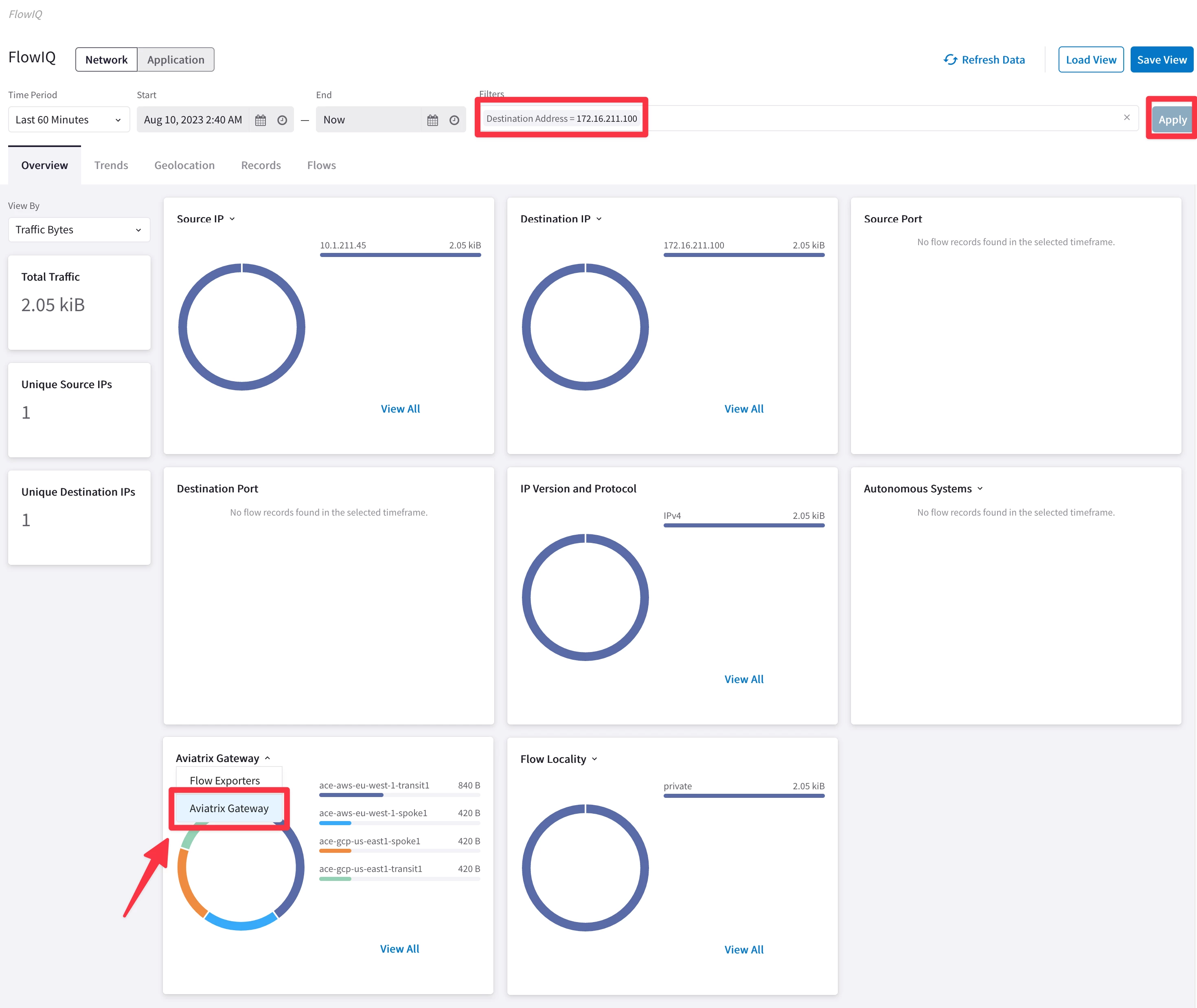
HINT: Go to CoPilot > Monitor > FlowIQ and filter based, for instance, on the destination IP 172.16.211.100.
Then check the Flow Exporters widget, then from the top-down menu and select the Aviatrix Gateway widge to figure out the Hop-by-Hop traffic flow through the whole Aviatrix Cloud Fabric.
- Use Cloud Routes for pinpointing the originator of the route 172.16.211.0/24.
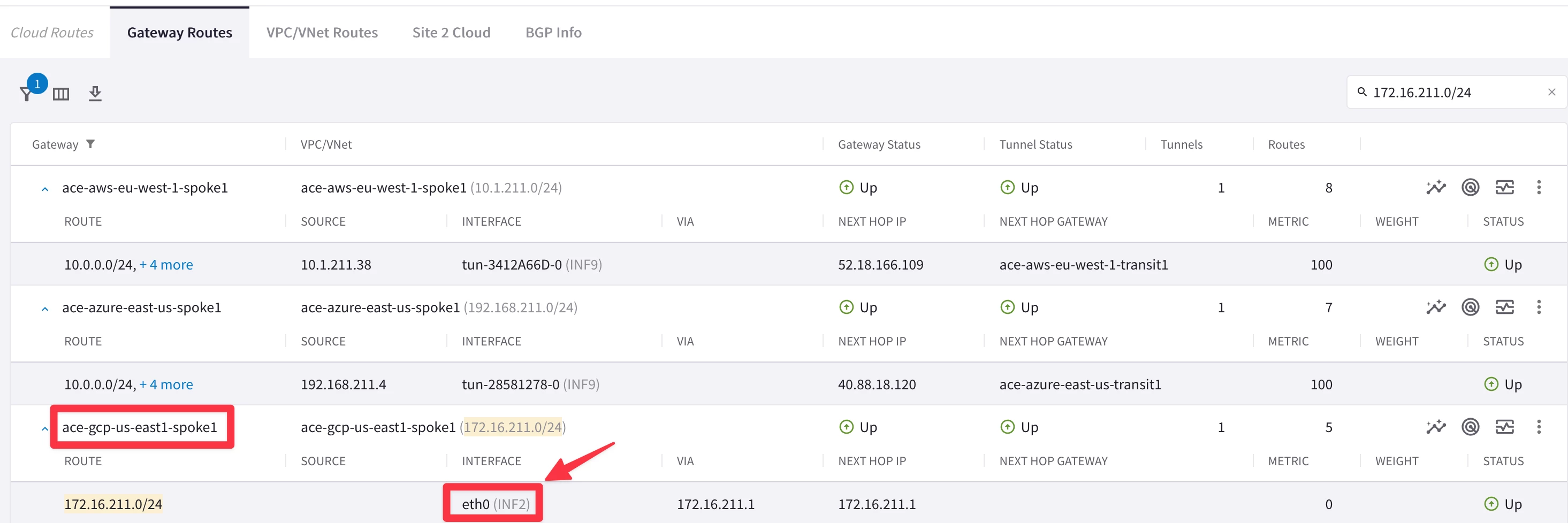
HINT: Go to CoPilot > Diagnostics > Cloud Routes and filter based on the subnet and based on the Gateway name (add the string “spoke1”).
HINT: The Originator has the egress interface that is equal to eth0 (i.e. the LAN interface), which in turn means, direct connected.

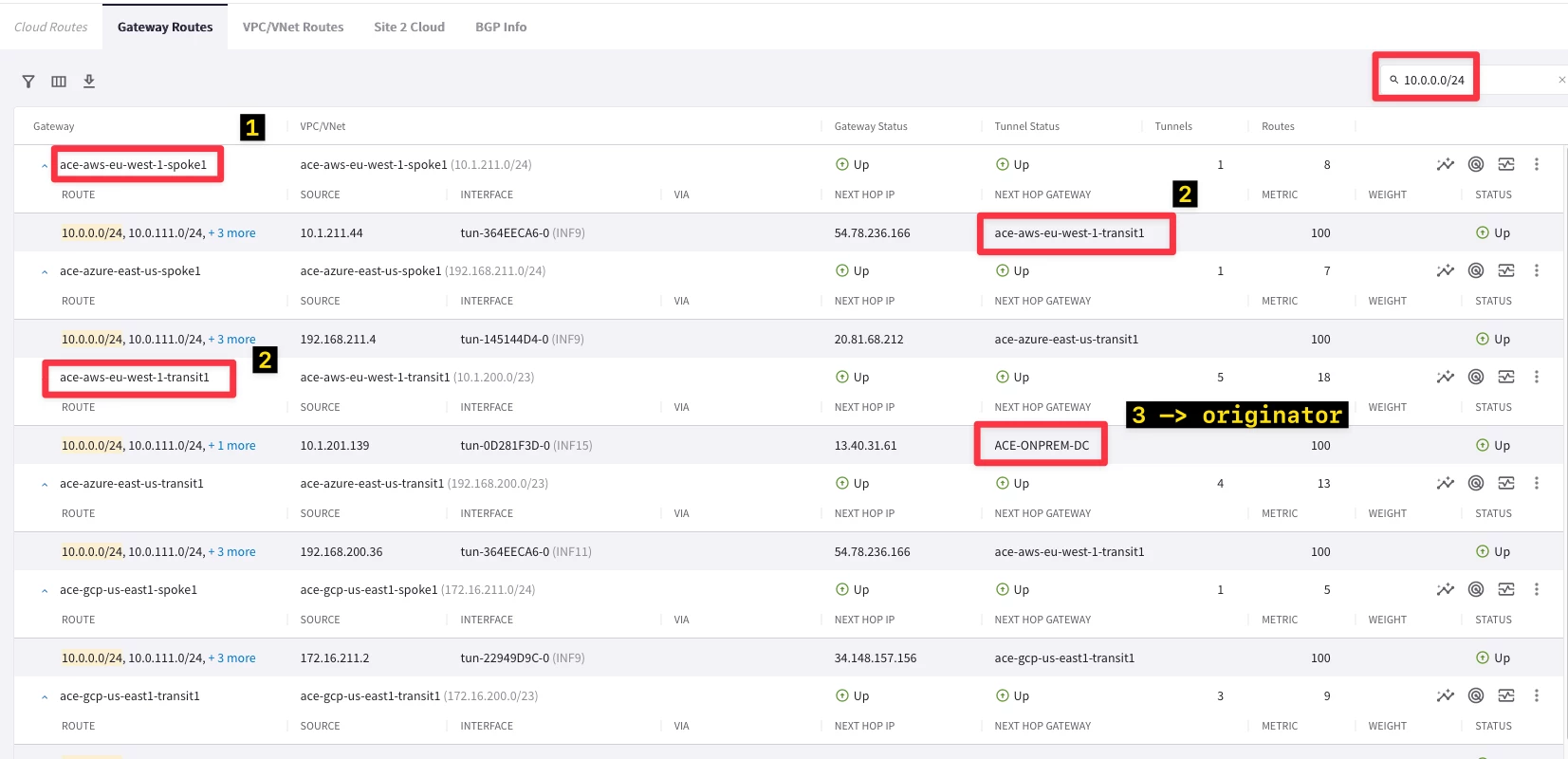
- Use Cloud Routes for pinpointing the originator of the route 10.0.0.0/24.
HINT: Go to CoPilot > Diagnostics > Cloud Routes and filter based on the subnet. Remove the previous filter!
This time you need to proceed with a recursive lookup: from any Spoke GWs check the NEXT HOP GATEWAY column and try to find the originator of 10.0.0.0/24.