


1. SCENARIO
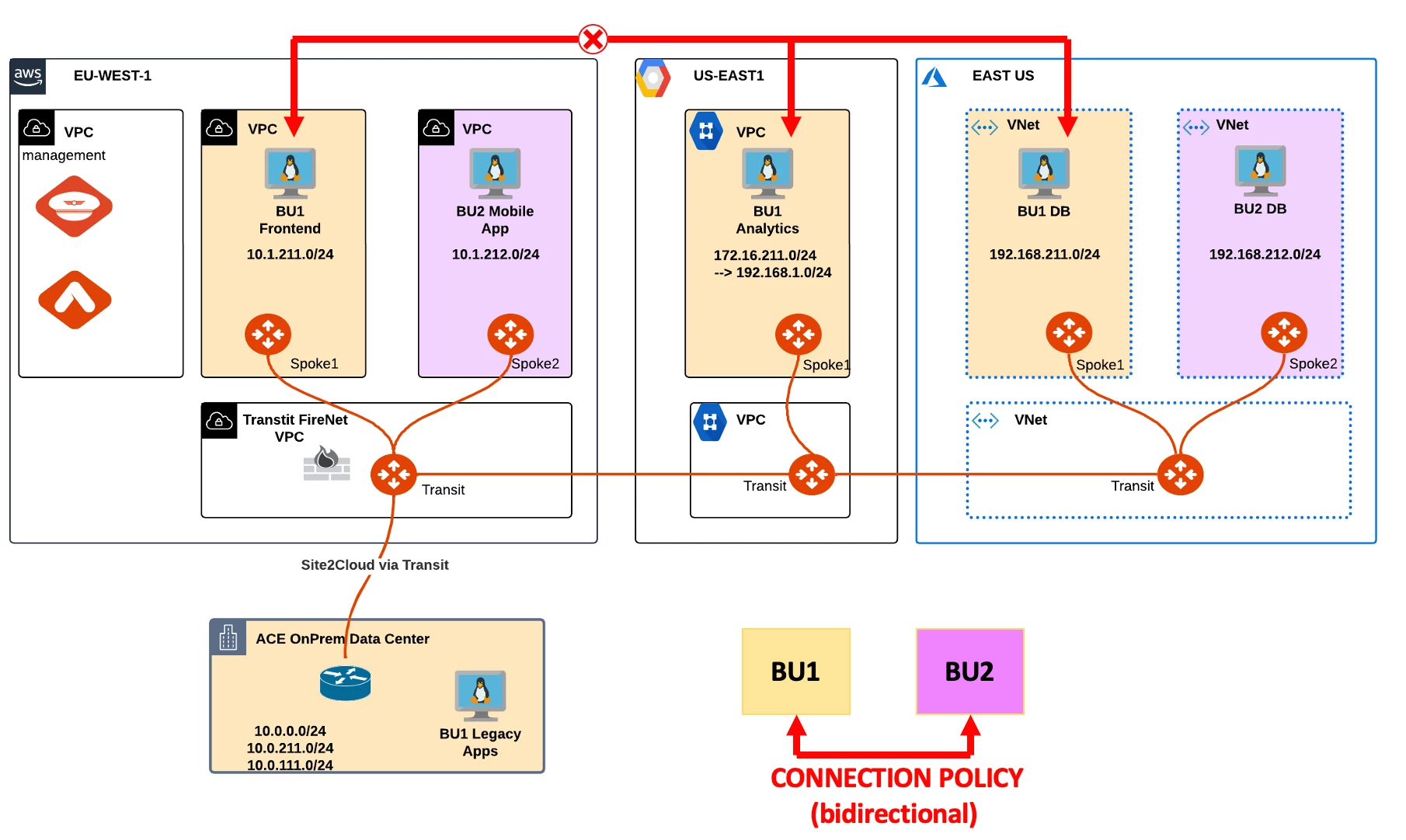
BU1 is suddenly unable to communicate with both BU1 Analytics and BU1 DB.
The network team discovered a disgruntled employee jeopardized the connectivity between the two workloads.
2. TROUBLESHOOT REQUEST
-
Verify that the connectivity between BU1 Frontend and BU1 Analytics is actually broken.
- SSH to BU1 Frontend and carry out ping/traceroute/ssh commands towards BU1 Analytics.

-
Check whether the AWS Spoke1 GW and the GCP Spoke1 GW have the relevant routes or not.
HINT: Go to CoPilot > Cloud Fabric > Gateways > Spoke Gateways > select the Spoke1 Gateway in AWS > Gateway Routes and filter out based on the remote route.
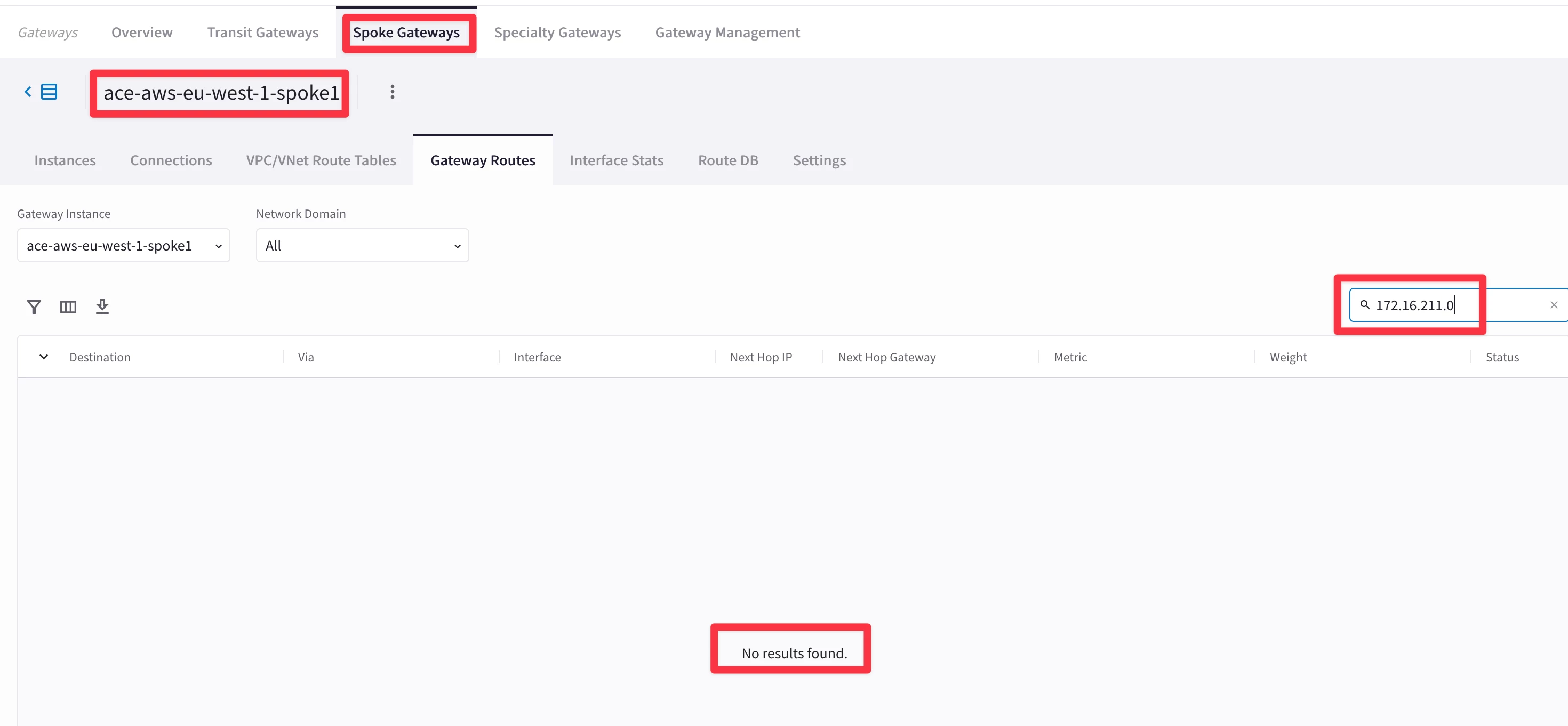
The Spoke1 in AWS does not have the destination route in GCP based on the outcome above...
-
Check what route is received by the GCP Transit GW from the GCP Spoke1 GW.
HINT: Go to CoPilot > Cloud Fabric > Gateways > Transit Gateways > select the Transit Gateway in GCP > Gateway Routes and filter based on the parameters depicted below.
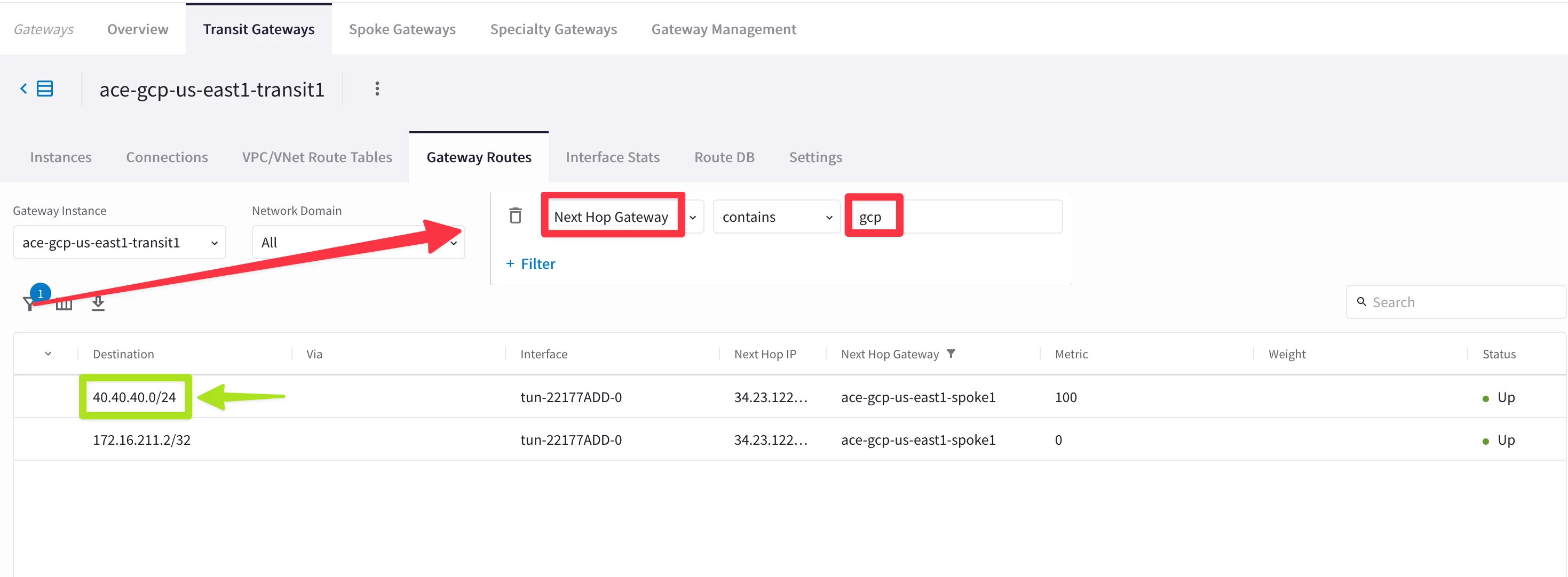
You will notice that the Spoke1 in GCP is advertising a bogus/malicious route (i.e. 40.40.40.0/24) and the legit route 172.16.211.0/24 has been withdrawn!
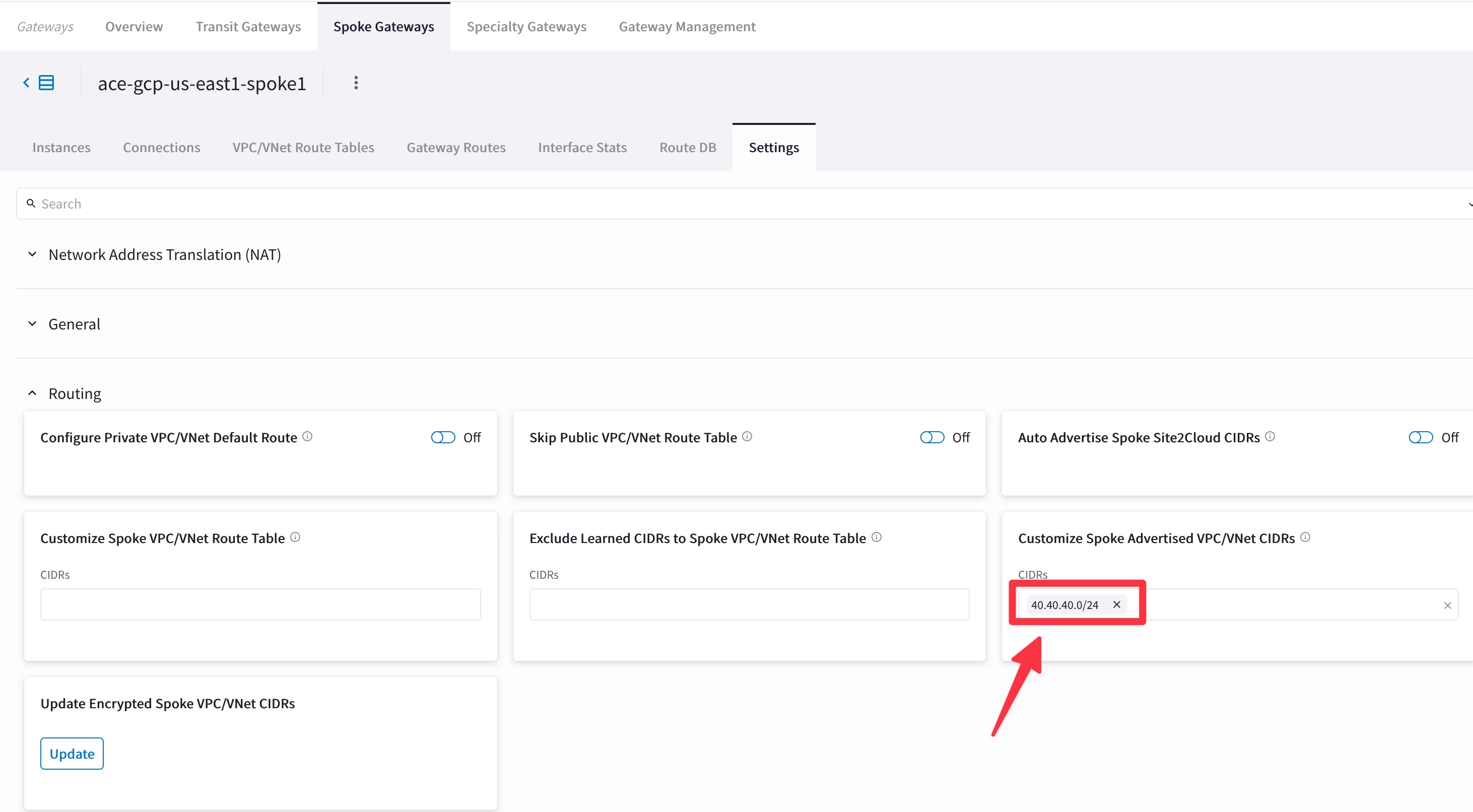
- Fix the issue checking the Route Manipulation section on the Spoke GW in GCP.
HINT: Go to CoPilot > Cloud Fabric > Gateways > Spoke Gateways > select the Spoke GW in GCP > Settings > Routing and remove the CIDR 40.40.40.0/24 from the Customize Spoke Advertised VPC/VNet CIDRs section and then click on SAVE.
- Relaunch the ping from BU1 Frontend towards BU1 Analytics.
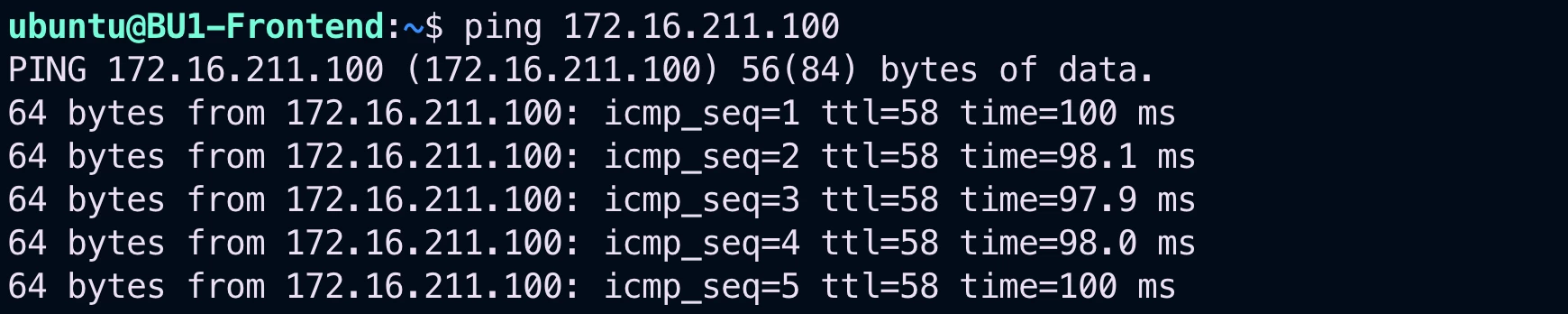
-
Verify that the connectivity between BU1 Frontend and BU1 DB is actually broken.
- SSH to BU1 Frontend and carry out ping/traceroute/ssh commands towards BU1 DB.

- Use Diagnostics tool by clicking on the Spoke1 Gateway in AWS and try to traceroute the instance behind the other spoke.
HINT: Go to CoPilot > Coud Fabric > Topology then select the Spoke1 GW in AWS, click on Tools and click on Gateway Diagnostics.
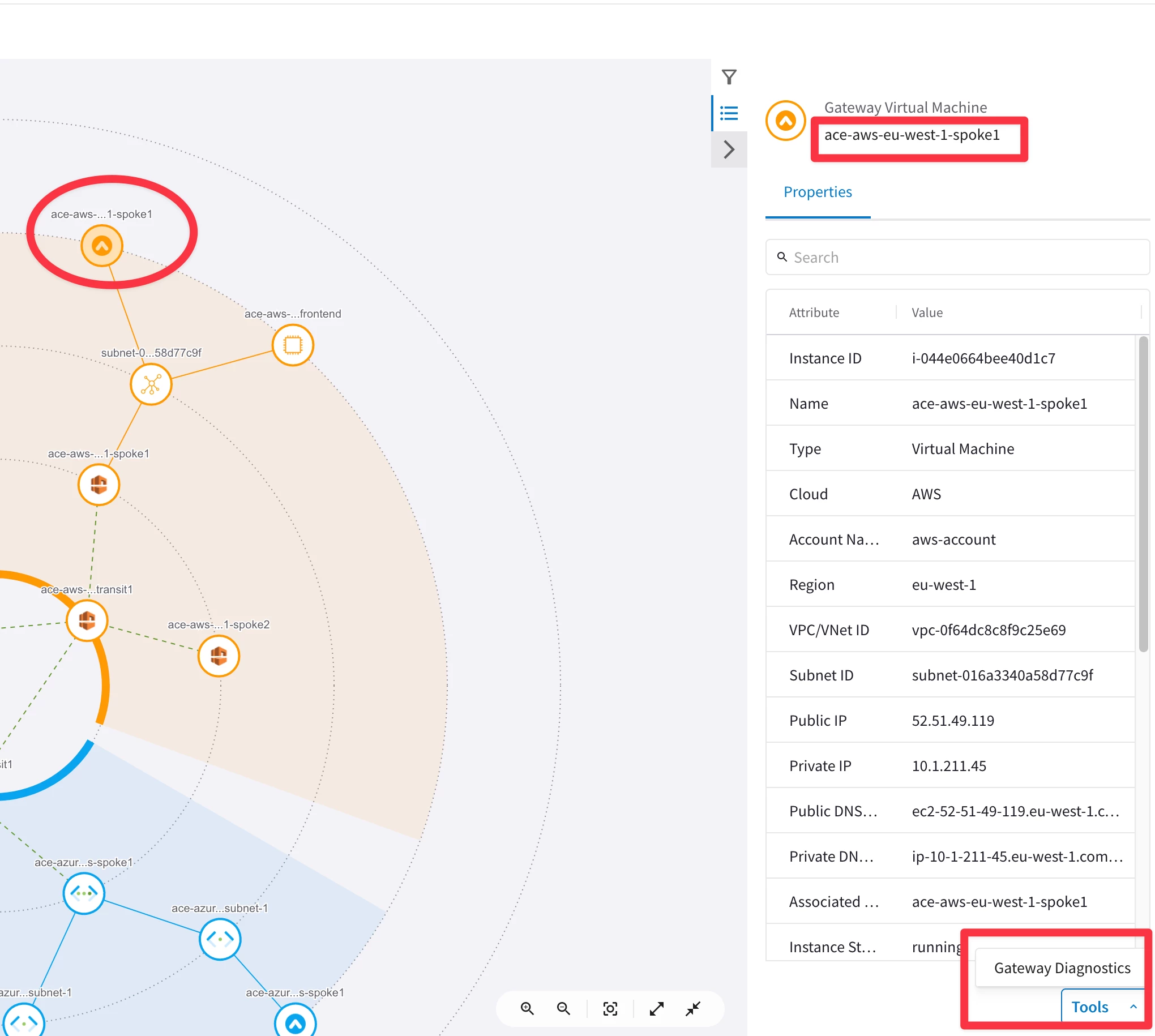
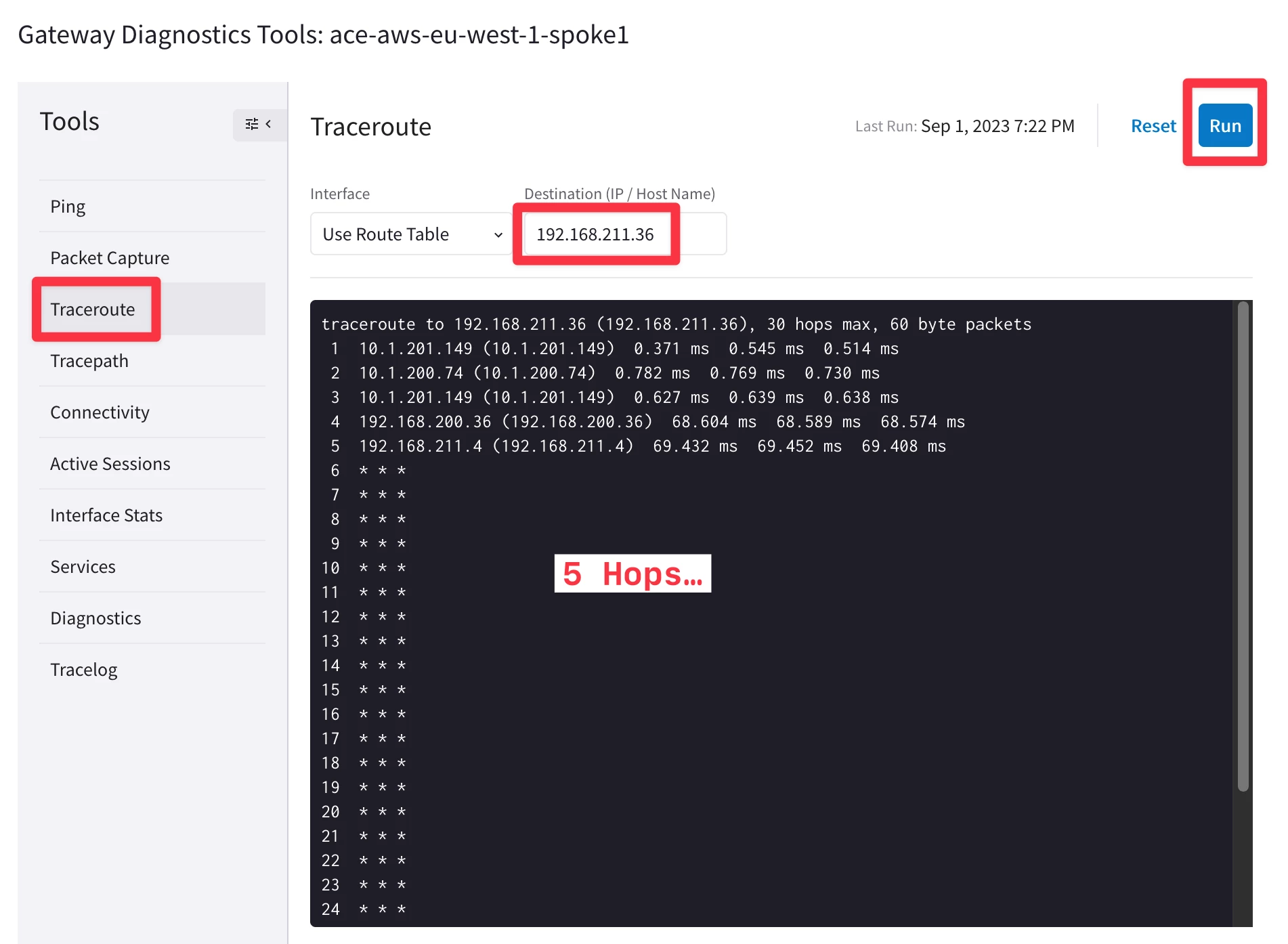
The outcome above shows 5 Hops. Try to figure out why the first and the third Hop have the same IP…
-
Launch a packet capture on the LAN interface (eth0) of Azure Spoke1 GW and filter out the outcome based on ICMP.
HINT: Open two tabs: on the first tab launch a packet capture on the Azure Spoke GW1 on the LAN interface (etho), and after few seconds, launch a ping from the AWS Spoke GW1 towards BU1 DB’s IP address (VM in Azure).
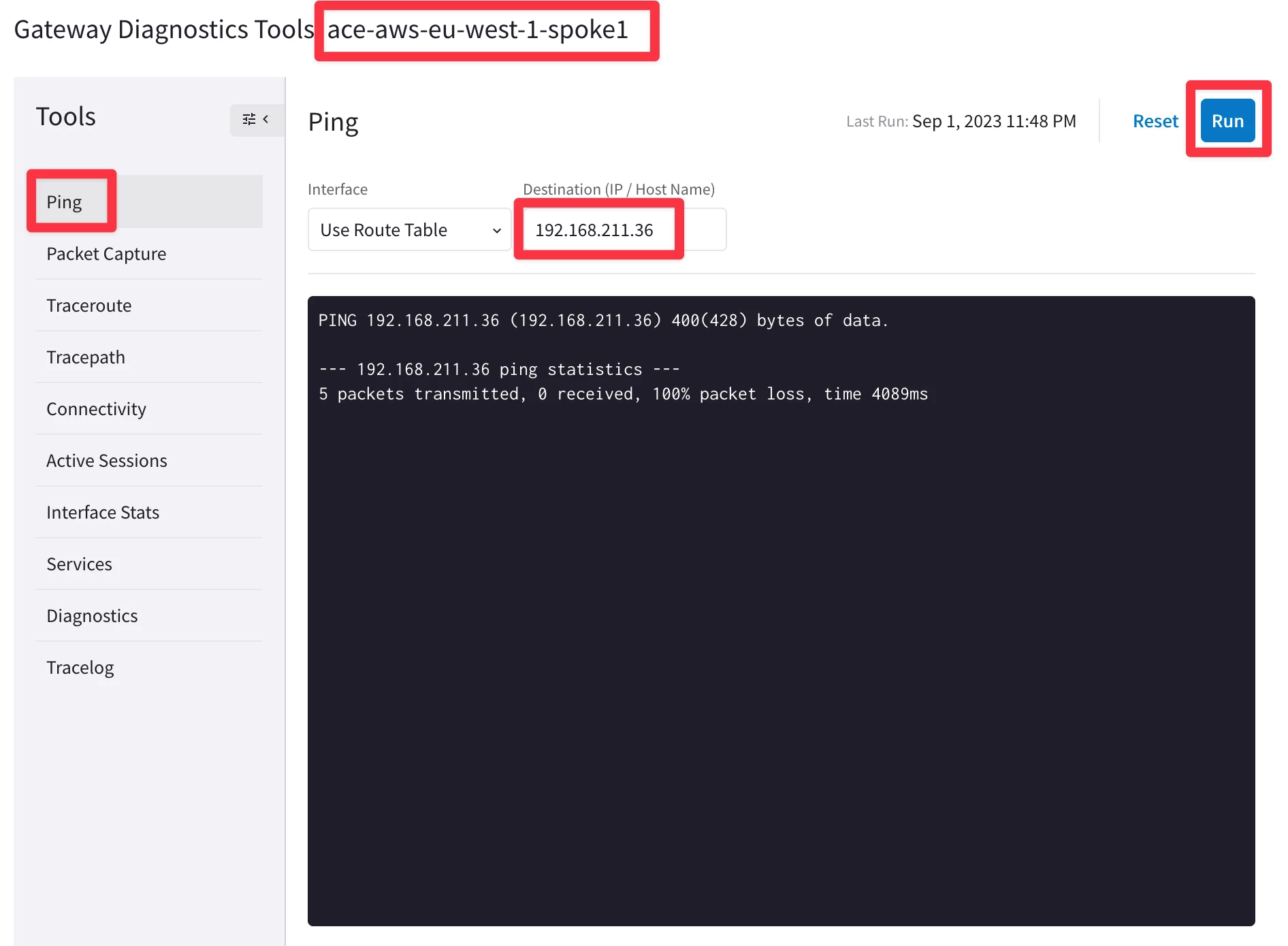
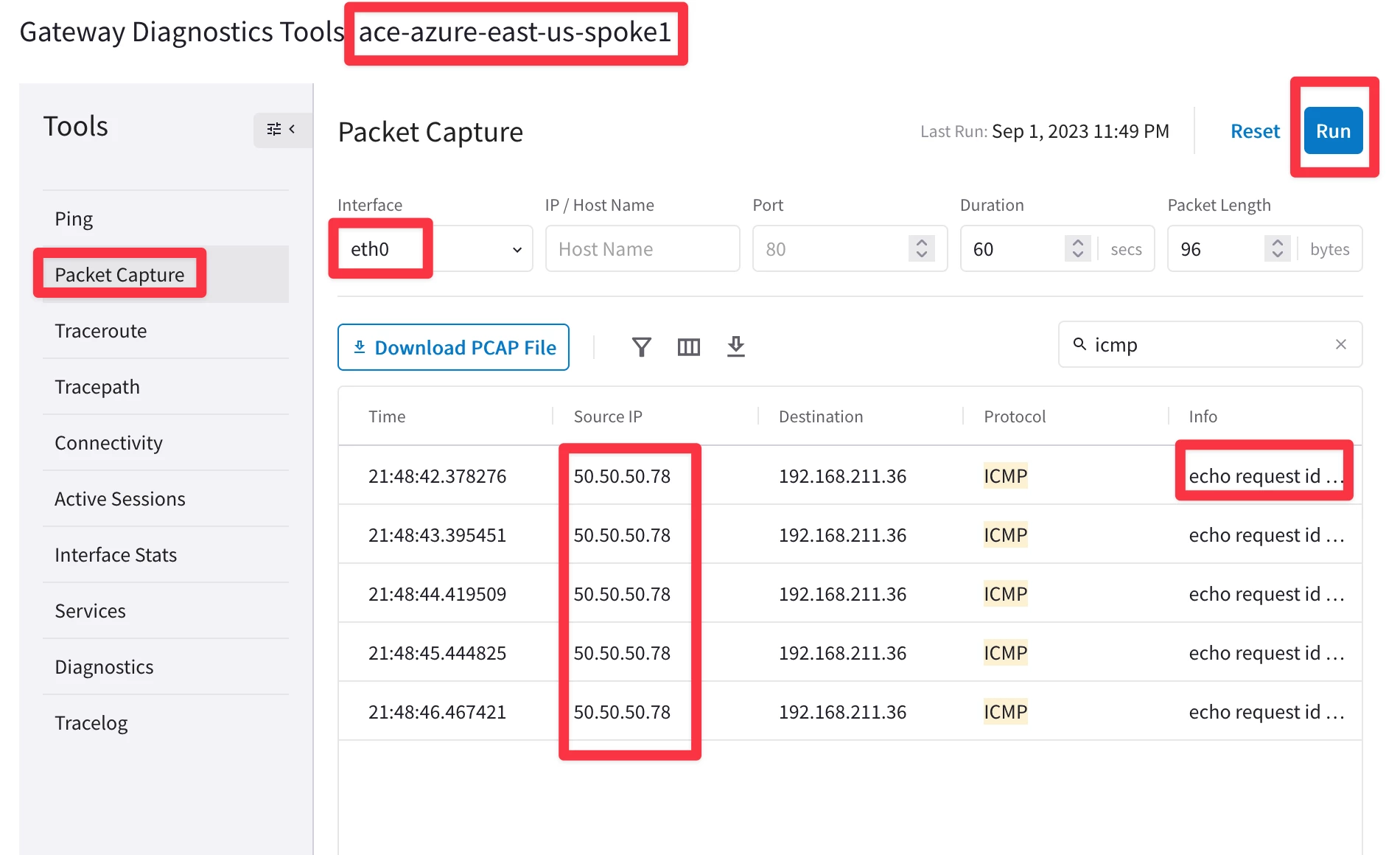
You will only notice ICMP Echo Request packets going out from the LAN interface. Moreover the Source IP is completely different from the expected source IP, that should be part of the cidr 10.1.211.0/24.
- Fix the issue checking the Route Manipulation section on the Spoke GW in GCP.
HINT: Go to CoPilot > Cloud Fabric > Gateways > Spoke Gateways > select the Spoke1 GW in Azure > Settings > NAT, delete the NAT Rule and click on SAVE.
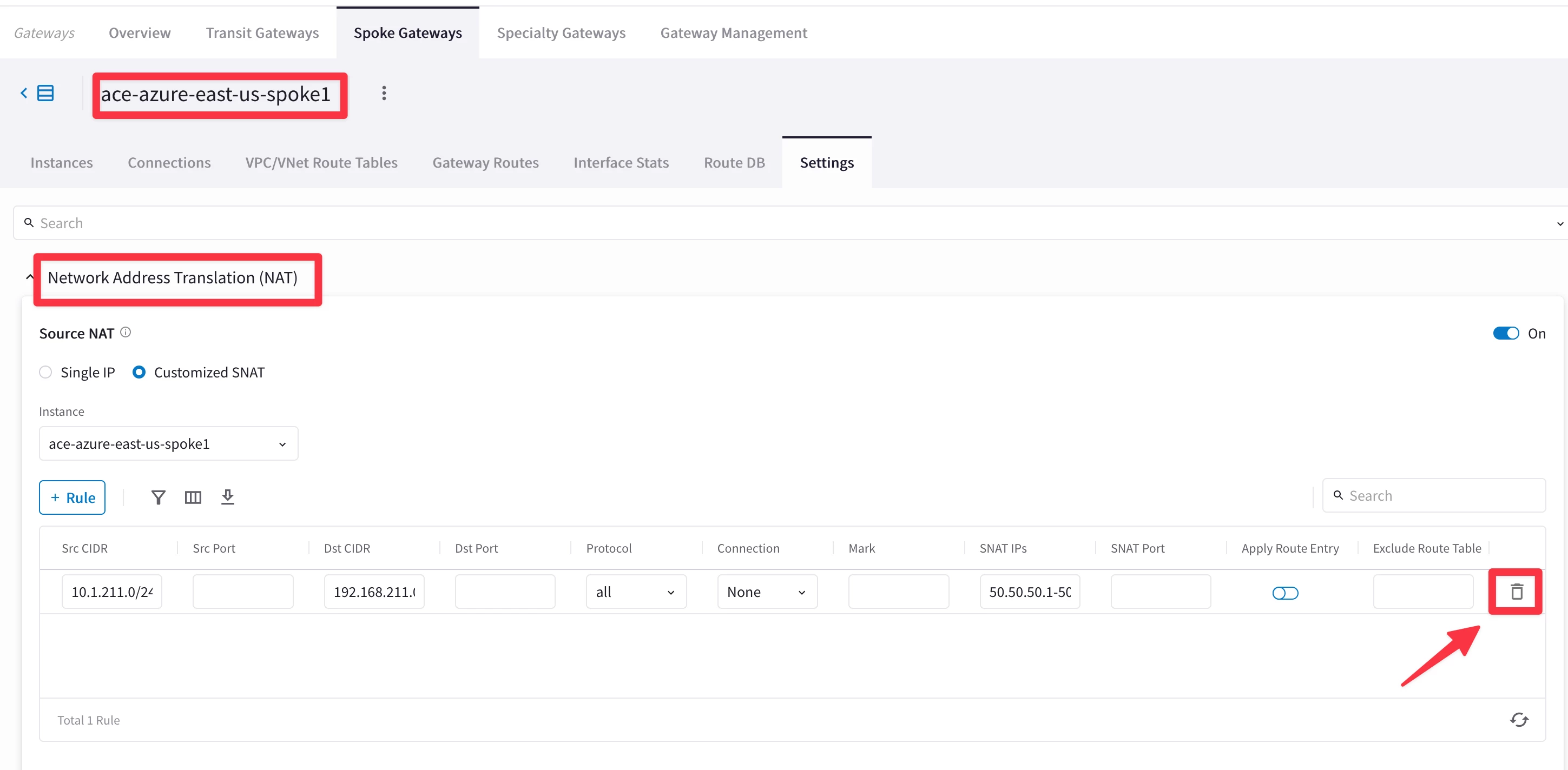
- Relaunch the ping from BU1 Frontend towards BU1 DB.
