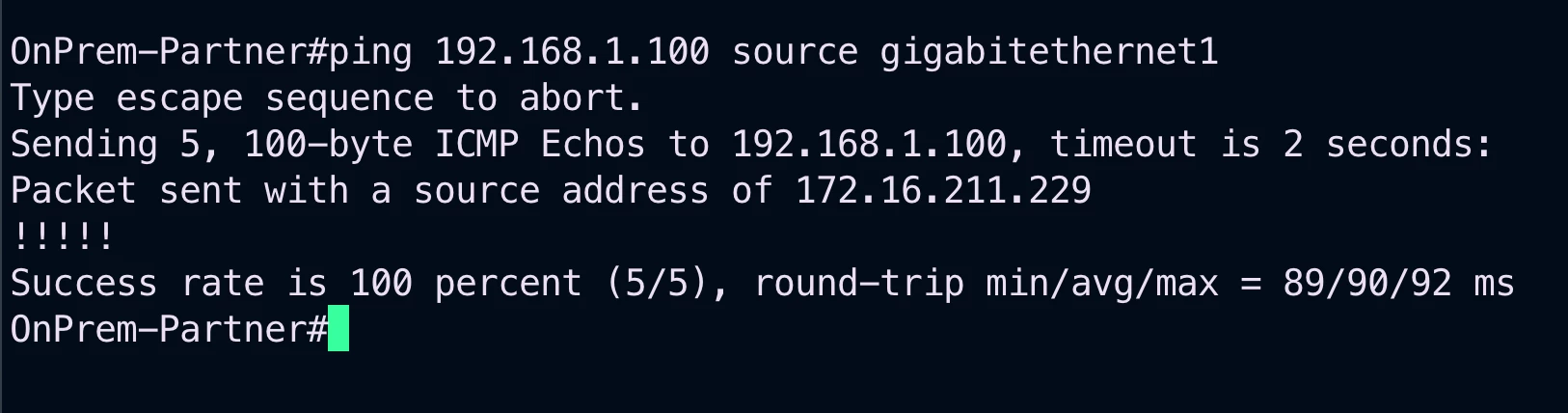


1. SCENARIO#1
ACE’s OnPrem Data Center has recently hired a new network engineer.
You have been engaged for activating the Route Approval feature in order to protect the MCNA from unauthorized advertisements.
2. CHANGE REQUEST
-
Activate the Route Approval feature for monitoring unauthorized advertisements that could be received from the DC.
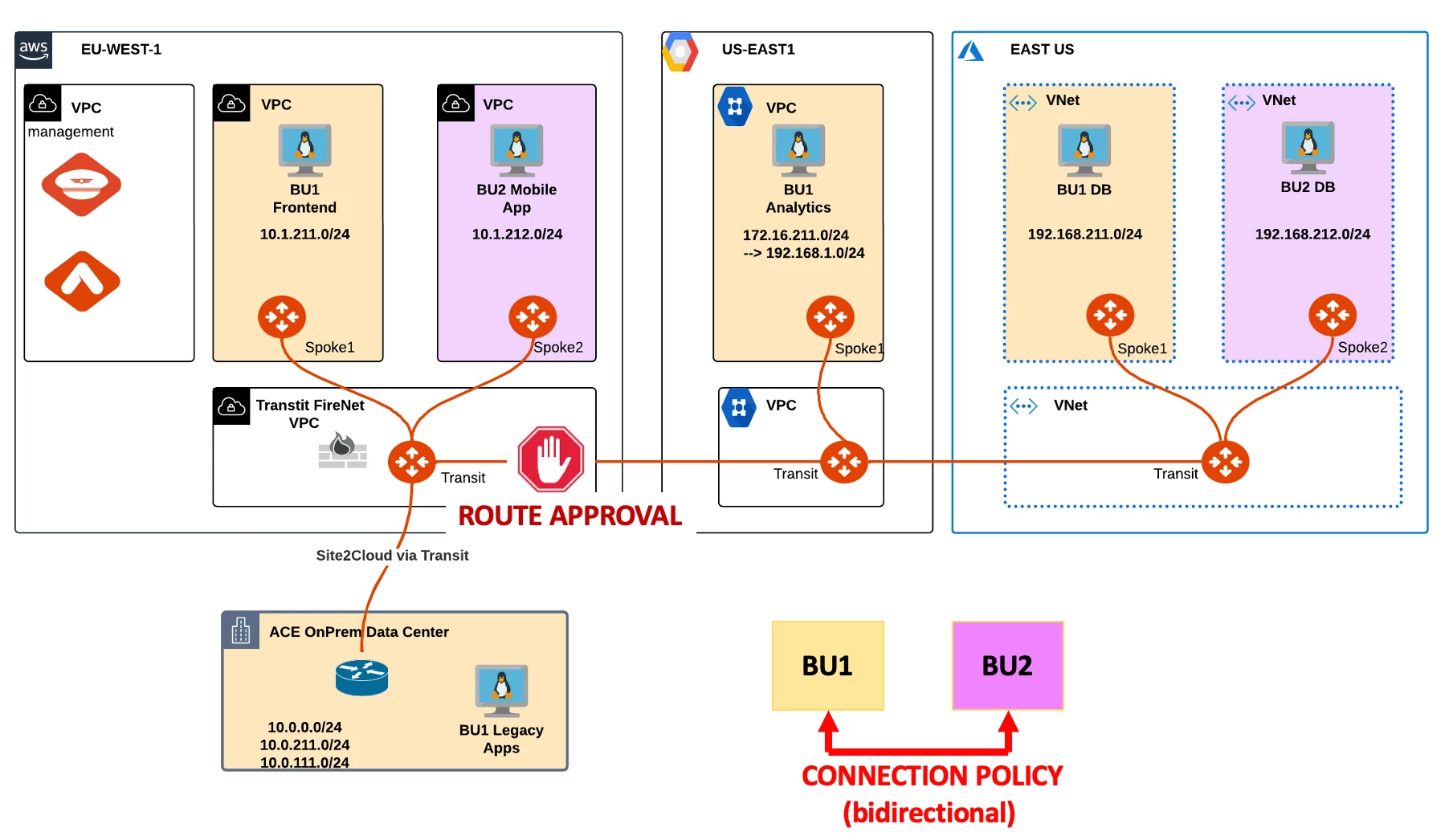
HINT: Go to Controller > MULTI-CLOUD TRANSIT > Approval and turn the knob “Learned CIDRs Approval” for the ace-aws-eu-west-1-transit1 GW.
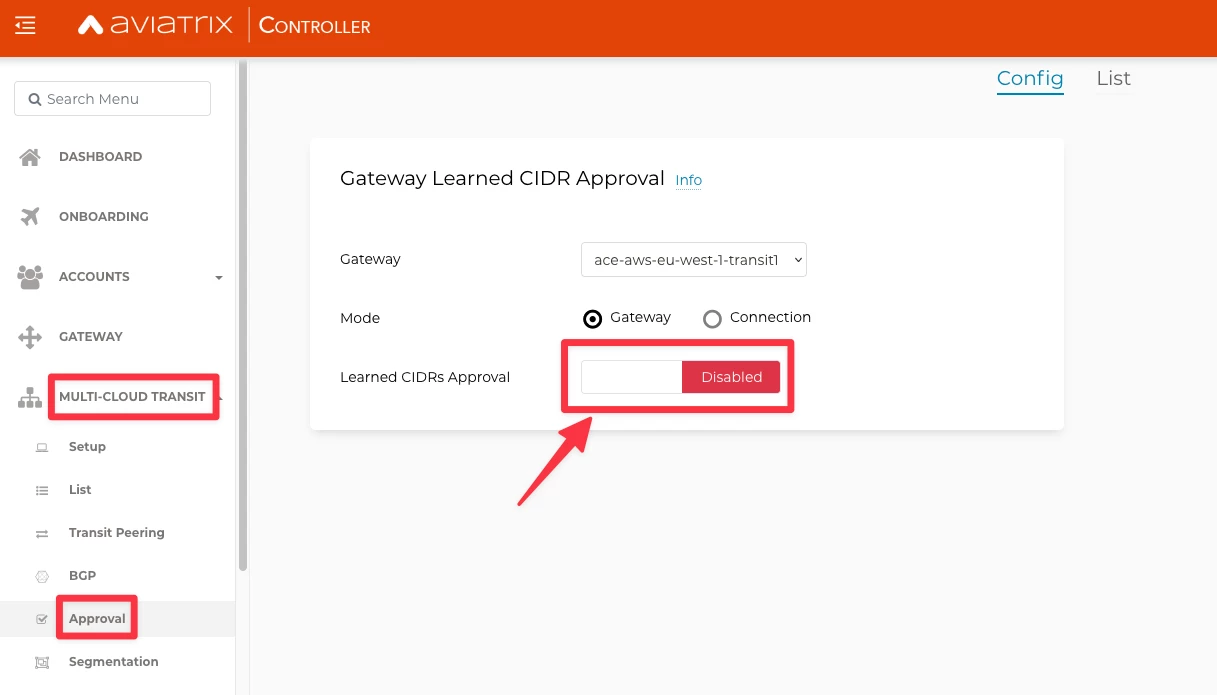
Afterwards, inform the trainer that you have activated the feature with the tool “Raise Hand” on Zoom, as depicted below.
Please wait for the trainer to inform you about the injection of the failure!
Wait for one minute and then click on the refresh button to see what kind of route will be blocked inside the Pending Learned CIDRs state, as depicted below.
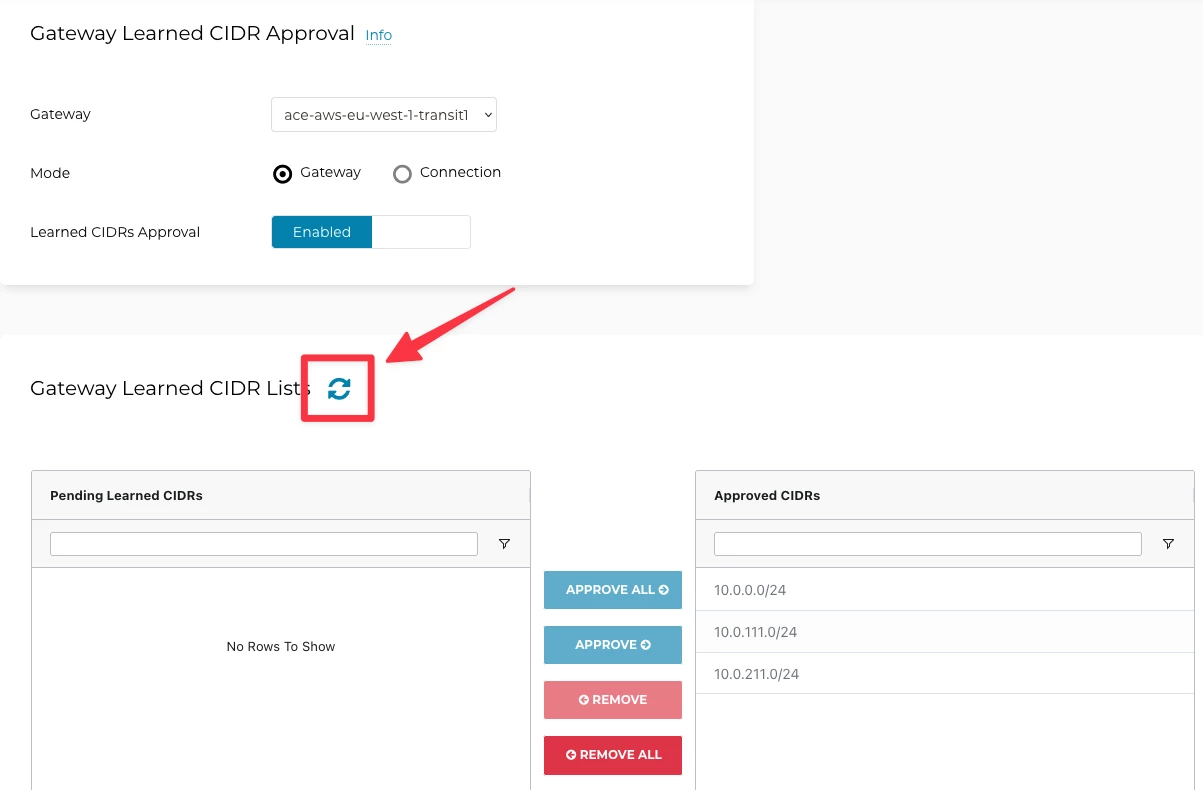
You have successfully prevented that somebody from the DC could jeopardize the whole network inside the multicloud infrastructure! Of course do not approve the quad zero route!
3. SCENARIO#2
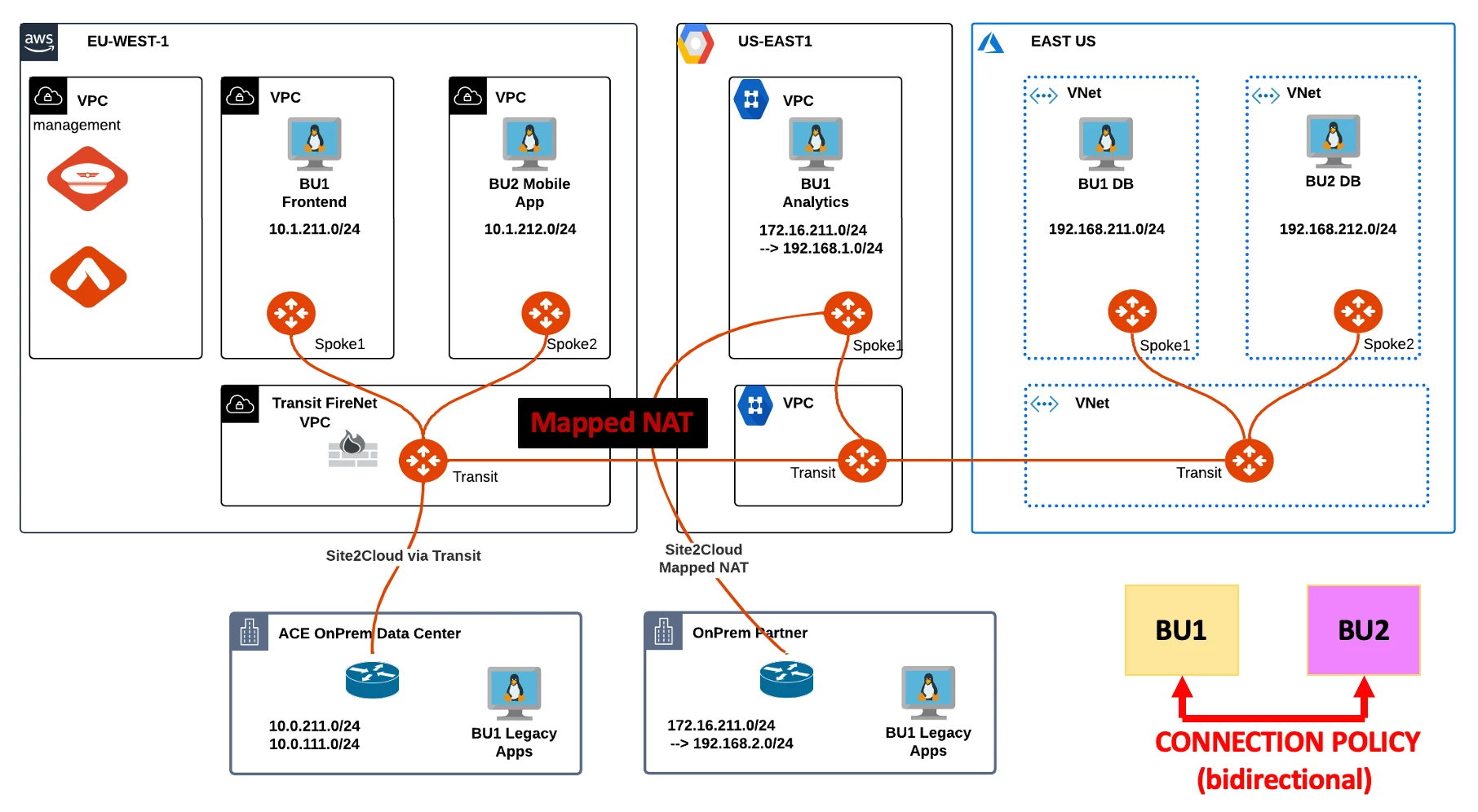
ACE’s OnPrem Partner needs to be connected to the MCNA in the GCP region, however, it has overlapping IP’s with BU1’s Analytics VPC.
You have been engaged for creating a Site2Cloud connection between the GCP Spoke GW and the OnPrem Partner router and also for resolving the IP conflict through the Mapped NAT feature.
4. CHANGE REQUEST
-
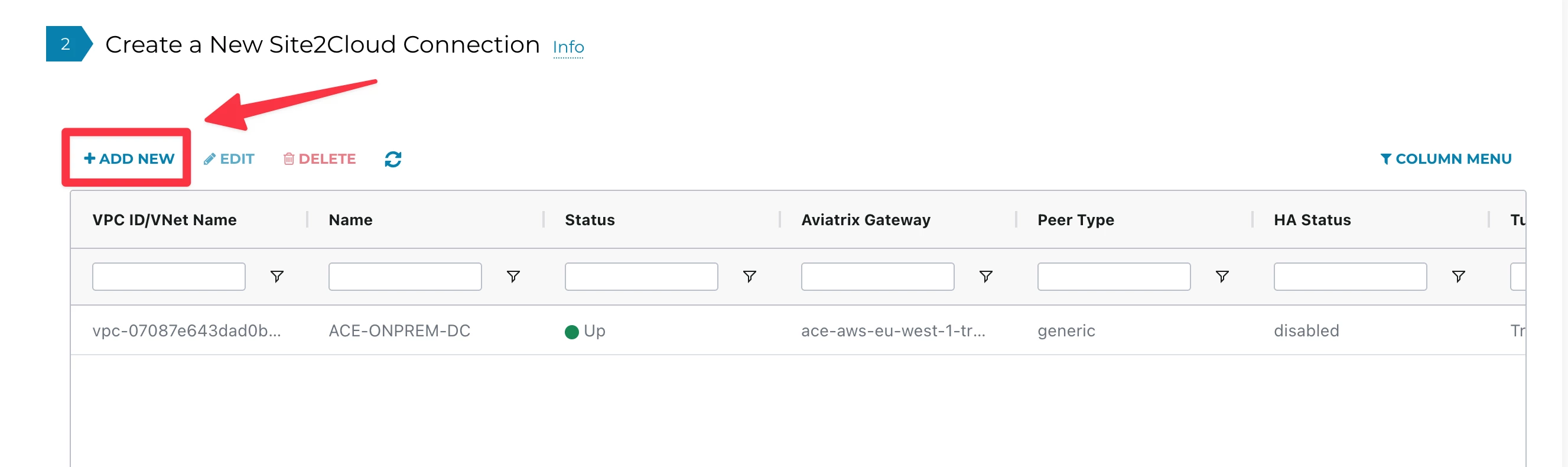
Create a new S2C connection.
HINT: Go to Controller > SITE2CLOUD > Setup, then click on +ADD NEW
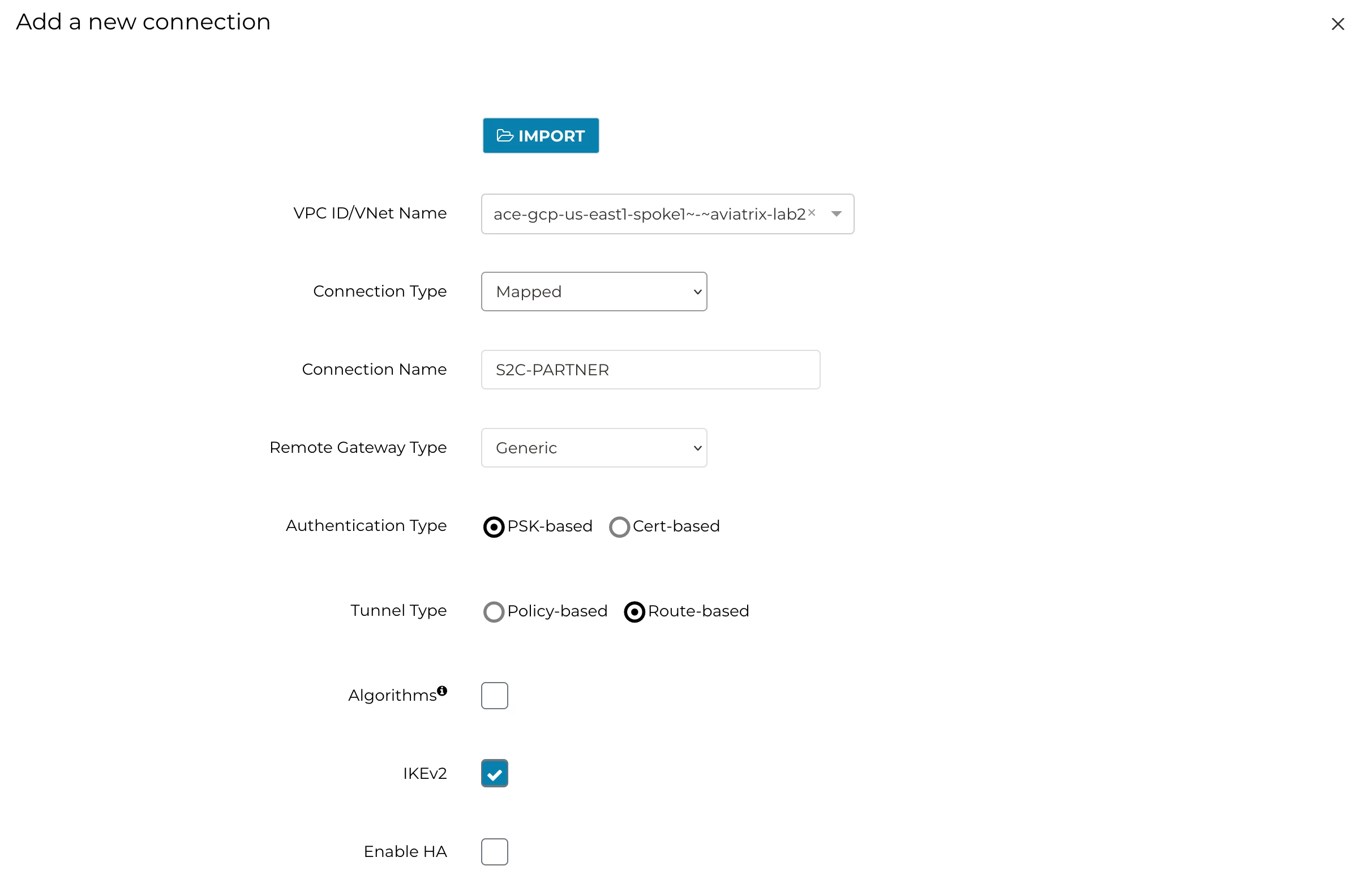
Configure the new S2C connection based on the schema below.
-
VPC: ace-gcp-us-east1-spoke1.
-
Connection Type: Mapped
-
Connection name: S2C-PARTNER
-
IKEv2: Enable
-
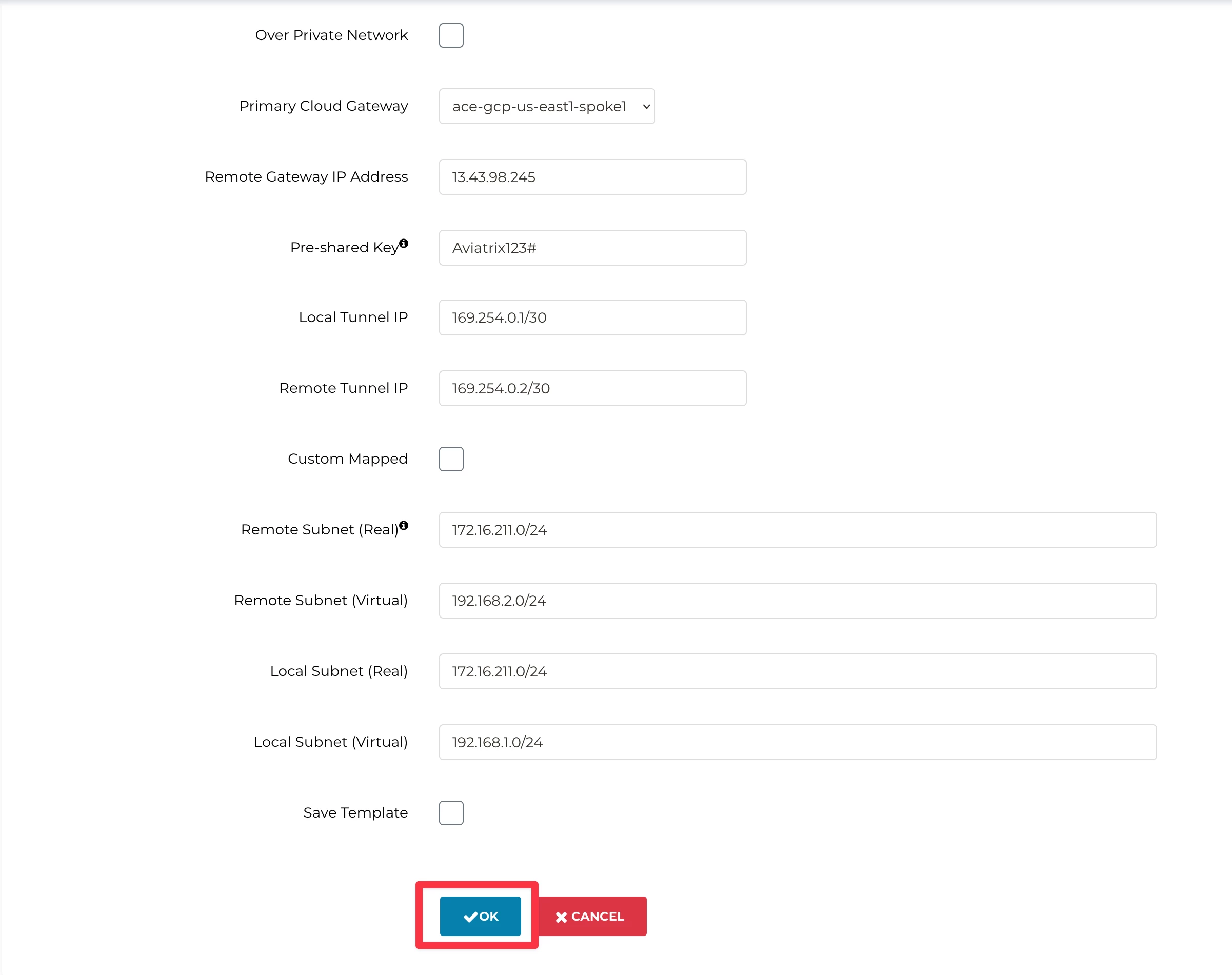
Remote Gateway IP Address: follow the hint below
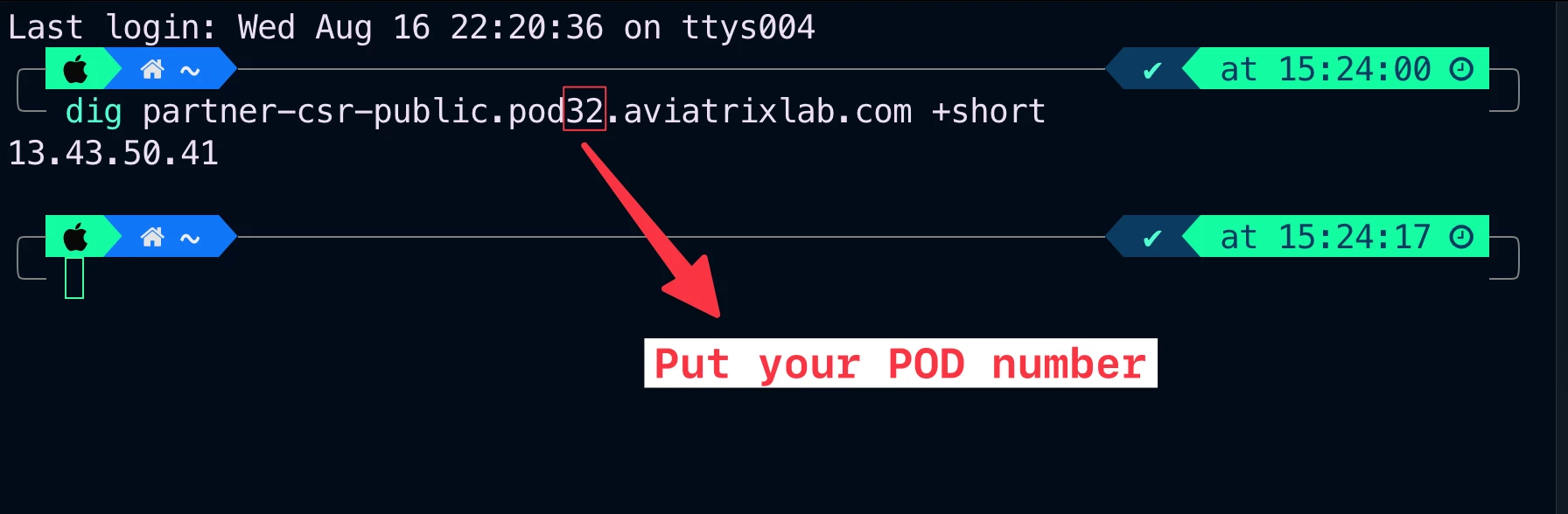
HINT: use the “dig partner-csr-public.pod#.aviatrixlab.com +short” command from your personal laptop terminal to resolve the symbolic public name of the OnPrem Partner CSR router and retrieve the remote gateway public IP address, as depicted in the example below.
Replace the # symbol with your POD number!
The example is referring to POD #32 (please issue the command based on your POD number!).
-
Pre-shared Key: Aviatrix123#
-
Local Tunnel IP: 169.254.0.1/30
-
Remote Tunnel IP: 169.254.0.2/30
-
Configure the Mapped NAT with the following CIDRs:
- Remote Subnet (Real) = 172.16.211.0/24
- Remote Subnet (Virtua) = 192.168.2.0/24
- Local Subnet (Real) = 172.16.211.0/24
- Local Subnet (Virtual) = 192.168.1.0/24
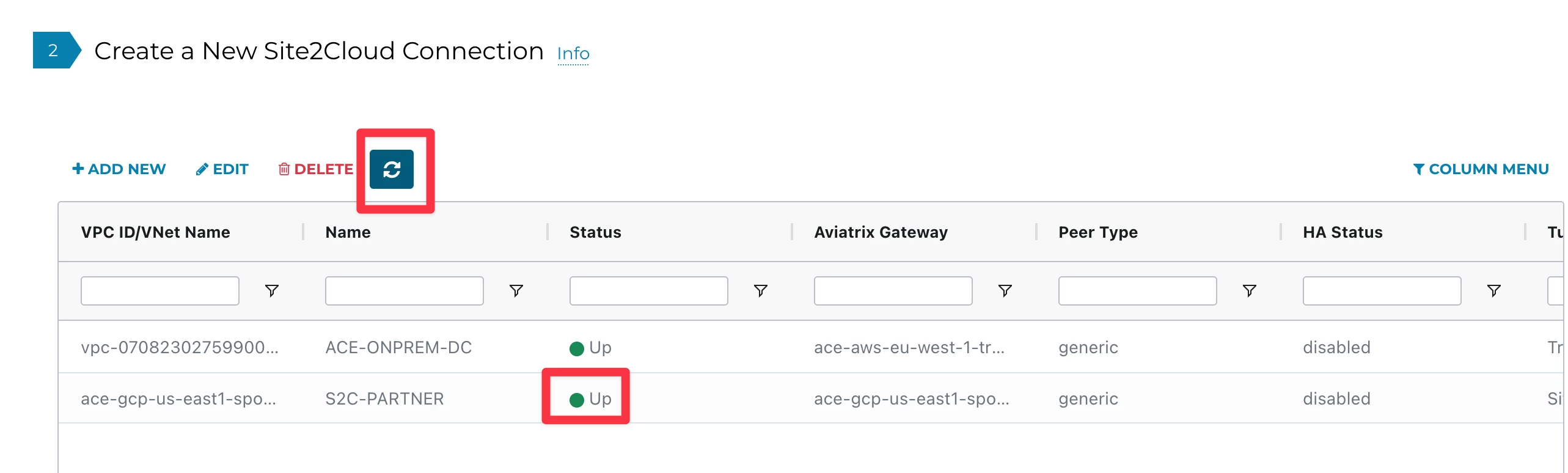
Wait some minutes for the completion of the S2C. Click on the refresh button to see the status changing from red to green.
-
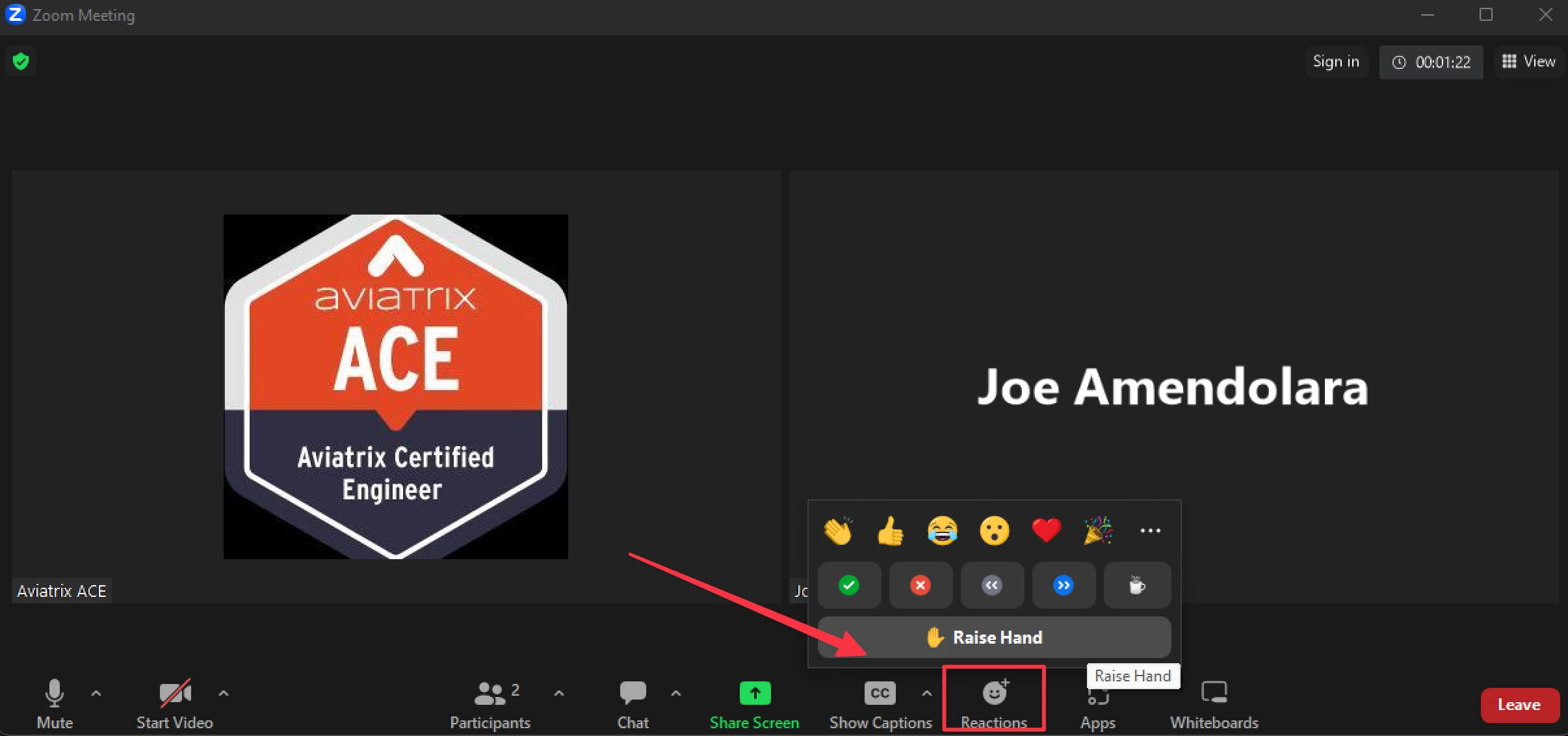
SSH to the OnPrem partner router and issue the following command:
ping 192.168.1.100 source gigabitethernet1