

1. Objective
Implement Role-Based Access Control using Local Authentication on the CoPilot.
You will perform tasks to address the following scenario:
- For the Controller: create an Operator that has RW access to Dashboard, Useful Tools and Troubleshoot sections for all cloud accounts.
- For the CoPilot: create an Operator that has RW access to Dashboard, Topology, Monitor and Troubleshoot sections for all cloud accounts.
Notice that the account you are provided in the labs is a local user called student that is a member of the Permission Group admin.
2. Configuration: RBAC for the Controller
2.1. Create a Permission Group
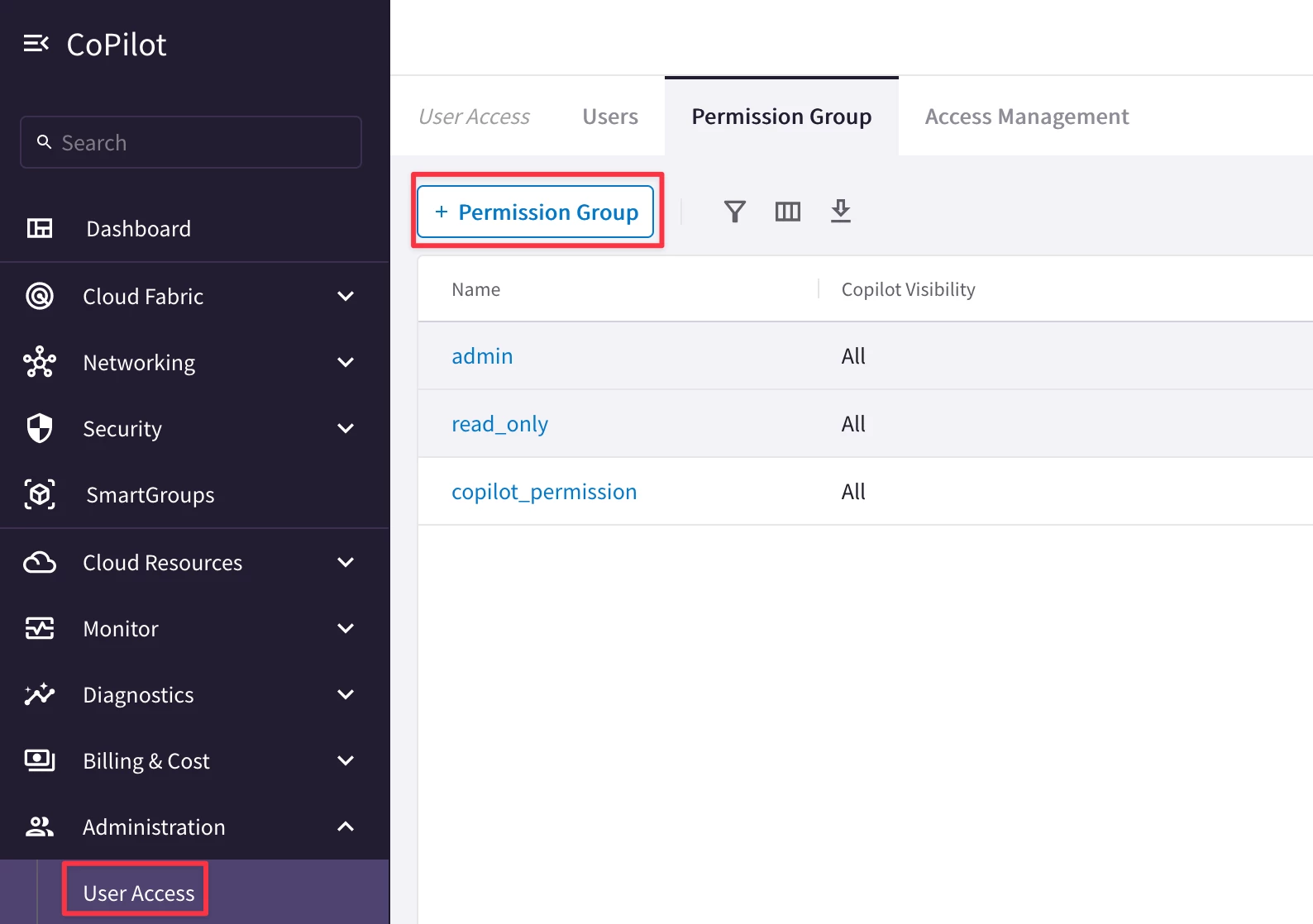
Navigate to CoPilot > Administration > User Access > Permission Group
Click “+Permission Group”.
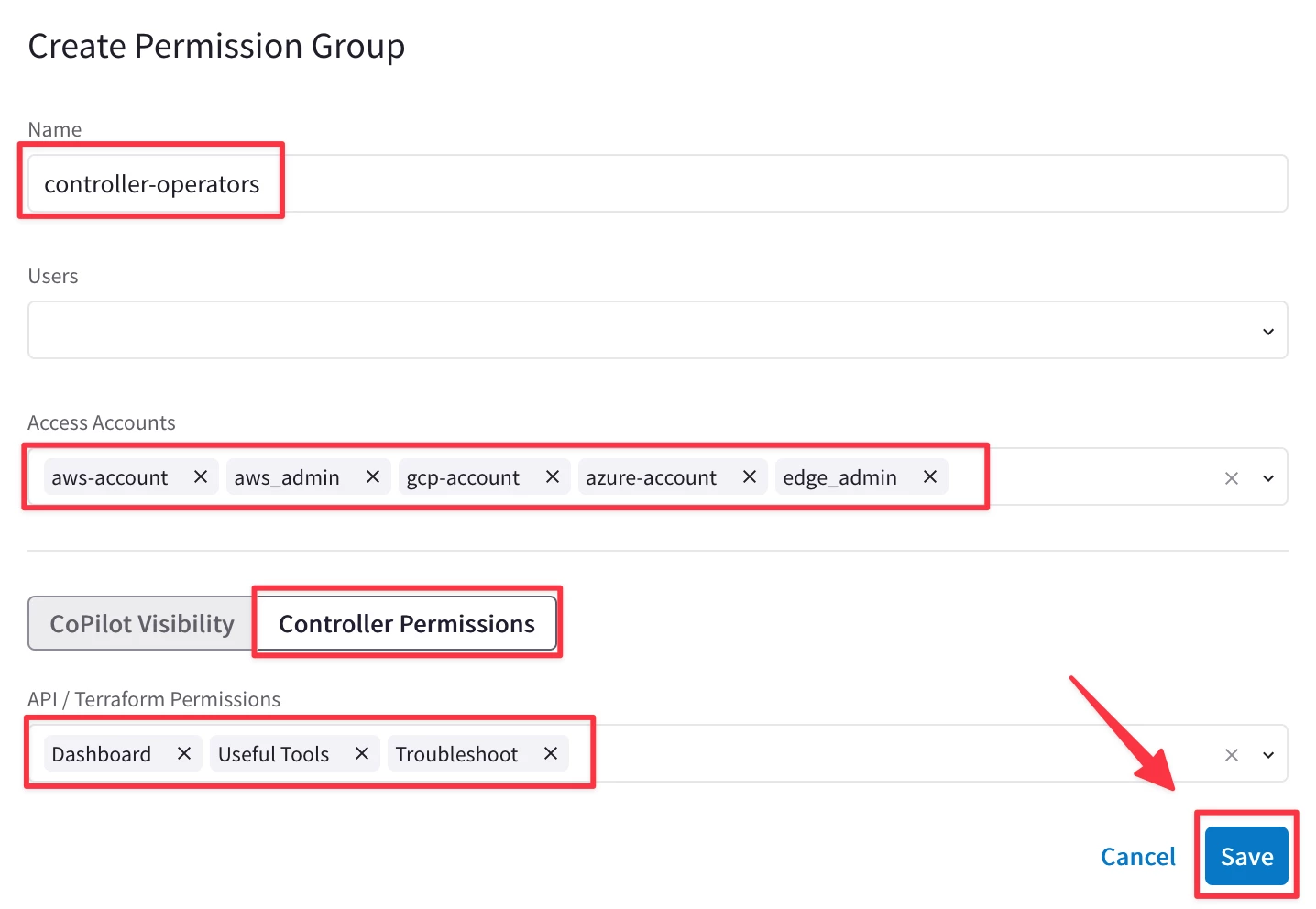
Name the group controller-operators, select all the Access Accounts available from the top-down window and choose the Controller Permissions.
Then from the API/Terraform Permissions field, select Dashboard, Useful Tools and Troubleshoot privileges, as depicted below.
Click on Save.
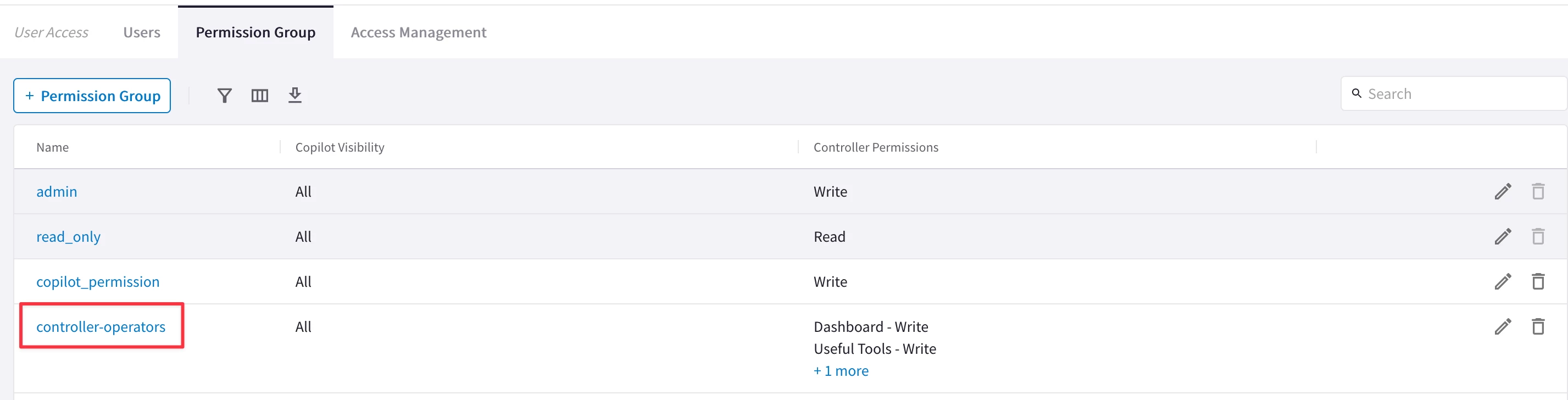
In the list of permission groups you should see the new created controller-operators.
2.2. Create a User
Navigate to CoPilot > Administration > User Access > Users
Click “+User”.
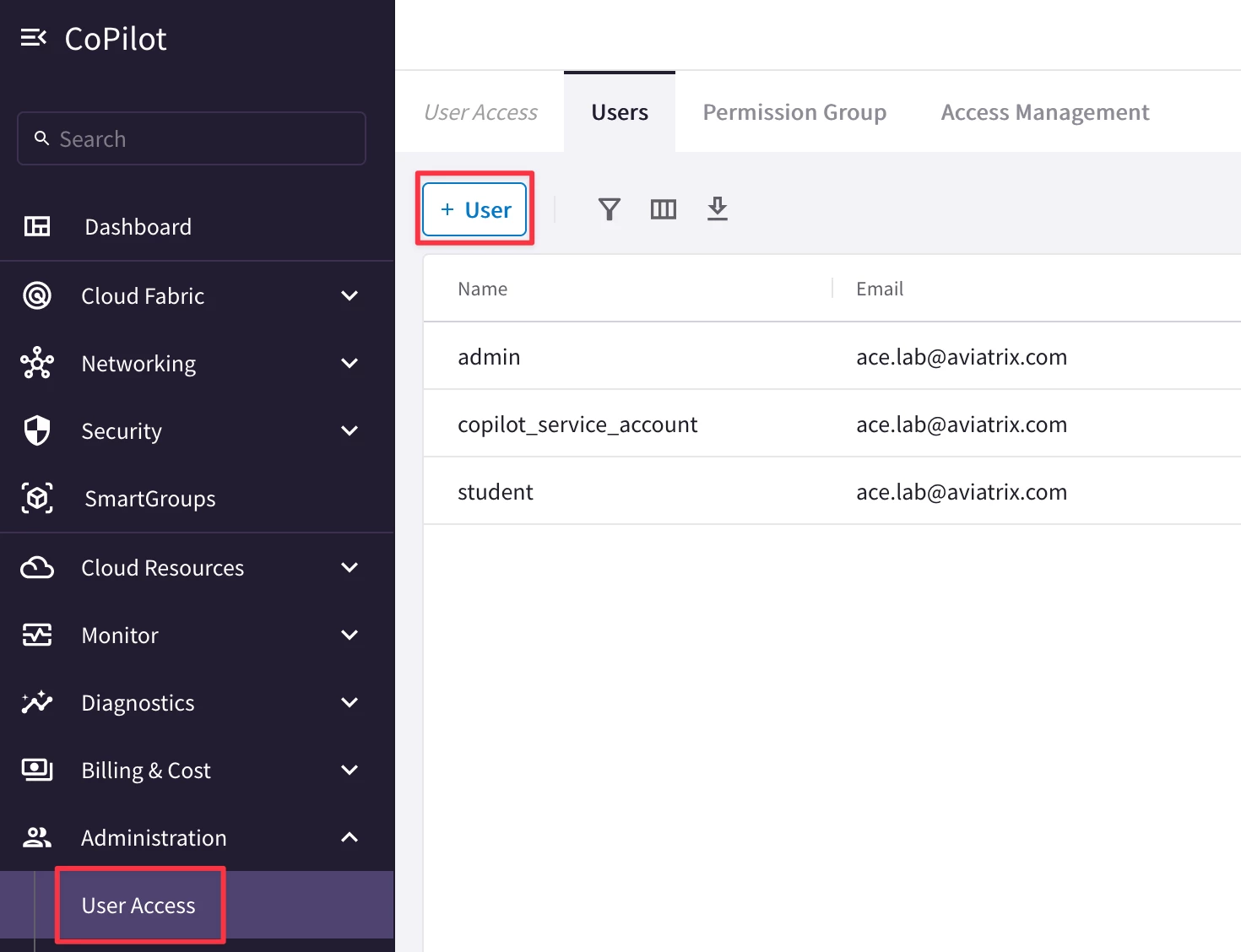
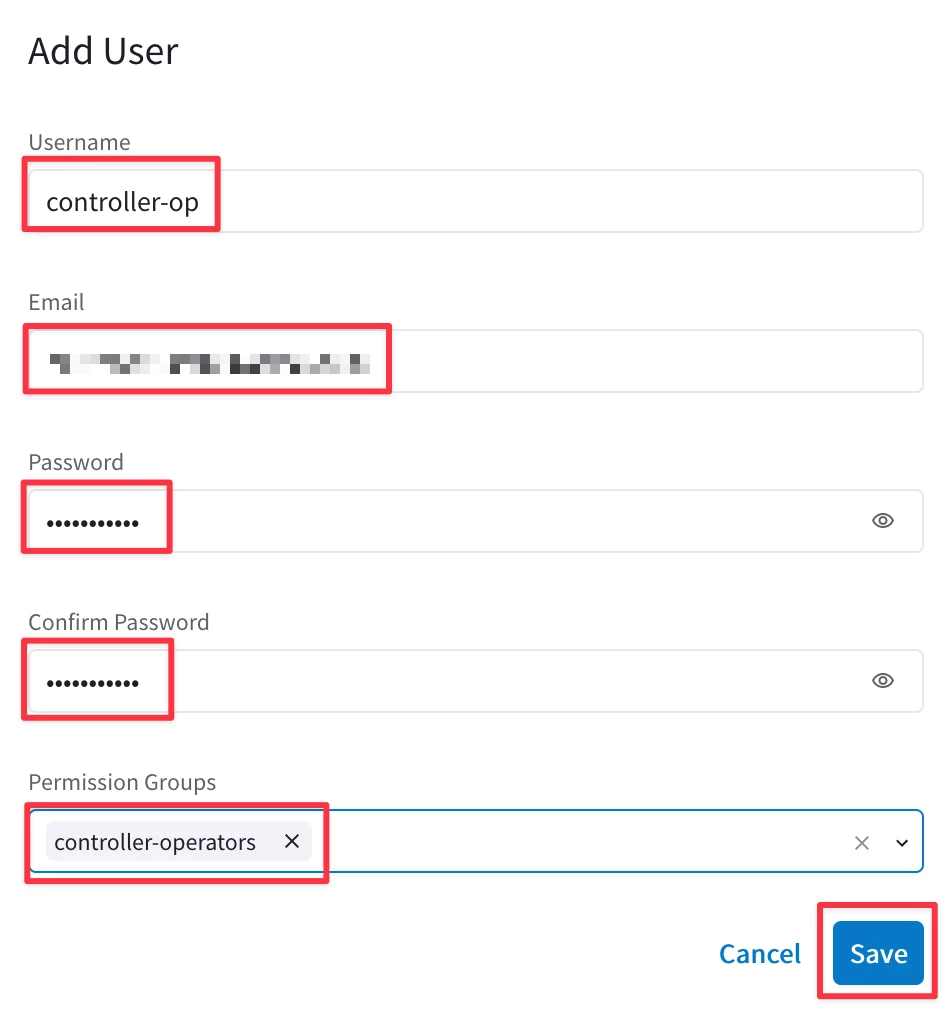
Ensure to enter the following values:
Username: controller-op
Email: <Enter your own>
Password: <Pick a strong password and remember it>
Confirm Password: <Repeat the previous password>
Permission Groups: controller-operators
Then click Save.
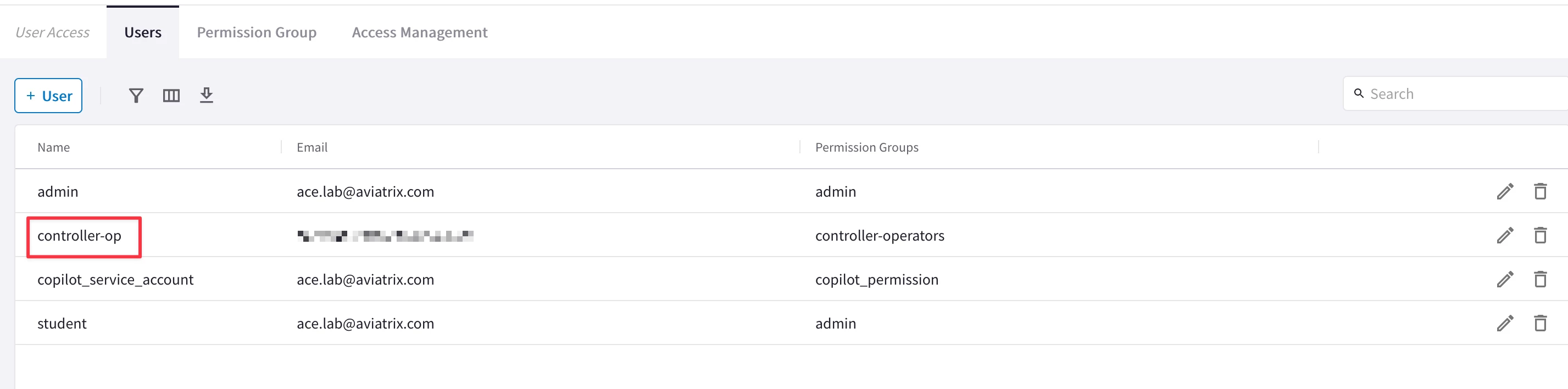
In the list of users, you should see the new created controller-op.
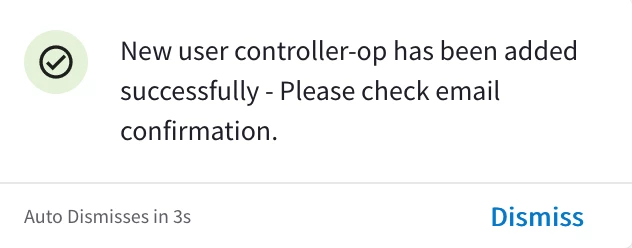
At this point, you should have received an email and a message in the Notifications tray such as this:
3. Verification: RBAC on the Controller
3.1. Log out and log back in as an RBAC user
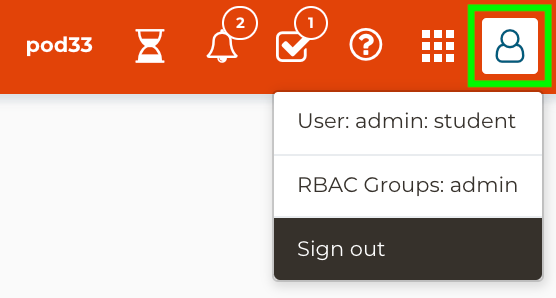
Go to Controller and then hover over the user icon in the top-right corner and click Sign out.
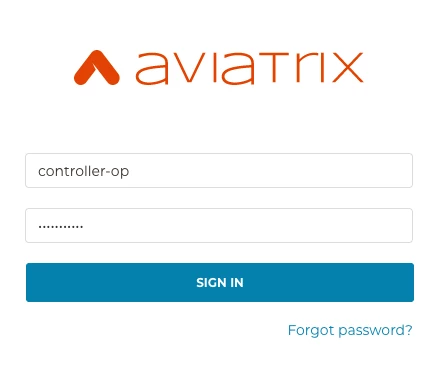
Sign back in as a controller-op with the same password you picked earlier.
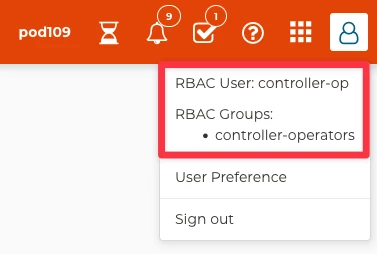
You should see in the top-right corner that you are logged in as the controller-op RBAC User, a member of the controller-operators RBAC Group.
3.1.1. Positive Test
Navigate to Controller > USEFUL TOOLS > Create a VPC and click + Add New
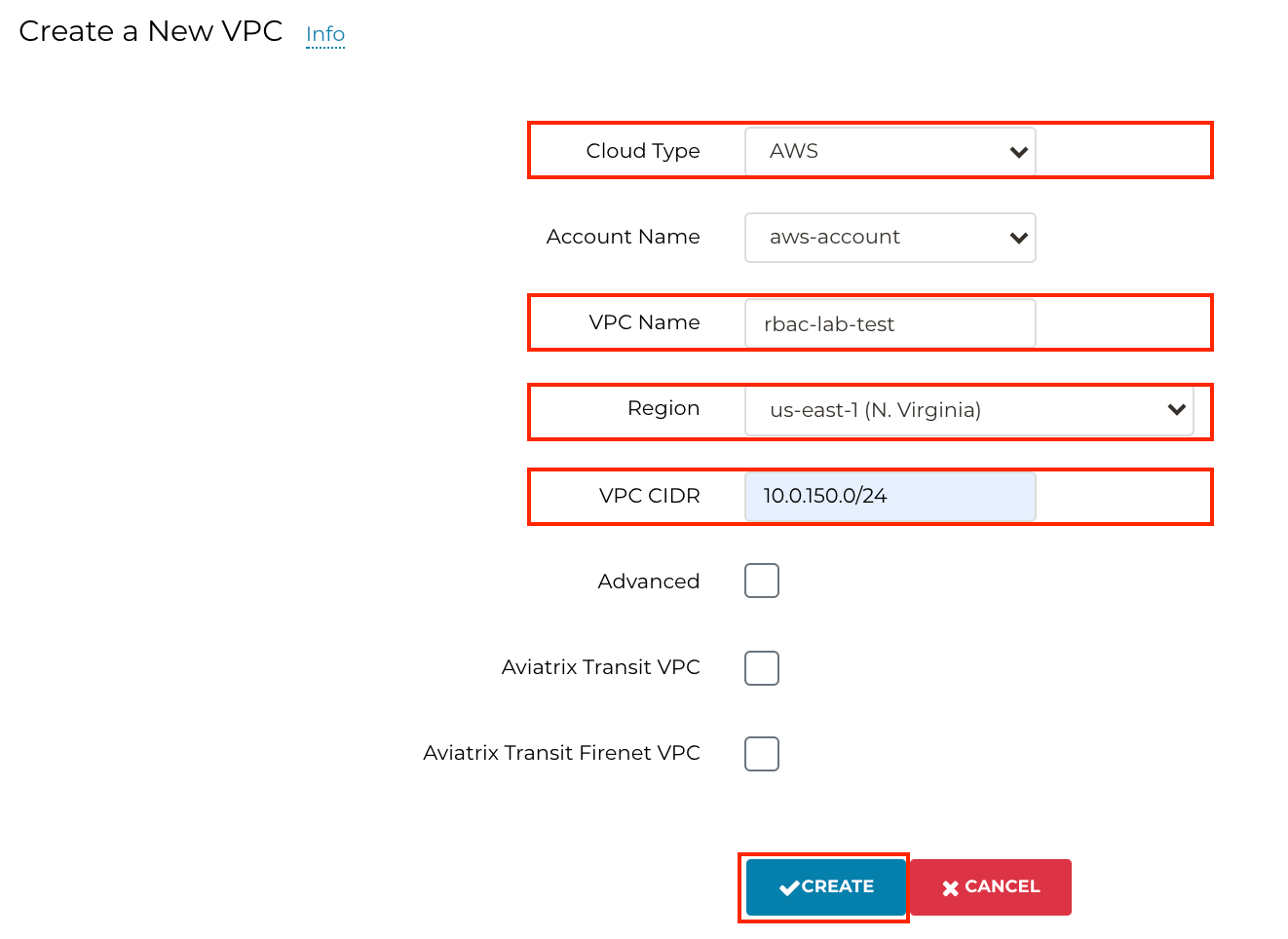
Create a new VPC as follows (make sure that Aviatrix Transit VPC is not selected).
- Cloud Type = AWS
- Account Name = [your AWS account name will be auto-populated]
- VPC Name = rbac-lab-test
- VPC Region = us-east-1
- VPC CIDR = 10.0.150.0/24
- Advanced = unchecked
- Aviatrix Transit VPC = unchecked
- Aviatrix FireNet VPC = unchecked
You will receive confirmation that your VPC was created successfully!

3.1.2. Negative Test
Navigate to Controller > MULTI-CLOUD TRANSIT > Segmentation and scroll down to Step 3, Add / Modify Connection Policy
Attempt to undo your work in the Network Segmentation Lab, by disconnecting the Green security domain from the Blue one.
Select the Green domain first and then click on the DEL button.
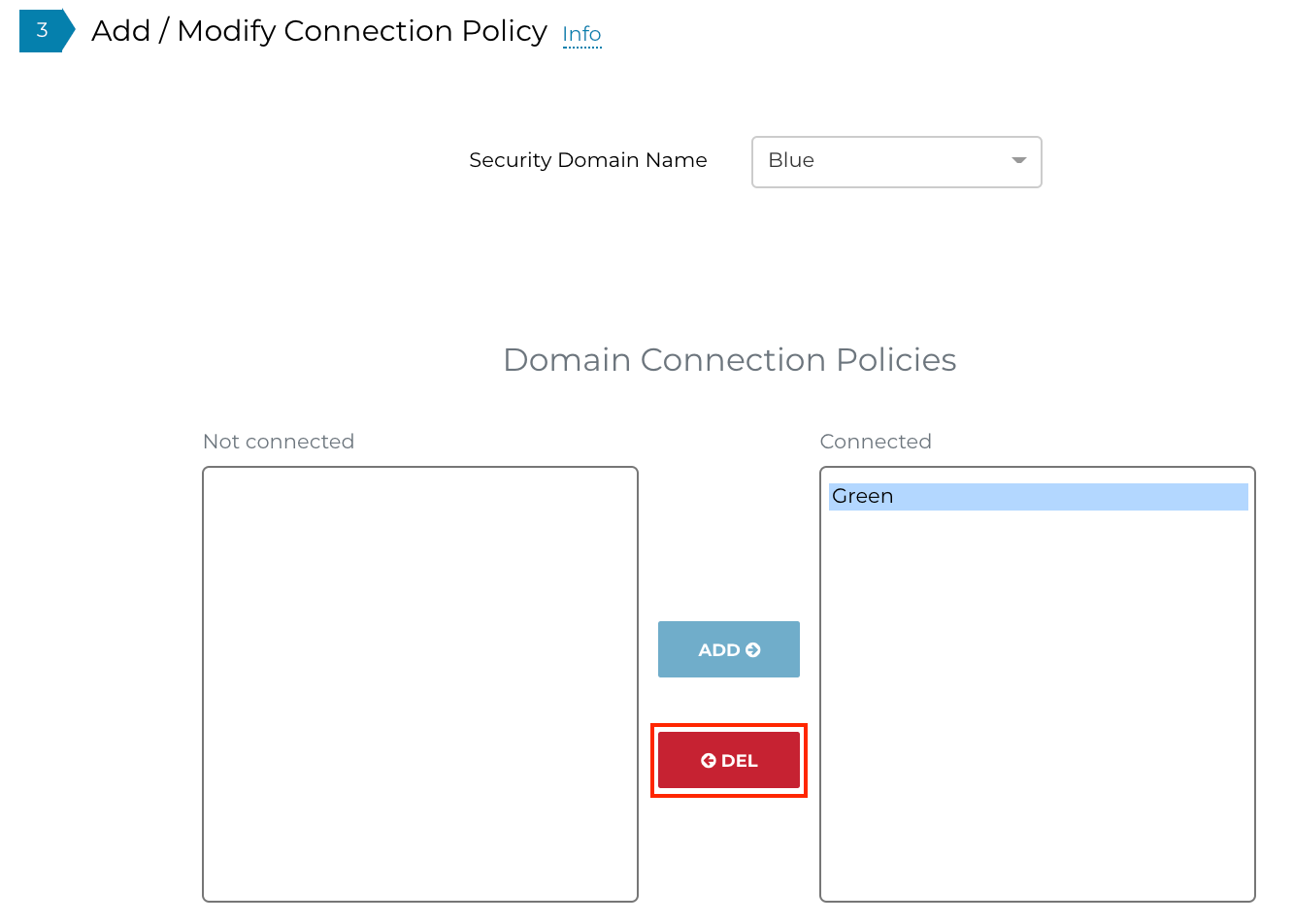
You should immediately receive an error in the Notifications tray such as this:
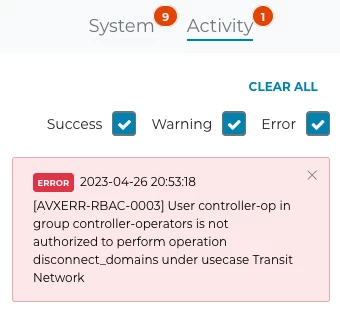
Note: Before moving to the subsequent section, be sure to sign out as a controller-op and sign back in as a student.
4. Configuration: RBAC for the CoPilot
4.1. Create a Permission Group
Navigate to CoPilot > Administration > User Acces > Permission Group
Click on “+ Permission Group”.
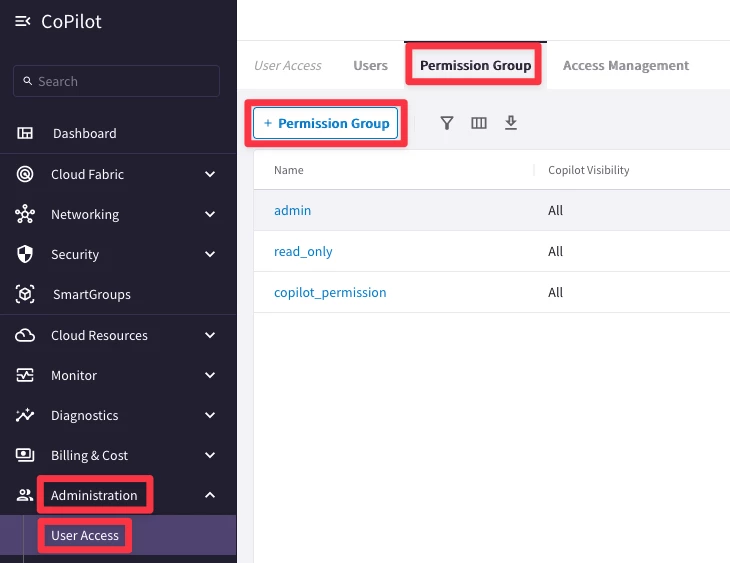
Ensure to insert the following values inside the pop-up window “Create Permission Group”:
- Name: copilot-operators
- Users: << empty >>
- Access Accounts: choose all the accounts
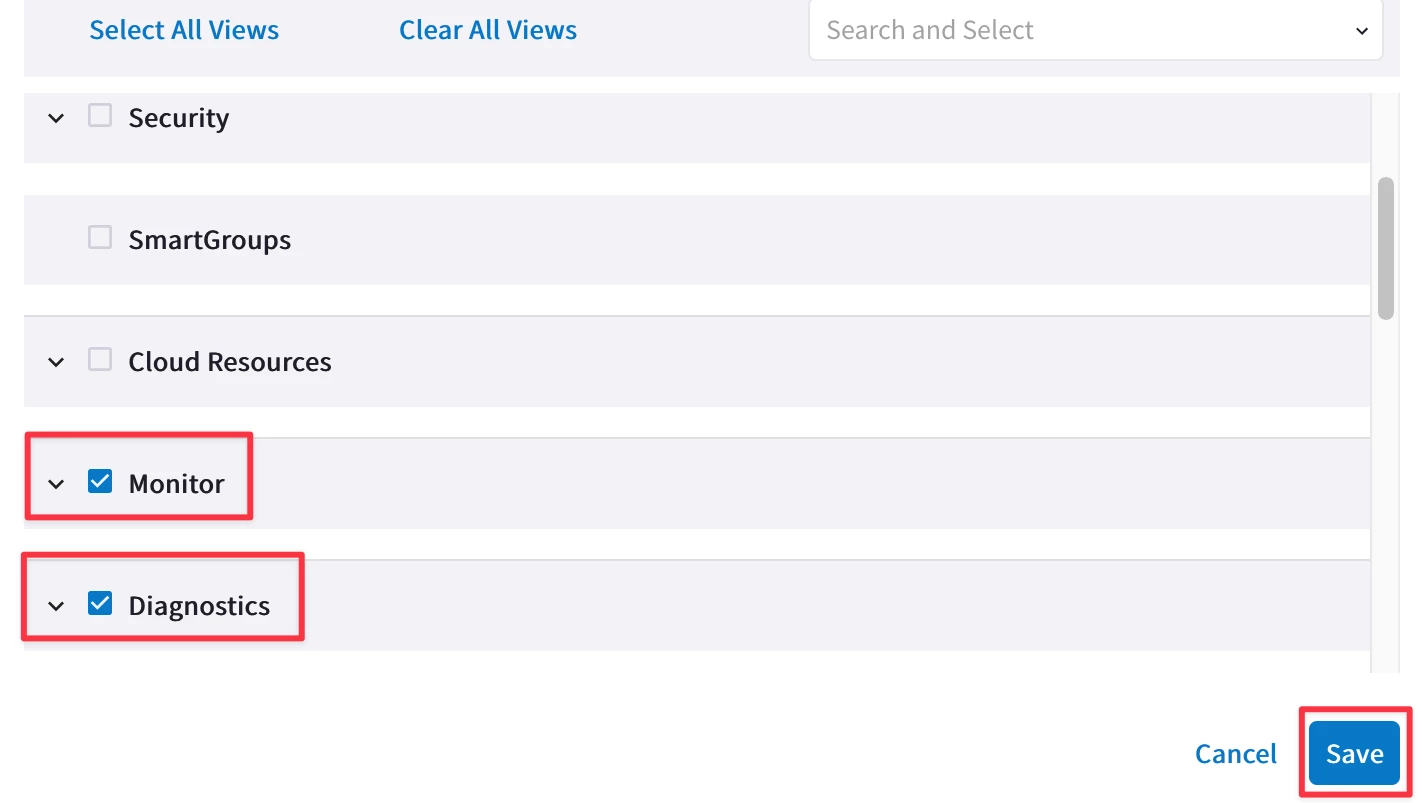
Click on “Clear All Views”, and then select the following sections (and subsections):
- Cloud Fabric (and only the subsection Topology)
- Monitor
- Diagnostics
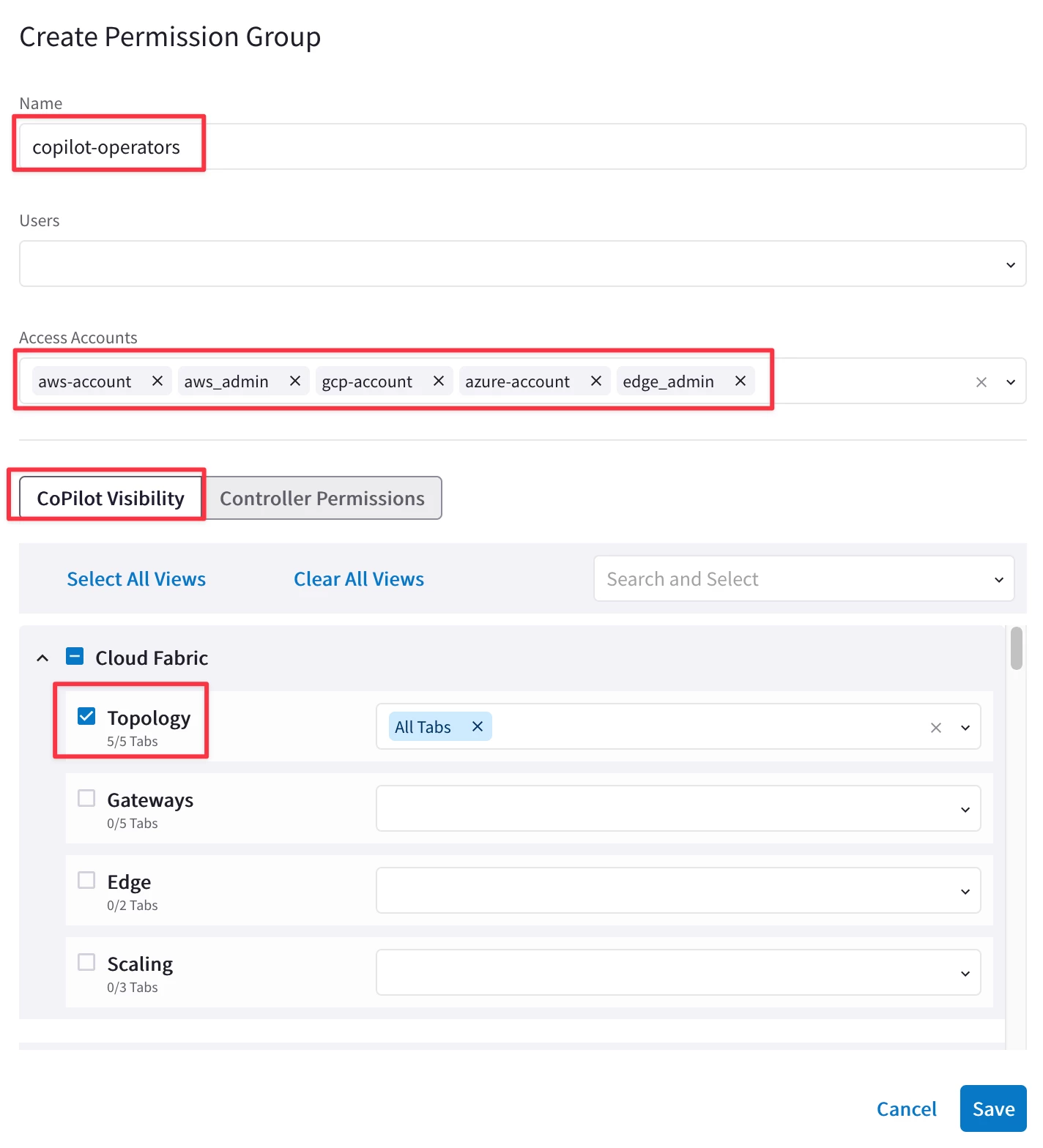
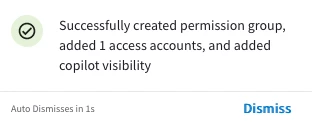
You should notice a Notification message popping up.
4.2. Create a new User
Navigate to CoPilot > Administration > User Acces > Users
Click on “+ User”
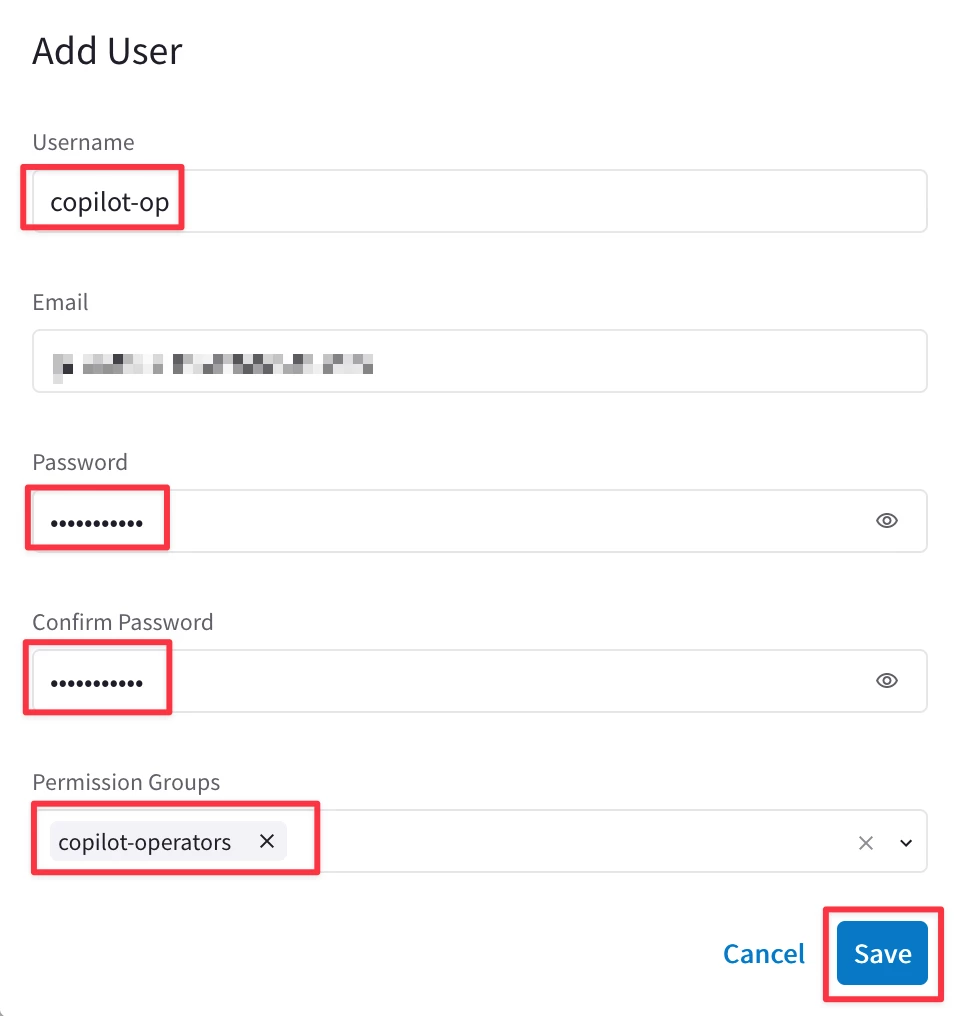
Ensure to enter the following values:
Username: copilot-op
Email: <Enter your own>
Password: <Pick a strong password and remember it>
Confirm Password: <Repeat the password previously inserted>
Permission Groups: copilot-operators
Then click SAVE.
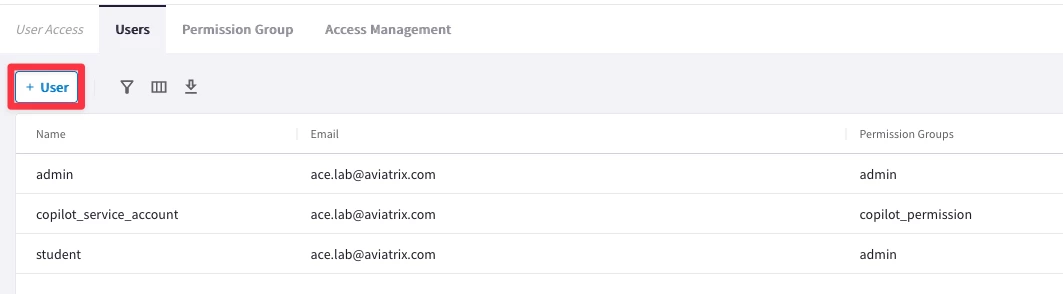
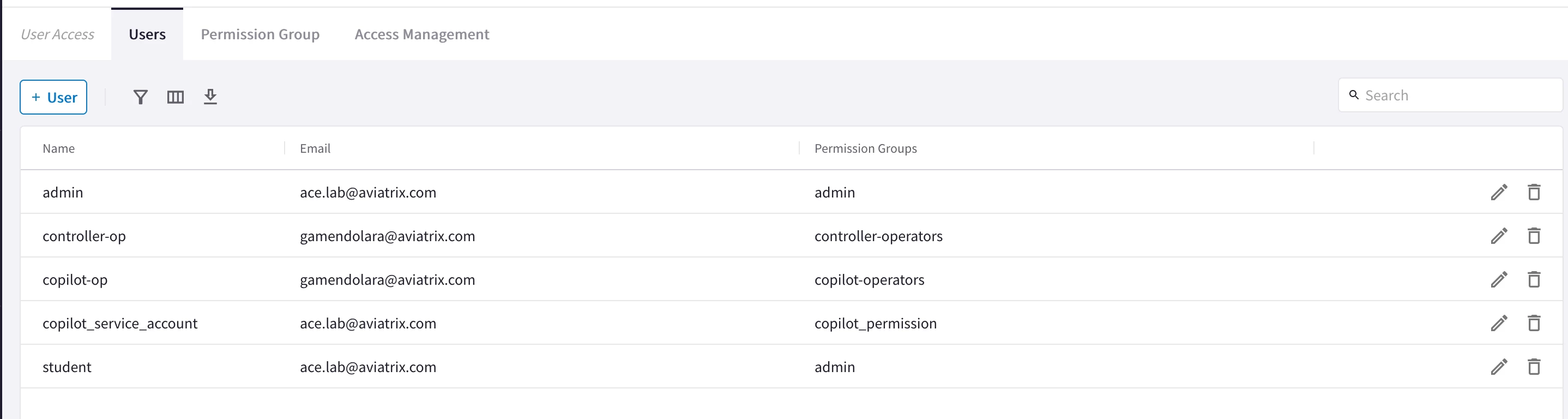
This is the list of all users that you should be able to see at this point.
5. Verification: RBAC on the CoPilot
5.1. Log out and log back in as an RBAC user
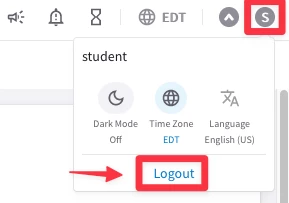
Hover over the user icon in the top-right corner and click Logout.
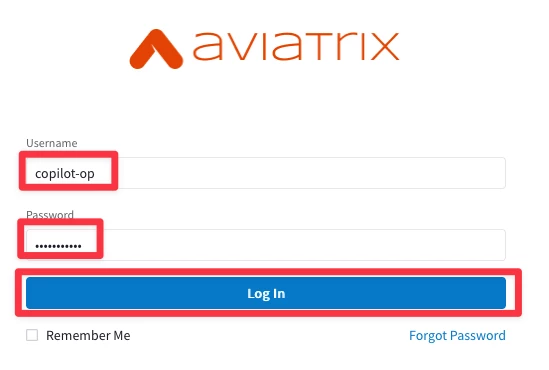
Sign back in as a copilot-op with the same password you picked earlier.
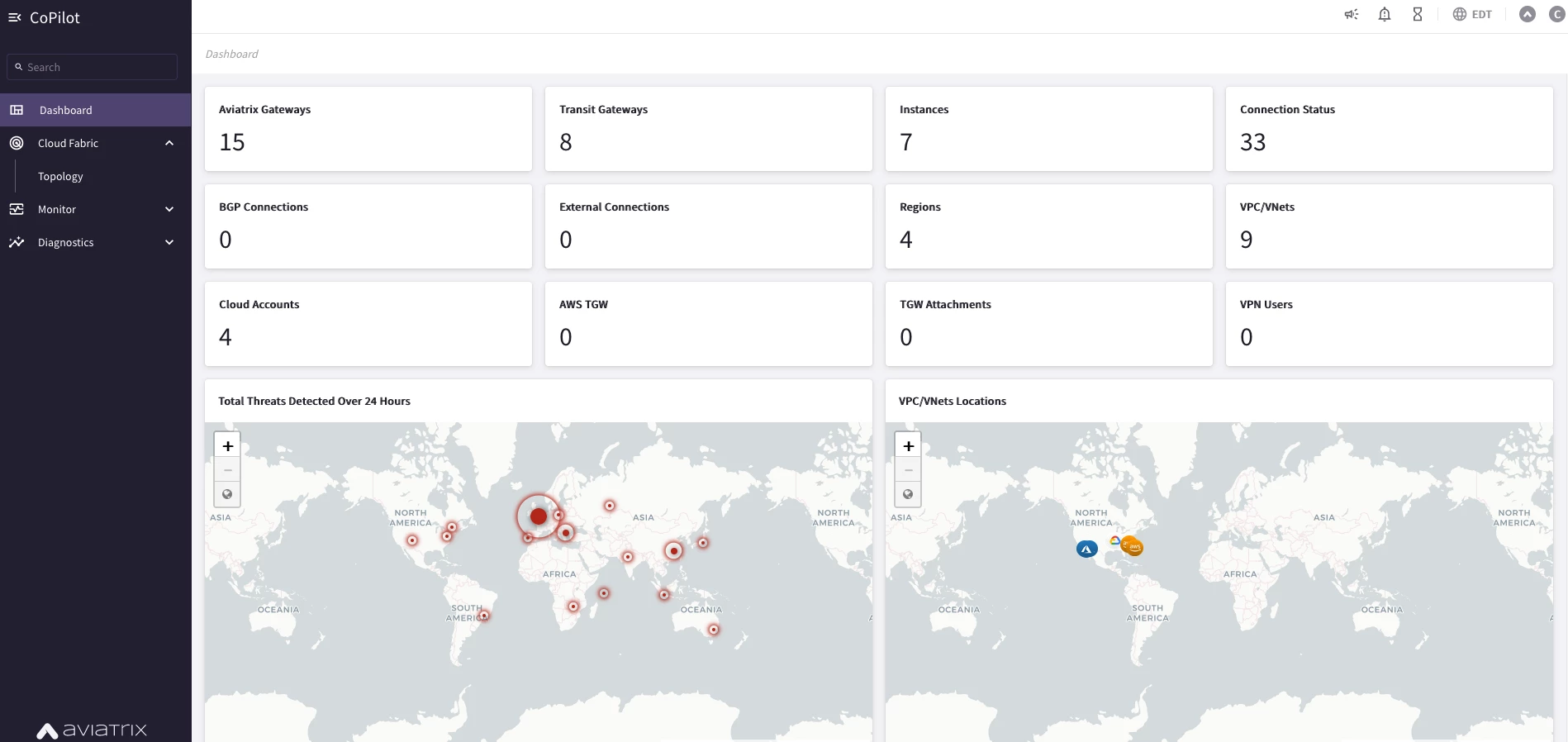
You will immediately notice that the RBAC feature on the CoPilot is capable to limit to each persona the visbility of the platform, showing only those sections that have been permitted.
The user copilot-op can only interact with the Cloud Fabric section (but only with the sub-section Topology, whereby, this user is not authorized to deploy gateways), the Monitor section and the Troubleshoot section.
The other sections are not more visible.
Note: Be sure to sign out as a copilot-op and sign back in as a student, in order to complete this lab!