


1. Objective
This lab will demonstrate how to create Egress Fully Qualified Domain Name (FQDN) filtering using Aviatrix Egress FQDN gateways. Only those FQDNs permitted (allow listed) in the configured policy will be allowed.
2. Egress FQDN Filtering Overview
Aviatrix Egress FQDN is a highly available security service specifically designed for workloads or applications in the public clouds.
Aviatrix Egress FQDN Filtering is centrally managed by the Controller and executed on Aviatrix FQDN gateway in the VNet/VPC/VCN in the distributed or centralised architecture. All the internet-bound traffic (TCP/UDP including HTTP/HTTPS/SFTP) is first discovered, and based on the results admin can create egress filters using the allowlist or denylist model.
Egress FQDN filtering allows organisations to achieve PCI compliance by limiting applications’ access to approved FQDNs. This is a common replacement for solutions using the Squid proxy, requiring a lot of manual effort. There are several ways to deploy Egress FQDN filtering depending on requirements. This lab will focus on using it as a Public Subnet Filtering Gateway to protect instances that are already on the public subnet but require Egress Security.
3. Topology
In this lab, we will configure the grey Aviatrix egress FQDN gateway and filtering policies as shown in the below topology. You will be deploying Egress/Public Subnet Filtering Gateway in this lab in AWS us-east-2 region as follows:
4. Configuration
4.1. Egress FQDN Filtering Gateway Configuration
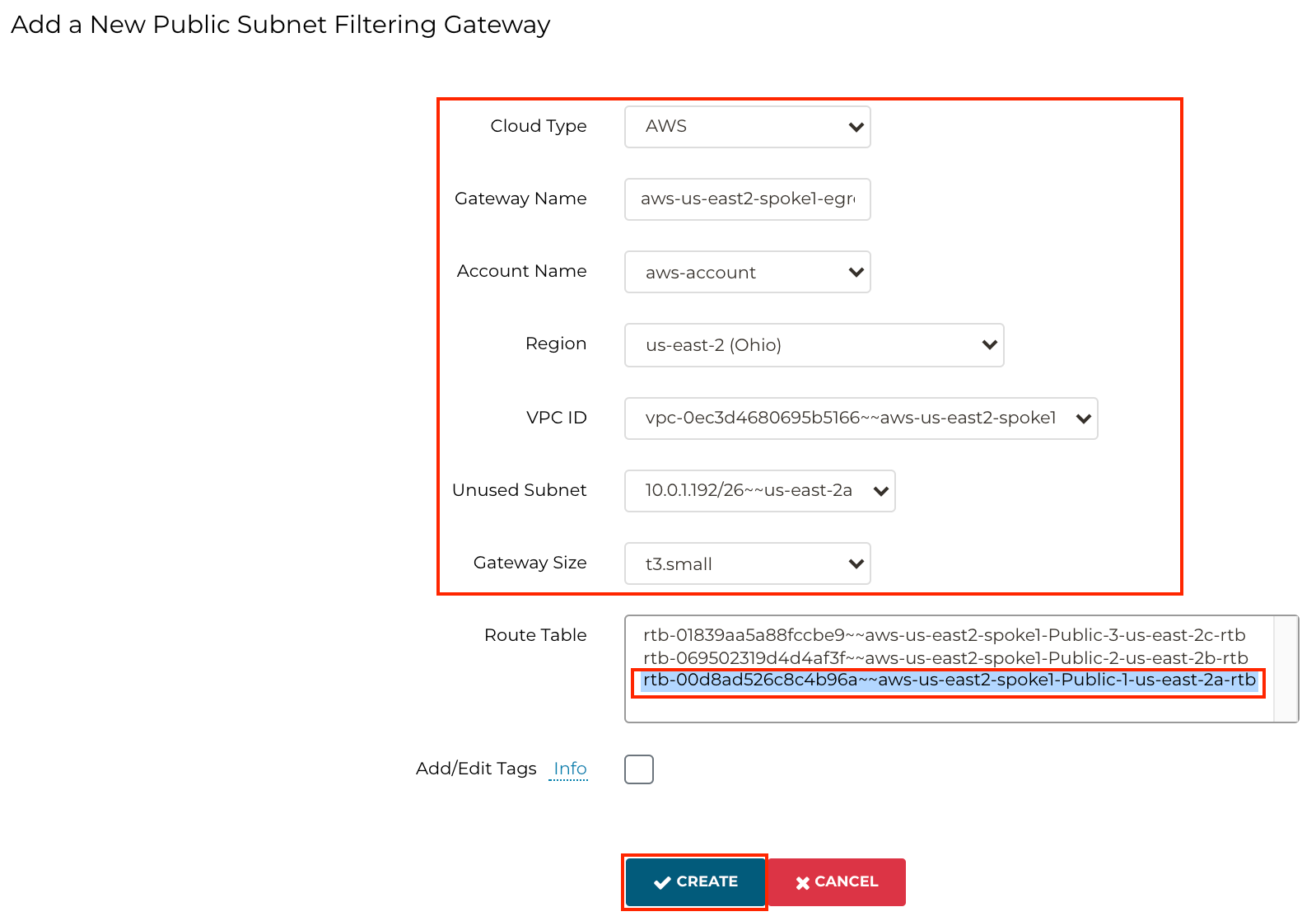
Go to Controller > SECURITY > Public Subnet > + ADD NEW
Ensure to insert the following values:
Cloud Type: AWS
Gateway Name: aws-us-east2-spoke1-egress
Region: us-east-2
VPC ID: aws-us-east2-spoke1
Unused Subnet: us-east-2a
Gateway Size: t3.small
Route Table: aws-us-east2-spoke1-Public-1-us-east-2a-rtb
Note: The subnet ordering may vary for your environment.
Click CREATE.
Note: the same Gateway can be used for Egress FQDN filtering for private/public subnets and Ingress traffic filtering, utilising ThreatIQ and ThreatGuard features.
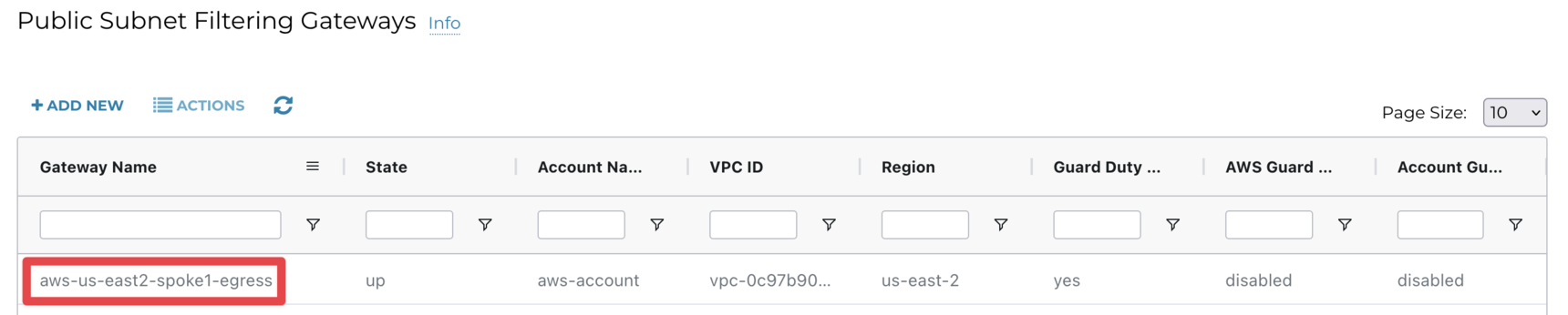
Wait till the gateway state changes to up (click on the refresh button).
4.2. Egress FQDN Filtering Gateway Routing
4.2.1. Verification on the Controller
There are two ways to verify this on the controller:
4.2.1.1. Option 1 - Controller
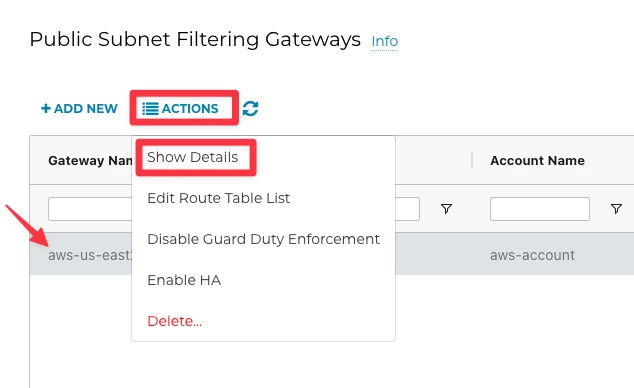
Go to Controller > SECURITY > Public Subnet > select the row with the egress gateway > ACTIONS > Show Details
Scroll down in the VPC Route Table Details section and look for the Route Table called aviatrix-Aviatrix-Filter-Gateway. Verify that Aviatrix Egress gateway’s default route is pointing to IGW:

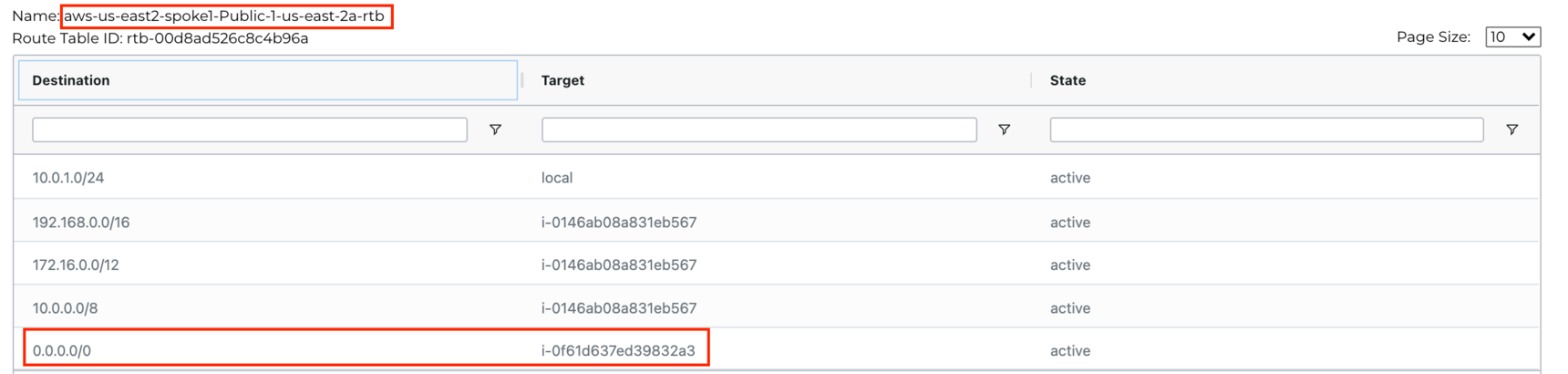
Also, verify that the test instance routing table’s default route is pointing towards the Aviatrix Egress gateway:
4.2.1.2 Option 2 - CoPilot (AirSpace)
You can verify the above information in multiple ways; here’s another one:
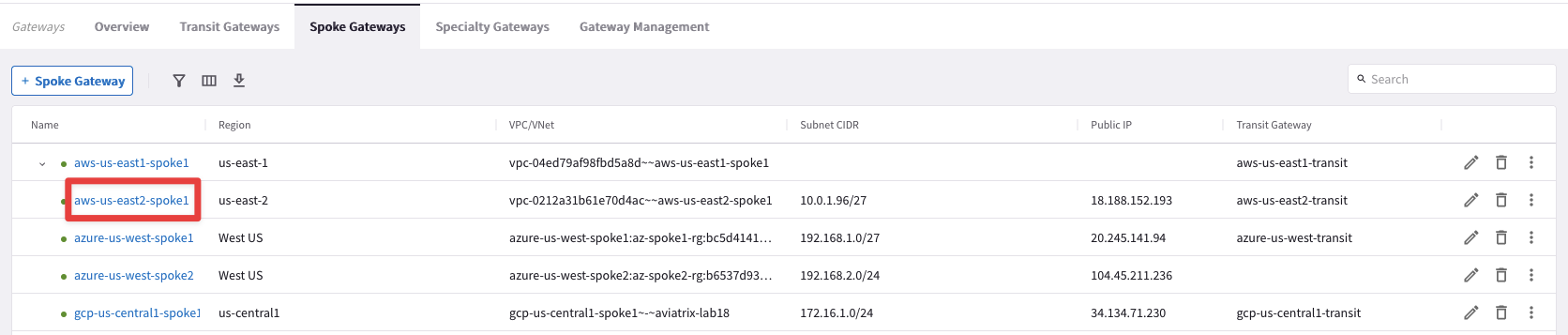
Go to CoPilot > Cloud Fabric > Gateways > Spoke Gateways and click on the Spoke Gateway aws-us-east2-spoke1:
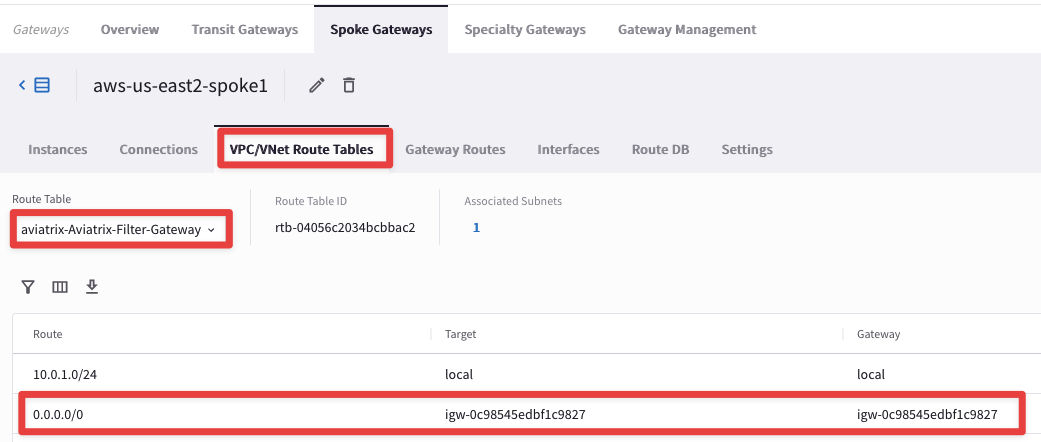
Select the "VPC/VNet Route Tables" tab, and then select the route table "aviatrix-Aviatrix-Filter-Gateway"
The subnet with the Egress gateway is a Public Subnet with 0/0 pointing to IGW. No workload instances should be deployed in this subnet. Examples would be on a separate subnet with a different route table with 0/0 pointing to the Egress gateway.
In this step, verify that the Egress gateway is in a different subnet and in its route table there is a 0/0 subnet pointing to IGW:
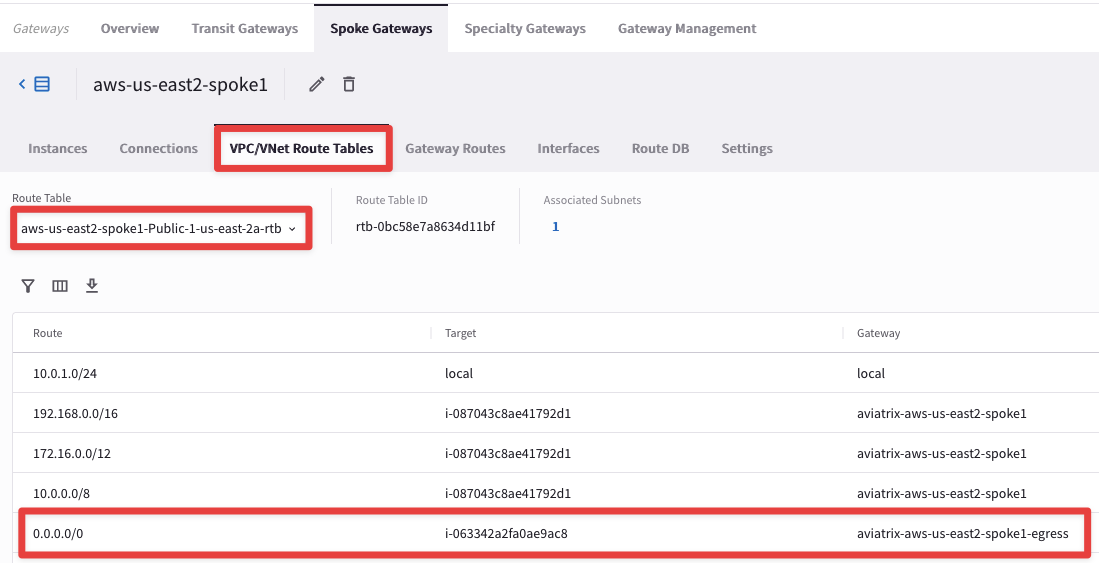
Verify one more routing table that we selected while deploying Egress FQDN Gateway aws-us-east2-spoke1-Public-1-us-east-2a-rtb and make sure the default route is pointing towards Egress Gateway (we are verifying this rtb because the test instance’s subnet points to this rtb).
Hint: if you do not see immediately reflected the change in the outcome below, refresh the web page!
4.2.1.3 Option 3 - CoPilot (Cloud Routes)
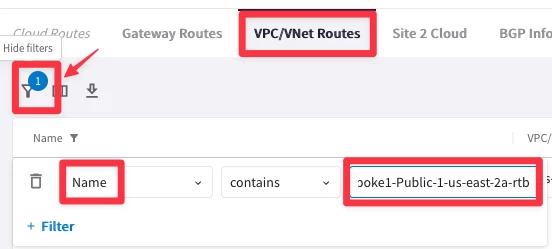
You can also verify this in CoPilot > Diagnostics > Cloud Routes > VPC/VNET ROUTES
Filter for aws-us-east2-spoke1-Public-1-us-east-2a-rtb as per the below diagram. You can also see that the default route is pointing towards the Egress FQDN Filtering Gateway:
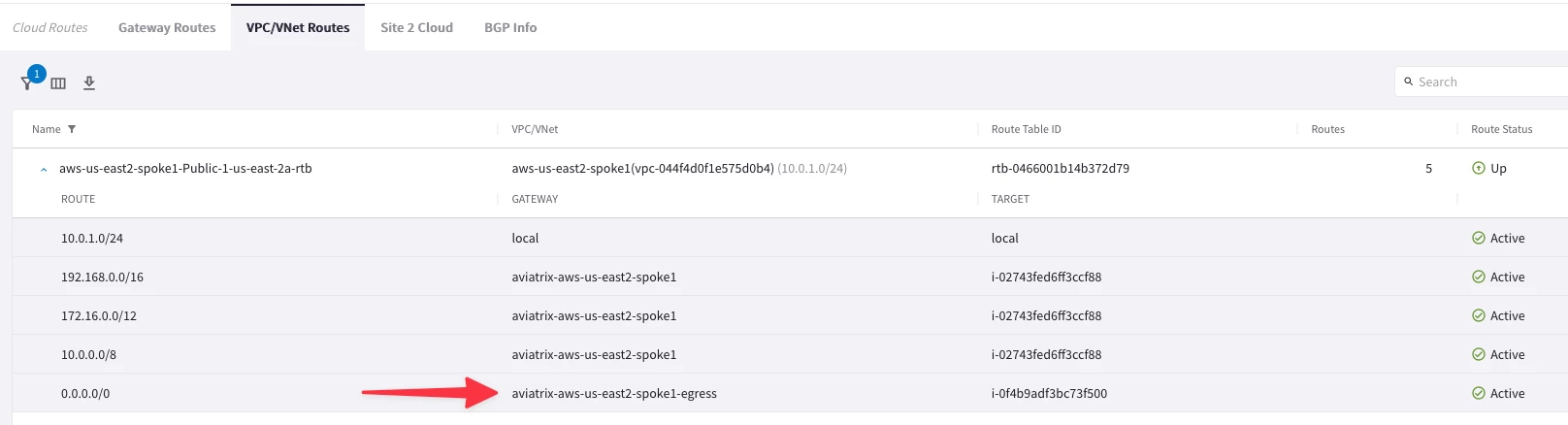
Hint: refresh the page to see the change!
4.3 Egress FQDN Discovery
Enable “Discovery” to find out what internet sites Apps are accessing.
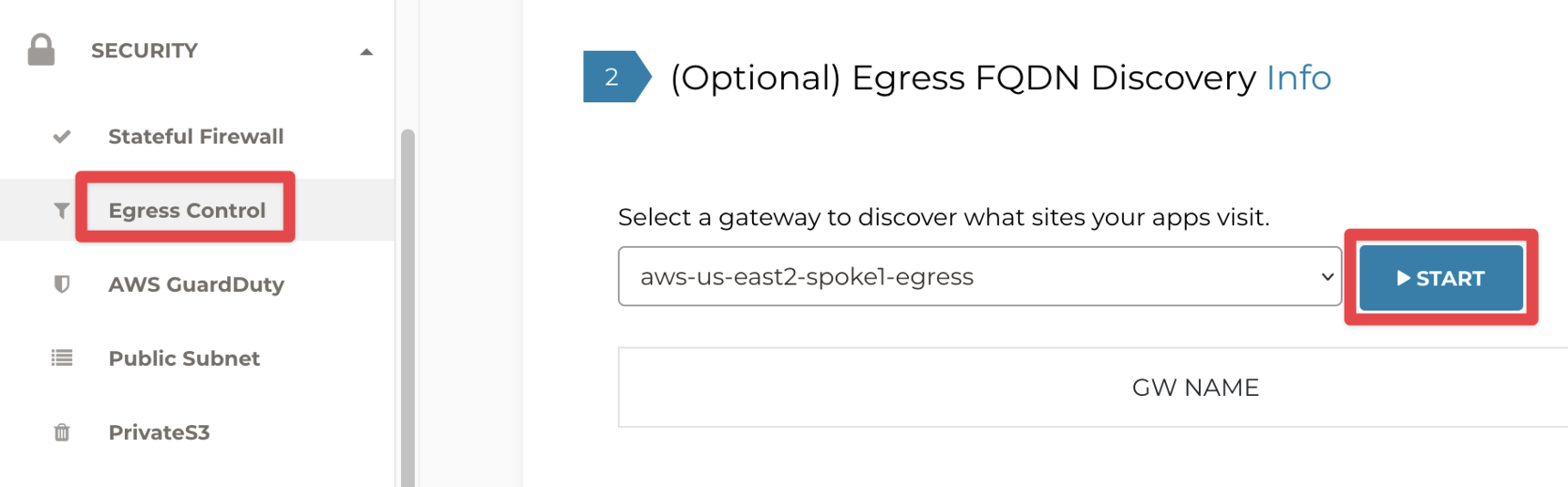
Go to Controller > SECURITY > Egress Control > (Step2) Egress FQDN Discovery
Select aws-us-east2-spoke1-egress from the dropdown menu and click START:
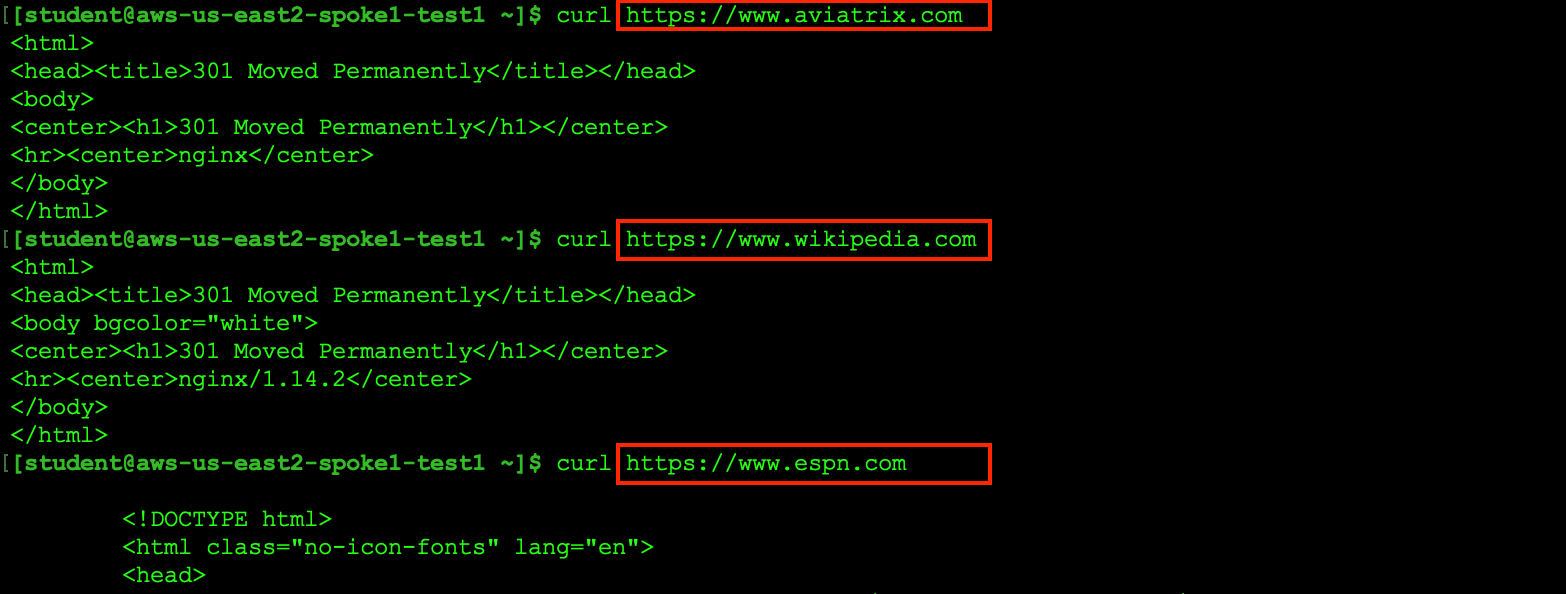
SSH into aws-us-east2-spoke1-test1 and try to curl the following websites:
All the above sites must be accessible via Aviatrix gateways:
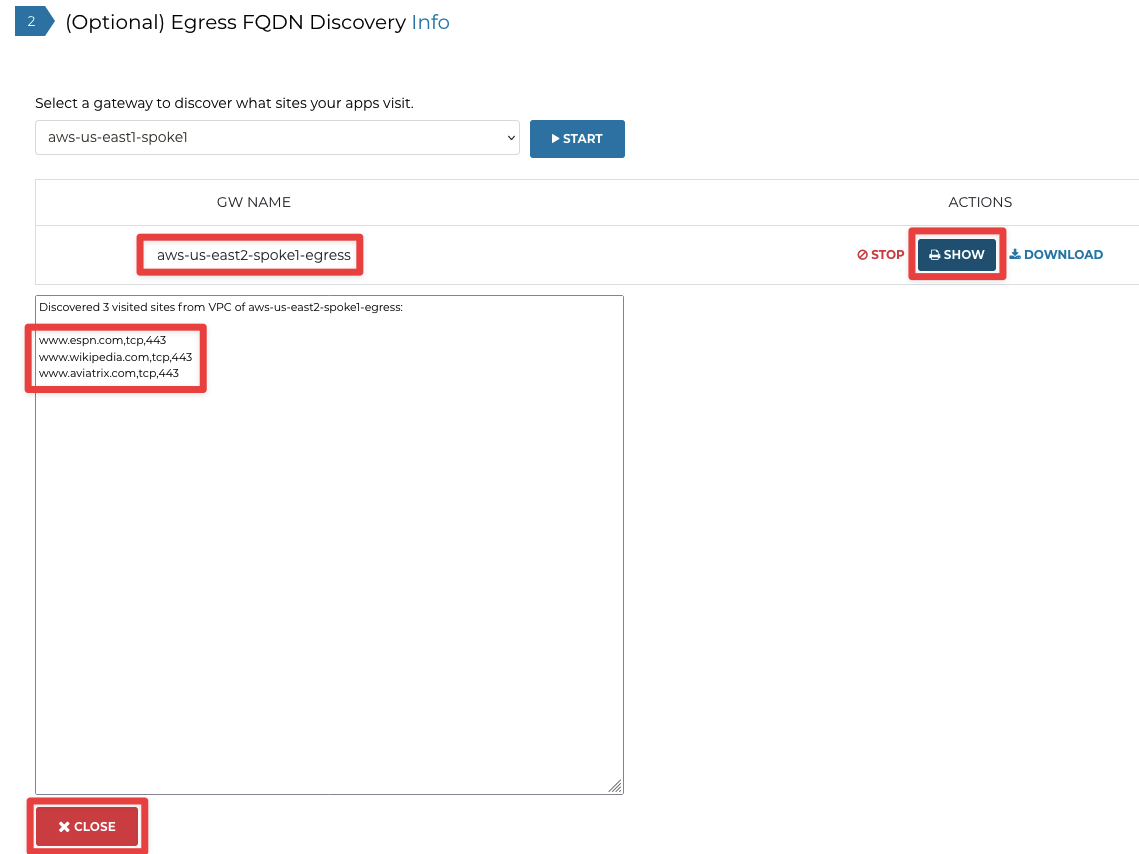
Go to Controller > SECURITY > Egress Control > (Optional) Egress FQDN Discovery
Click SHOW to view all the sites and then click CLOSE:
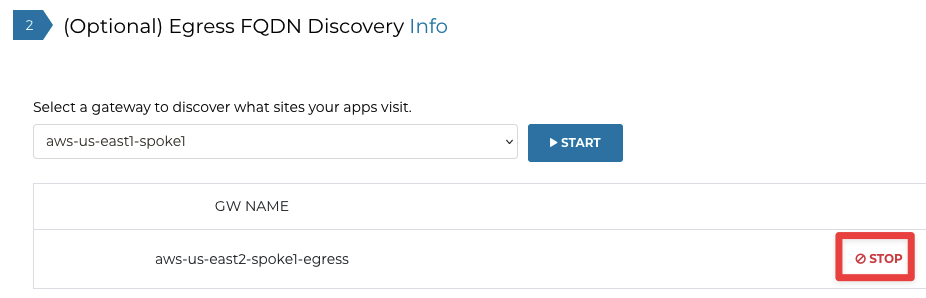
Click STOP to stop the Discovery:
4.4. Egress FQDN Policy
Go to Controller > SECURITY > Egress Control > (Step 3) Egress FQDN Filter
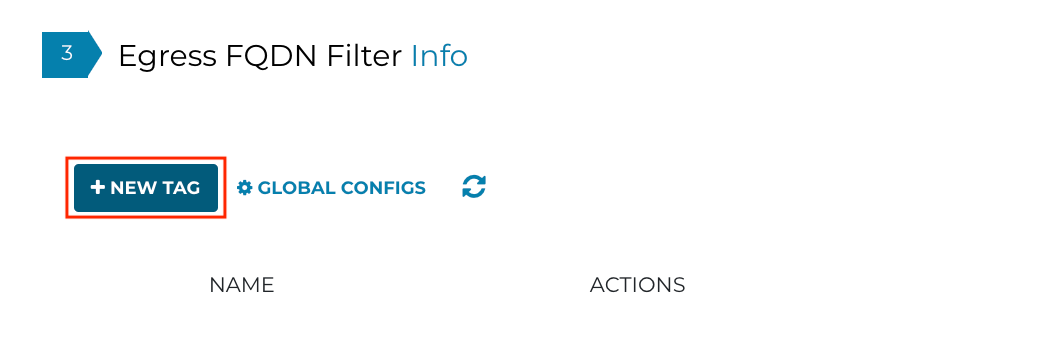
Click + New Tag
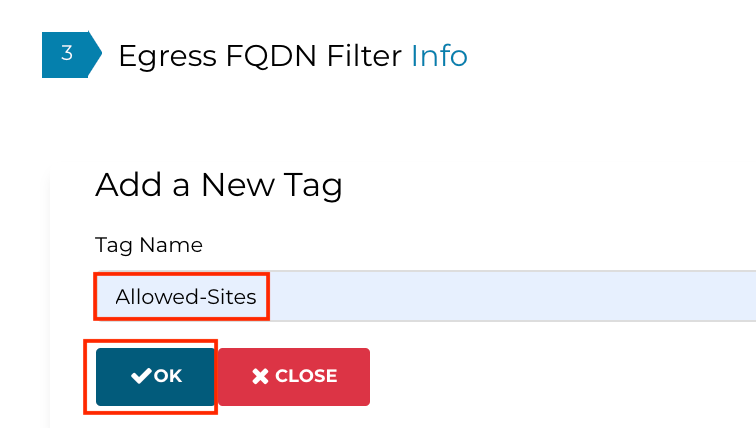
Create a new tag, Allowed-Sites and click OK as shown below:
Click on Edit:

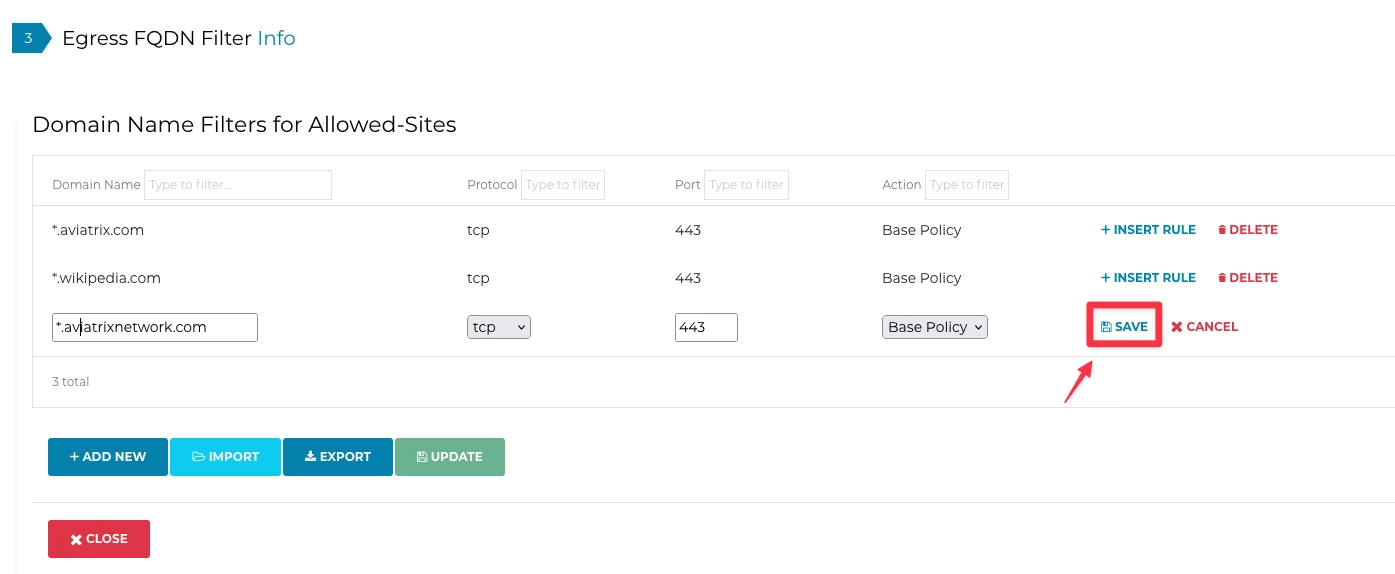
Keep the default of Allowlist and click ADD NEW to add sites to the Base Policy (which is Allow):
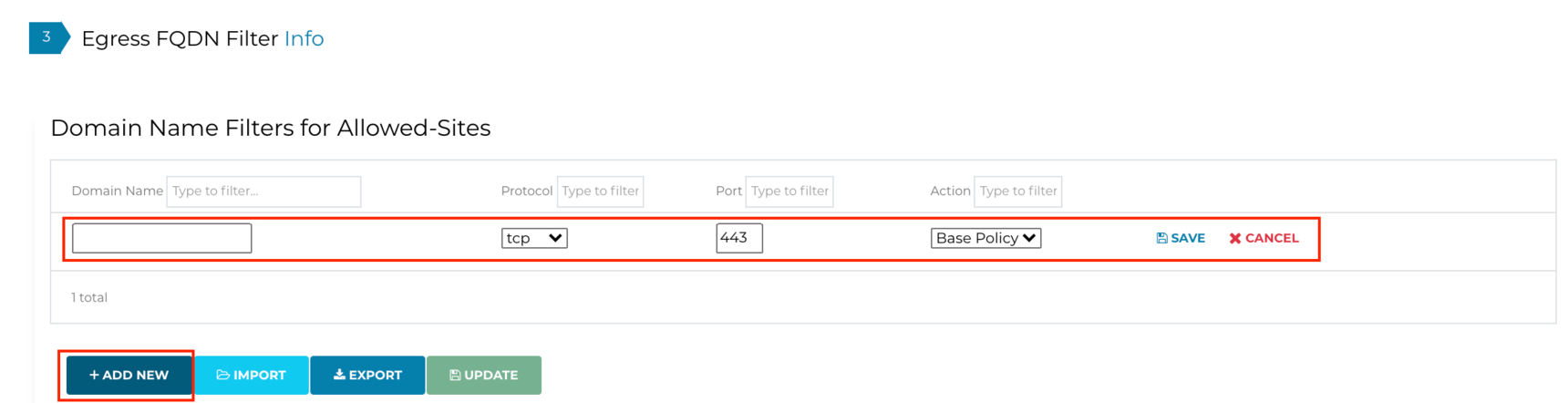
Add the following domain names:
- *.aviatrix.com
- *.wikipedia.com
- *.aviatrixnetwork.com
For all the aforementioned domains:
- Protocol = tcp
- Port = 443
- Action = Base Policy
Click Save for each rule:
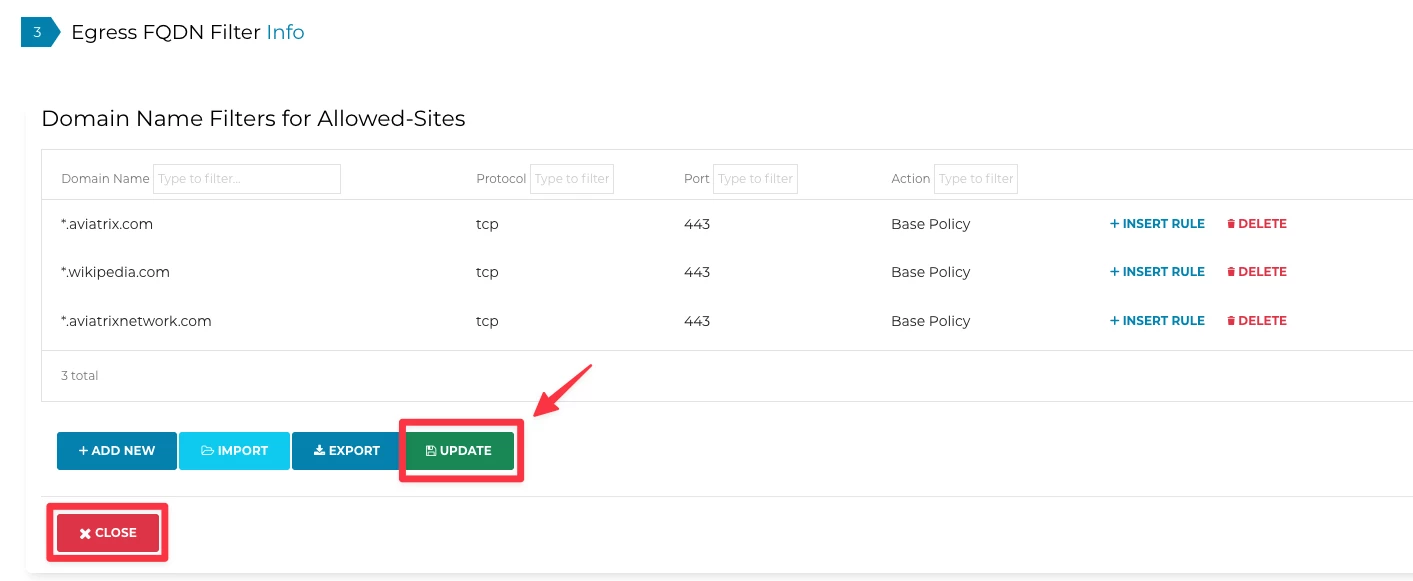
Next, click the UPDATE button and then CLOSE:
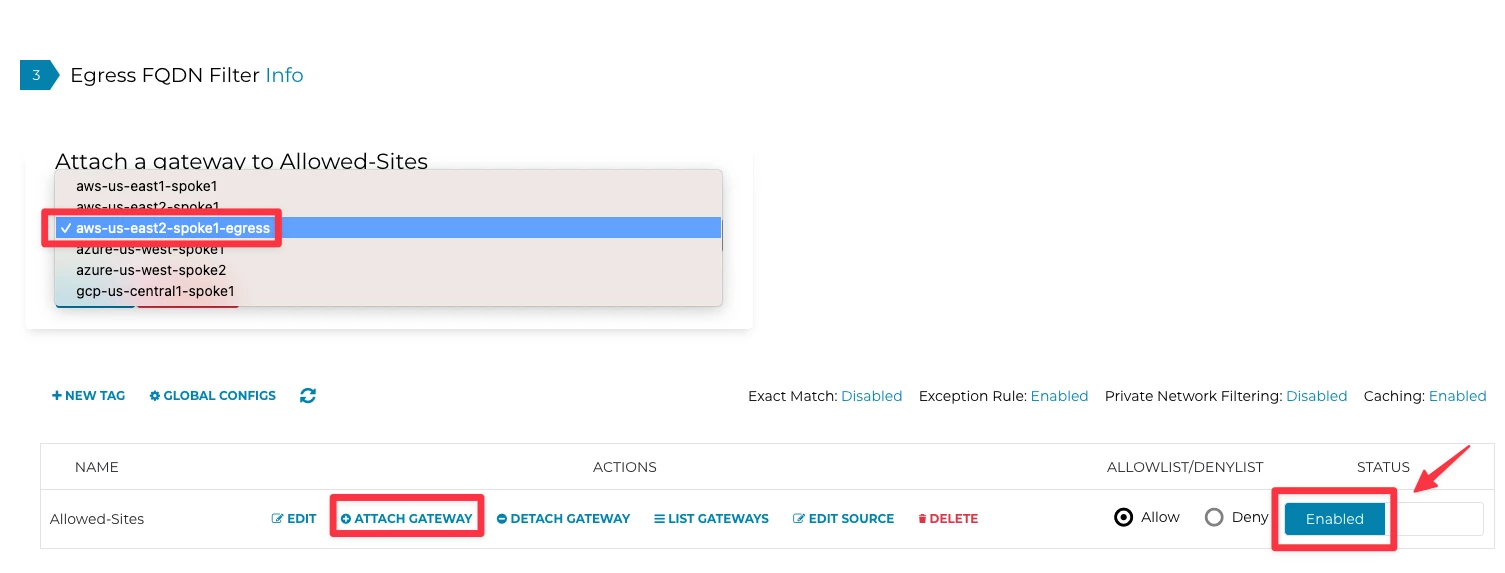
Click on Attach Gateway to attach the Egress gateway to the Tag Allowed-Sites and do not forget to switch the Status to Enabled on the far-right side
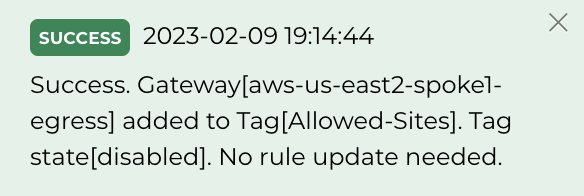
As soon as the gateway is attached, look for this success message:
NOTE: The same list can be attached to multiple Egress Gateways.
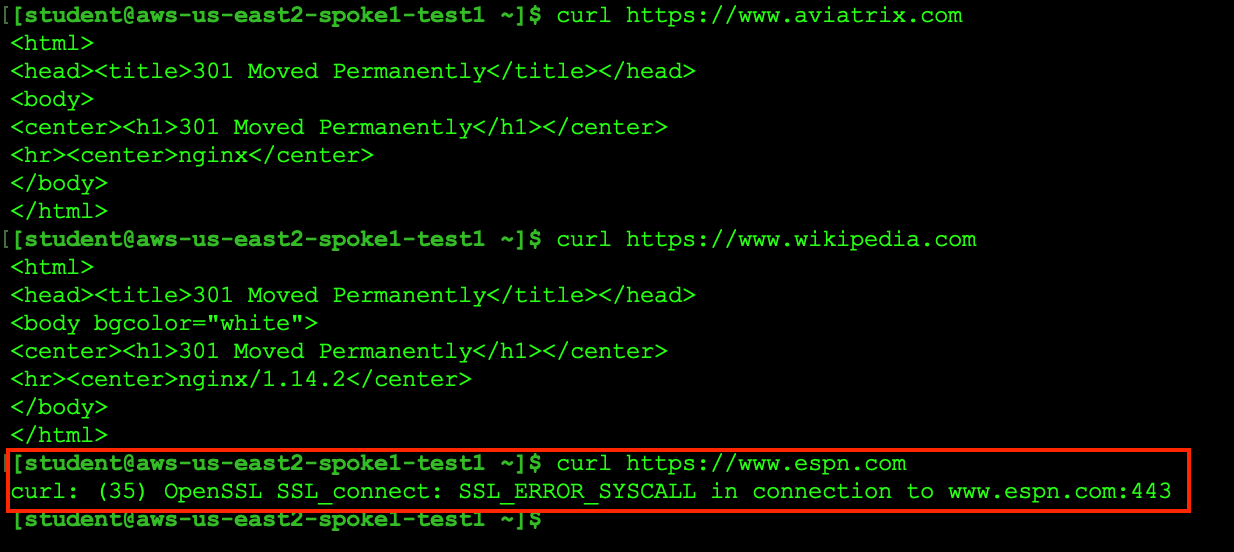
Now try to curl the same sites again. Only aviatrix.com and wikipedia.com on TCP/443 will work because of the egress policy created in this lab.
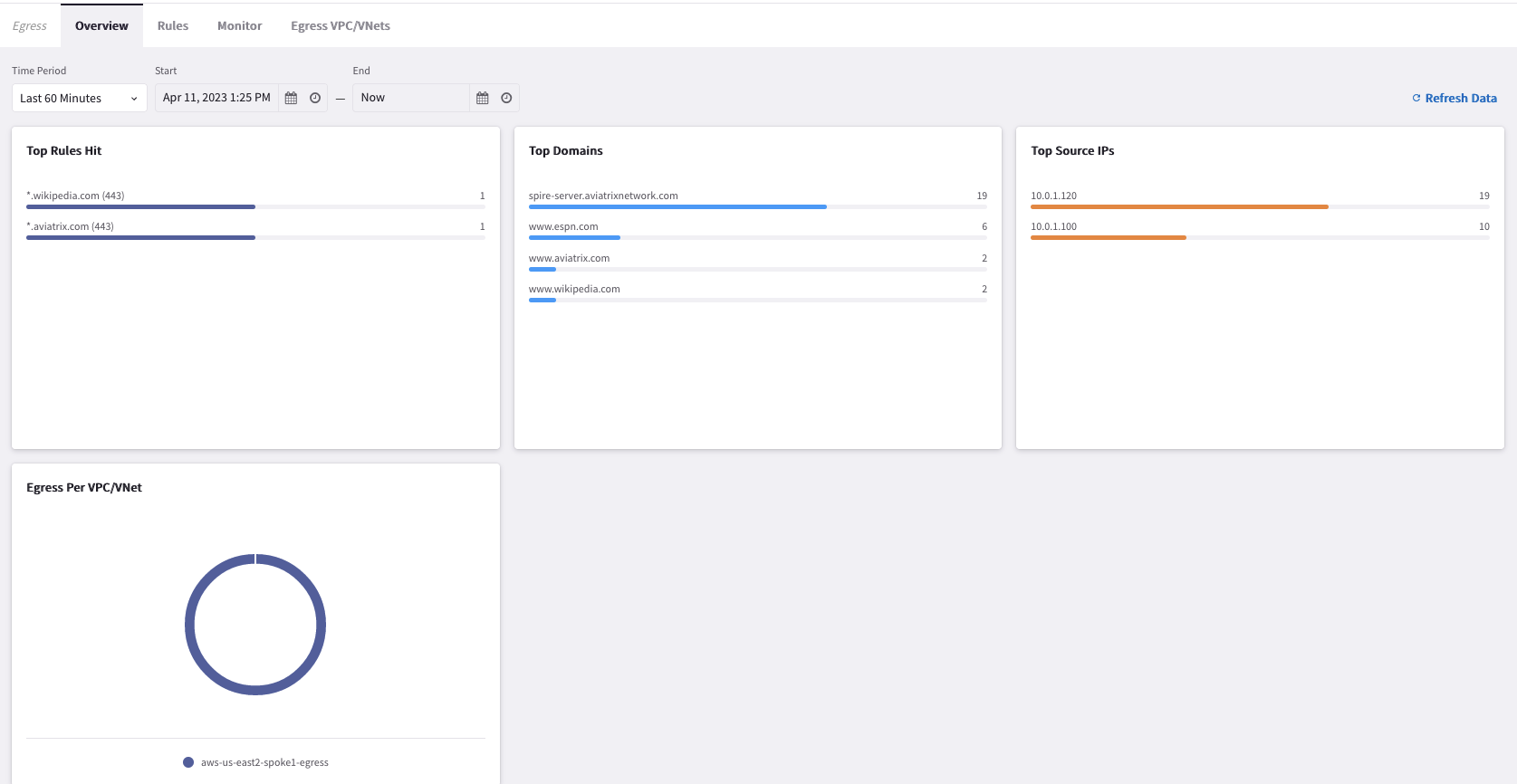
Go to CoPilot > Security > Egress > Overview (default tab) and filter by Last 60 Minutes.
You will be able to see the top hit domains.
This is how the overall lab topology would look like after the completion of lab 6: